Is your Blue Yeti microphone cutting out on Discord during conversations or gaming sessions? Your voice may sound normal one moment and suddenly disappear the next. Sometimes, Discord only captures part of your sentences, making it difficult for teammates and friends to understand you.
Blue Yeti microphones are popular USB microphones for gaming, streaming, and online communication. However, incorrect Discord settings, unstable USB connections, audio driver problems, or Windows power management can interfere with microphone performance.
If your Blue Yeti keeps cutting out on Discord, the following troubleshooting methods can help identify the cause and restore consistent voice quality.
Fix 1: Configure Blue Yeti Correctly in Discord
Discord may use the wrong microphone when multiple input devices are connected.
Open Discord.
Click User Settings.
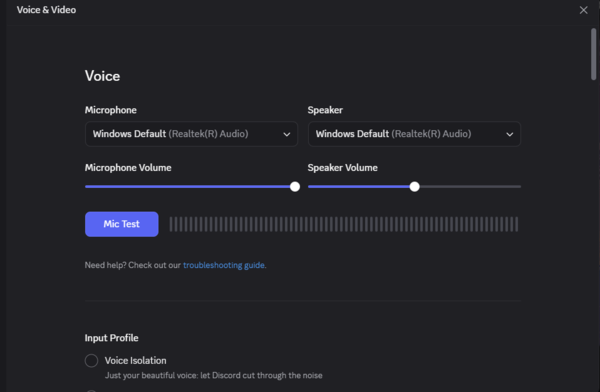
Select Voice & Video.
Locate Input Device.
Choose your Blue Yeti microphone.
Adjust the input volume if necessary.
Fix 2: Stop Discord from Cutting Off Quiet Speech
Discord uses voice detection to determine when your microphone should transmit audio.
Open Discord User Settings
Navigate to Voice & Video.
Confirm that Voice Activity is selected under Input Mode.
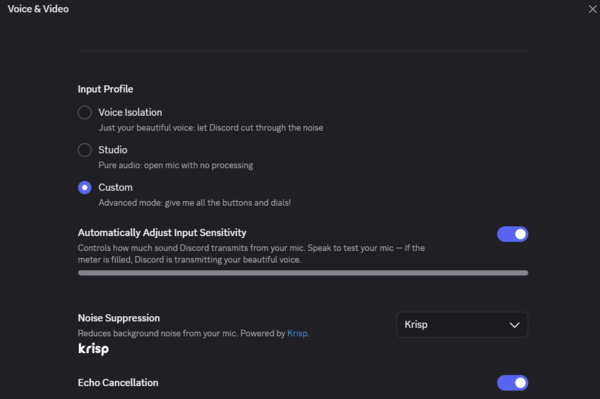
Find the automatic input sensitivity option.
Disable automatic sensitivity temporarily.
Adjust the threshold manually.
Test your microphone while speaking normally.
Fix 3: Turn Off Noise Suppression and Voice Processing
Discord includes audio processing features designed to reduce unwanted sounds.
Open Discord > User Settings > Voice & Video.
Temporarily disable the following options when available:
Noise Suppression.
Echo Cancellation.
Automatic Gain Control.
Additional voice processing features.
Test your microphone after disabling these settings.
Fix 4: Improve the Blue Yeti USB Connection
A Blue Yeti microphone depends on a stable USB connection for power and audio transmission.
Connect Blue Yeti directly to your computer.
Avoid unpowered USB hubs.
Try another compatible USB port.
Check whether the USB cable is loose or damaged.
Test another compatible USB cable if available.
Restart Discord after reconnecting the microphone.
If Windows repeatedly plays USB connection and disconnection sounds, the problem may involve the cable, port, or microphone connector.
A direct USB connection is preferable while troubleshooting.
Fix 5: Update Audio and USB Drivers
Windows relies on audio and USB drivers to communicate with connected microphones. If these drivers become corrupted or incompatible, USB microphones may experience connection interruptions, recording problems, or device detection failures. Checking the relevant drivers is useful when Blue Yeti also cuts out in Windows recording applications.
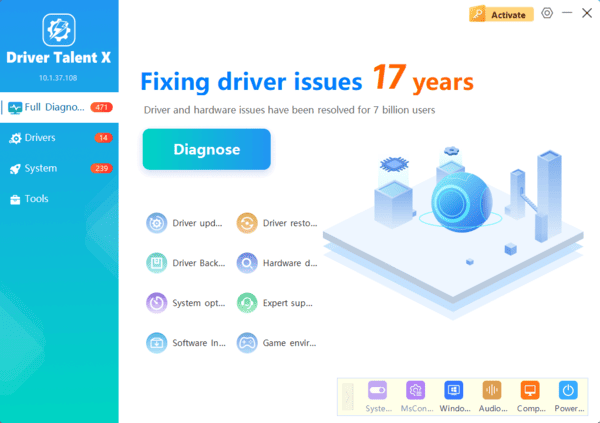
Driver Talent X is a Windows driver management utility that can identify supported missing, outdated, or problematic drivers. It provides an additional way to check audio, USB, and chipset driver issues.
Download Driver Talent X.
Install and launch the application.
Click Scan to examine your computer.
Review the detected audio and USB driver issues.
Install appropriate compatible updates if available.
Restart Windows.
After restarting, reconnect Blue Yeti and test the microphone in Discord.
Driver Talent X may help resolve supported driver problems, but it cannot repair a damaged USB cable or microphone connector.
Fix 6: Check Windows Microphone Volume and Permissions
Incorrect Windows microphone settings can make your voice too quiet or prevent applications from accessing the device.
Press Windows + I.
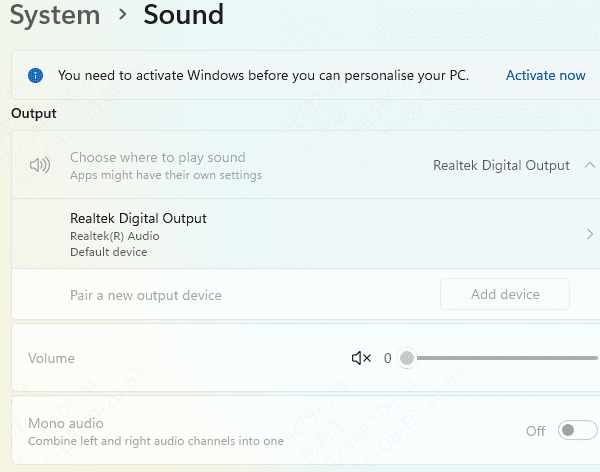
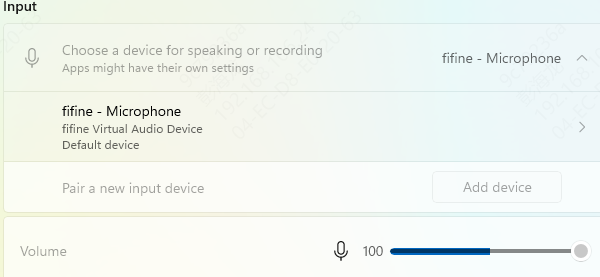
Open System > Sound.
Locate the Input section.
Select your Blue Yeti microphone.
Adjust the input volume.
Use the available microphone test.
Next, check microphone permissions.
On Windows 11, open Settings > Privacy & security > Microphone.
Make sure microphone access is enabled and desktop applications are allowed to use the microphone.
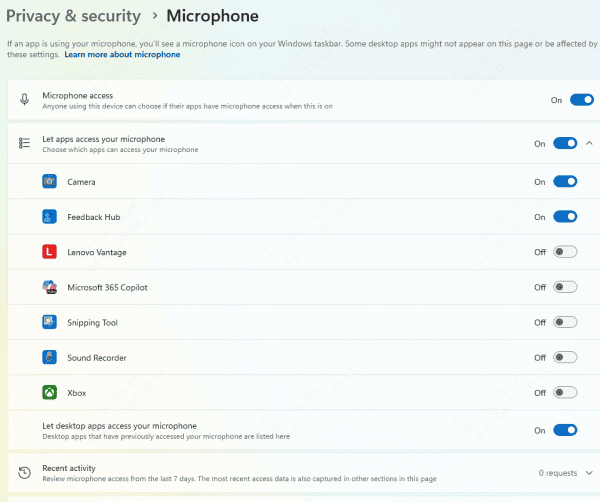
On Windows 10, these options are available under Settings > Privacy > Microphone.
Restart Discord after changing permissions.
Fix 7: Prevent Windows from Interrupting USB Power
Windows includes power management features that can reduce power consumption for certain USB devices.
Press Windows + X.
Open Device Manager.
Expand Universal Serial Bus controllers.
Open the properties of the relevant USB hub.
Select the Power Management tab if available.
Click OK.
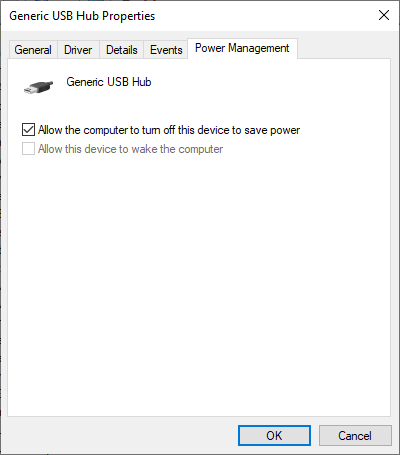
Restart Windows and test Blue Yeti again. If the change does not help, restore the original power management setting.
Fix 8: Adjust Blue Yeti Gain and Microphone Position
Blue Yeti microphones can capture detailed audio, but incorrect positioning or gain settings may affect voice clarity.
Position the microphone at a comfortable speaking distance.
Speak toward the correct side of the microphone.
Select the cardioid pickup pattern for individual voice communication, if your model supports it.
Start with moderate microphone gain.
Adjust Windows and Discord input volume gradually.
Record a short sample to evaluate the results. For traditional Blue Yeti models, the microphone is generally designed for side-address recording rather than speaking directly into the top.
Correct positioning can improve voice capture without requiring excessive gain.
Fix 9: Reset Discord Voice Settings
If your Blue Yeti works normally in other applications but continues cutting out in Discord, resetting Discord's voice configuration may help.
Follow these steps:
Open Discord.
Select User Settings.
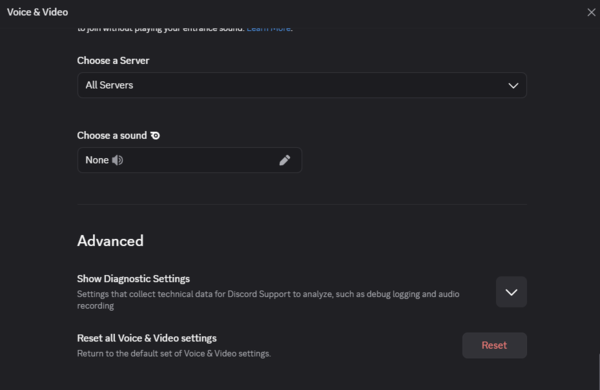
Navigate to Voice & Video
Scroll down to Reset Voice Settings.
Confirm the reset.
Select Blue Yeti as the input device again.
Test your microphone.
Following these solutions can help restore clear and consistent microphone audio during Discord conversations.