

If your Bluetooth headphones keep disconnecting, a wireless mouse refuses to pair, or the Bluetooth option suddenly disappears on your MSI computer, the Bluetooth driver may need attention. MSI laptops and motherboards can use different wireless chipsets, so installing a driver that correctly matches your model and Windows version is important for reliable connectivity. Fortunately, there are several ways to find and update the appropriate driver. This guide covers MSI Center, the MSI support website, chipset manufacturer resources, and automatic driver tools to help you update your MSI Bluetooth driver and resolve common connection problems.
Identify Your MSI Device and Bluetooth Adapter
Identify the Bluetooth Chipset:
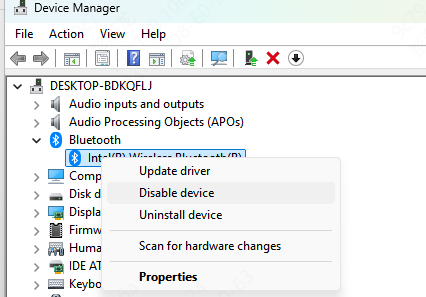
Right-click the Start button and select Device Manager
Expand Bluetooth and note the adapter (Intel, Realtek, or Qualcomm)
Record the Driver Version: Right-click the Bluetooth adapter > Properties > Driver tab. Knowing the current version helps track improvements after the update
If your Bluetooth is completely non-functional, perform these steps on a second device to download drivers via USB
Method 1: Update via MSI Center
For modern MSI systems, MSI Center offers a safe and automated method:
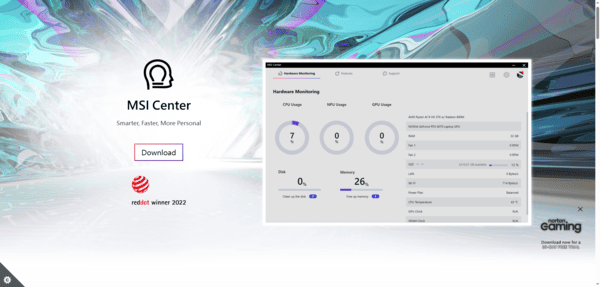
Launch MSI Center
Navigate to Support > Live Update
Click Scan to check for driver updates
Restart your device to apply the update
Method 2: Manual Update via MSI Support Website
Manual installation guarantees the driver is tested specifically for your device:
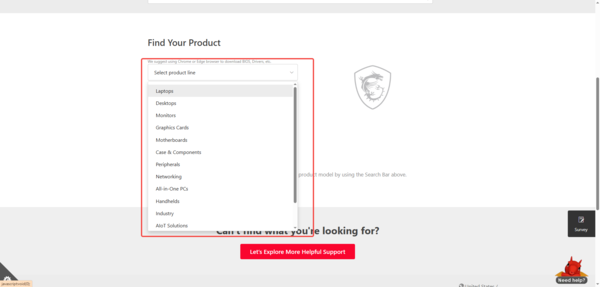
Visit the MSI Support Center
Enter your device model and select your product
Go to the Driver tab, then select your Windows version
Download the driver matching your chipset
Extract the ZIP file and run Setup.exe
Method 3: Update Directly from the Chip Manufacturer
Sometimes, MSI drivers lag behind the manufacturer's releases. Getting the driver directly from Intel, Realtek, or Qualcomm ensures you have the latest fixes:
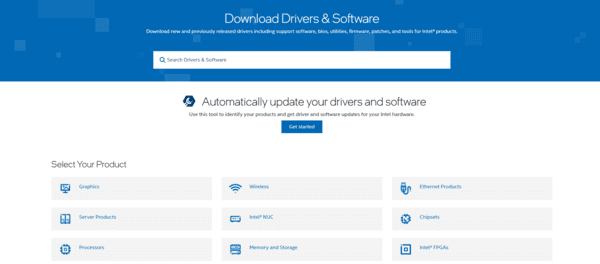
Intel Bluetooth: Use the Intel Driver & Support Assistant
Realtek/Qualcomm Bluetooth: Visit the manufacturer's site for the latest driver packages
Most Effective Method: Using Driver Talent X
For users seeking the fastest, most reliable way to update all drivers, including Bluetooth, Driver Talent X is a game-changer:
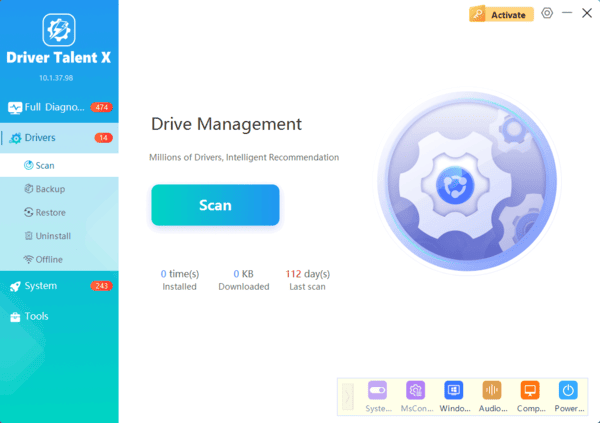
Install Driver Talent X: Download from the official website and follow the setup instructions
Scan Your System: Open the software, navigate to the Drivers tab, and click Diagnose. It detects outdated, missing, or corrupted drivers—including your Bluetooth adapter
Update Automatically: Click Full Repair for your Bluetooth driver. Driver Talent X downloads and installs the correct version automatically
Restart Your Device: After installation, reboot to ensure changes take effect
Troubleshooting Common Bluetooth Issues
Even after updating, you may face connectivity issues. Try these steps:
A. Device Not Showing in Device Manager
Enable Bluetooth in BIOS if your motherboard has an onboard adapter
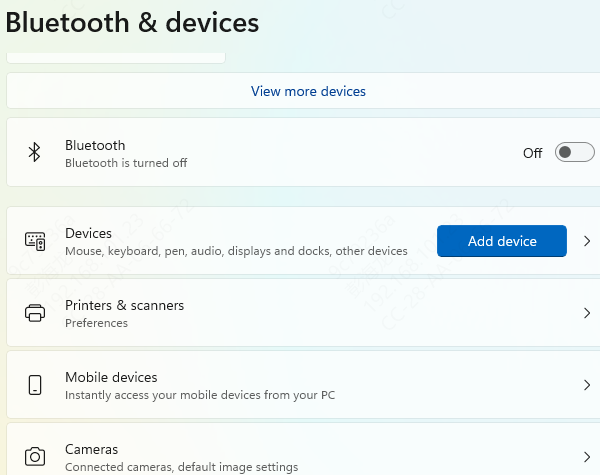
Go to Settings > Devices > Bluetooth & other devices > Add Bluetooth or other device
B. Pairing Problems
Remove the device from Windows paired devices and reconnect
Ensure the peripheral is charged and within range
C. Intermittent Disconnections
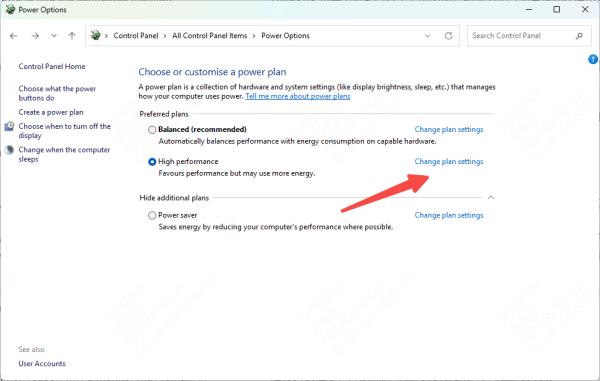
Disable power-saving mode for the Bluetooth adapter:
Device Manager > Bluetooth adapter > Properties > Power Management > uncheck "Allow the computer to turn off this device to save power"
D. Windows Troubleshooter
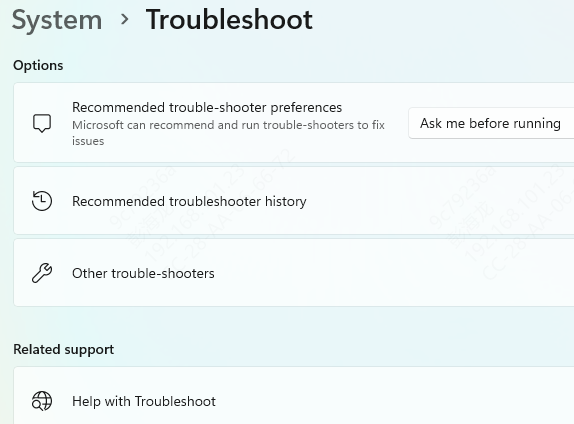
Go to Settings > Update & Security > Troubleshoot > Additional troubleshooters > Bluetooth
Run the tool to automatically detect and fix problems
Frequently Asked Questions
How can I identify the Bluetooth adapter if it is missing from Device Manager?
In Device Manager, select View → Show hidden devices, then check Bluetooth, Network adapters, and Other devices. For an unknown device, open Properties → Details → Hardware Ids to help identify its chipset. Also confirm that your MSI model actually includes Bluetooth.
Should I install the newest driver from the chipset manufacturer?
Start with the driver for your exact model on MSI's support site. A newer chipset driver may help with a specific bug, but it may not include settings tailored to your laptop or motherboard. Keep a copy of the working driver before switching.
Why did my Bluetooth device stop connecting after a driver update?
The new driver may be incompatible, or the pairing information may need to be refreshed. Restart the PC and pair the device again. If the problem began immediately after the update, use Device Manager → adapter Properties → Driver → Roll Back Driver when available.
Conclusion
Updating your MSI Bluetooth driver is essential to maintain a smooth, stable connection with wireless devices. MSI Center provides convenience, manual installation guarantees compatibility, and Driver Talent X offers a fully automated, one-click solution.
By keeping drivers up-to-date, you ensure your MSI laptop or motherboard delivers reliable Bluetooth performance, whether for gaming peripherals, wireless headphones, or productivity tools.
