

Keeping your AMD Bluetooth drivers updated is essential for smooth wireless connectivity, reliable device pairing, and optimal system performance on Windows 11. Outdated or corrupted drivers can cause frequent disconnections, unresponsive devices, and slow Bluetooth performance. This guide will walk you through how to update AMD Bluetooth drivers safely on Windows 11, offering multiple methods, troubleshooting tips, and post-installation checks to ensure your devices work flawlessly.
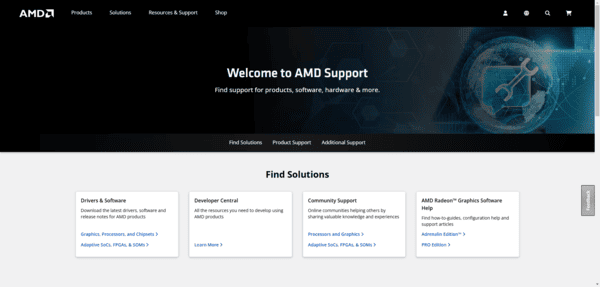
Manual Update via AMD Official Website
Updating your drivers manually ensures you download the correct, officially supported version:
Visit the AMD Support Page
Select your AMD hardware, Windows version, and Bluetooth driver
Download the latest driver installer
Run the installer and follow the prompts to complete the installation
This method guarantees you receive the latest stable release from AMD, reducing the risk of driver-related issues
Update Using Device Manager
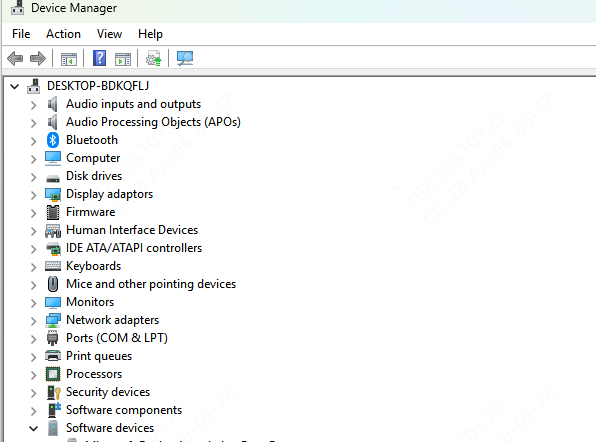
Windows allows you to update drivers directly through Device Manager:
Press Win + X and select Device Manager
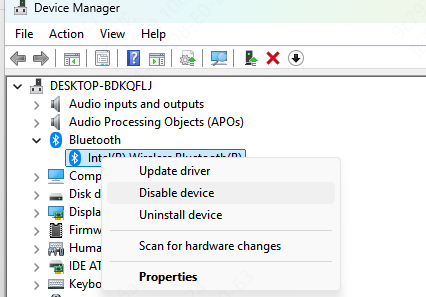
Expand the Bluetooth section and right-click your AMD device
Select Update driver → Search automatically for drivers
Follow the on-screen instructions and restart your PC
This approach is convenient for users who prefer to update drivers without downloading additional software
Update via Windows Update
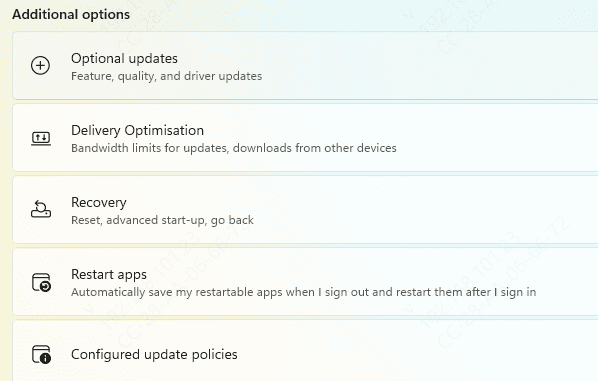
Windows Update often provides optional driver updates, including AMD Bluetooth drivers:
Press Win + I to open Settings
Navigate to Windows Update → Check for updates
Install any available updates labeled as optional or driver updates
Restart your PC to apply the updates
This method ensures your drivers are verified by Microsoft for compatibility with Windows 11
Automated Update Using Driver Talent X
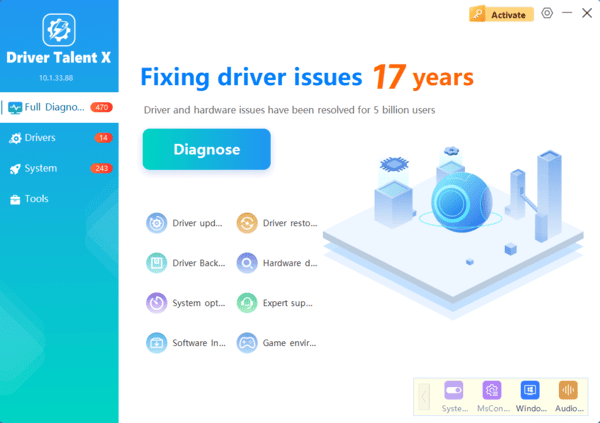
For a faster, safer, and more automated solution, you can use Driver Talent X:
Download and install Driver Talent X
Click Scan to detect outdated or corrupted AMD Bluetooth drivers
Locate the AMD Bluetooth driver in the scan results and click Update
Restart your computer to apply all changes
Using this automated tool reduces human error, saves time, and ensures your Bluetooth drivers remain optimized for all devices
Post-Installation Checks
After installation, confirm your Bluetooth drivers are functioning correctly
Open Device Manager → Bluetooth → Properties → Driver tab and verify the driver version
Test Bluetooth devices, such as headphones, mice, or controllers, for stable connections and low latency
Ensure Windows recognizes all connected Bluetooth peripherals without errors

Troubleshooting Common AMD Bluetooth Driver Issues
Even after updating, issues may arise. Here's how to troubleshoot:
Device not recognized: Reinstall the driver or perform a rollback to the previous version
Connection drops frequently: Check for interference, update Windows, or reinstall drivers
Driver fails to install: Use a clean installation method via Device Manager
Conclusion
Updating your AMD Bluetooth drivers is critical for reliable wireless connectivity, device compatibility, and overall Windows 11 performance. By following this guide, you can update AMD Bluetooth drivers safely on Windows 11 using manual methods, Windows Update, Device Manager, or automated tools like Driver Talent X. Regular updates and proper maintenance ensure stable connections, reduced latency, and long-term system reliability.
