

Keeping your Dell drivers updated is essential for ensuring your laptop or desktop delivers stable performance, better hardware compatibility, and a smoother Windows experience. Drivers allow Windows 11 to communicate properly with key components such as graphics cards, audio devices, network adapters, and other hardware. When Dell drivers become outdated, missing, or corrupted, you may encounter problems like slow performance, Wi-Fi connection issues, audio failures, device recognition errors, or system instability. In this guide, we'll show you several effective ways to check, download, and update Dell drivers on Windows 11, including official Dell tools, Windows built-in options, manual installation, and automatic driver update solutions.
Method 1: Dell SupportAssist
Dell SupportAssist is a built-in tool designed to automatically check for and update Dell drivers. This method is ideal for users who want an easy and efficient way to manage driver updates without manually searching for them.
Download and Install Dell SupportAssist: Visit Dell's official website to download Dell SupportAssist
Launch the Application: Once installed, open the program and click Start to begin the scan
Review the Results: After the scan is complete, SupportAssist will display a list of available updates for your system, including drivers
Install Updates: Select the drivers you want to update and click Install. Follow the on-screen instructions
Restart Your Dell Device: After installation, restart your device to apply the changes

Method 2: Windows Update
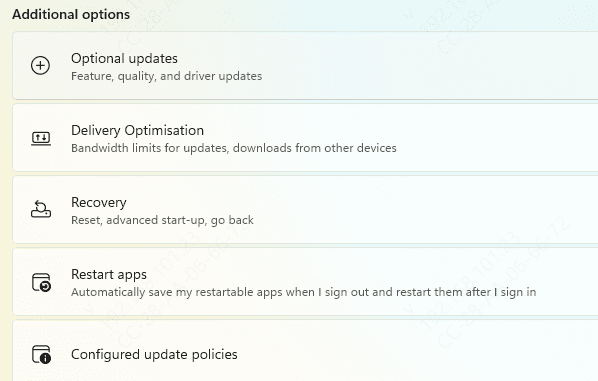
Windows 11 often includes optional driver updates through Windows Update. This is a convenient method for checking if your system requires any important driver updates.
Open Settings: Click on the Start Menu and select Settings
Navigate to Windows Update: Go to Update & Security > Windows Update
Check for Updates: Click Check for Updates to see if any optional driver updates are available for your Dell device
Install Available Updates: If Dell drivers appear, select them and install them
Restart Your Device: Once the update is complete, restart your system to ensure the changes take effect
Method 3: Dell Support Website
For more control over the drivers being installed, you can manually search for and download the latest drivers from Dell's official website.
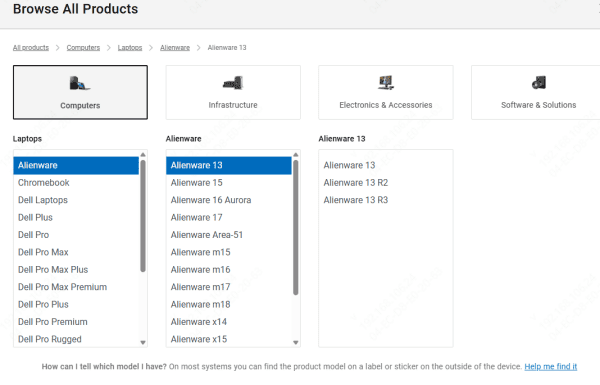
Go to Dell's Official Support Page: Visit the Dell Support website
Enter Your Service Tag: You'll be prompted to enter your Service Tag (located on the bottom or back of your device) or select your Dell product model
Select Your Windows 11 Version: Choose Windows 11 from the operating system drop-down menu
Download the Drivers: Browse the list of available drivers for your Dell device and download the ones you need, such as graphics, network, and audio drivers
Install the Drivers: Open the downloaded driver files and follow the on-screen instructions to install them
Restart Your System: After installation, restart your device to apply the updates
Method 4: Device Manager
Device Manager is a built-in Windows tool that allows users to manage and update individual hardware drivers. This method provides greater flexibility for updating specific drivers.
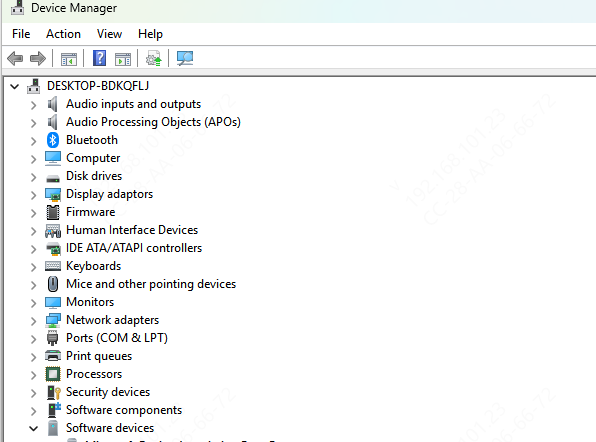
Open Device Manager: Right-click the Start Menu and select Device Manager
Locate the Device: Find the hardware component you want to update, such as Display Adapters for graphics drivers or Network Adapters for Wi-Fi drivers
Update Driver: Right-click the device and choose Update Driver
Search for Updates: Select Search automatically for updated driver software
Install the Update: If an update is found, follow the on-screen instructions to install it
Restart Your Device: After the installation, restart your system
Method 5: Driver Talent X
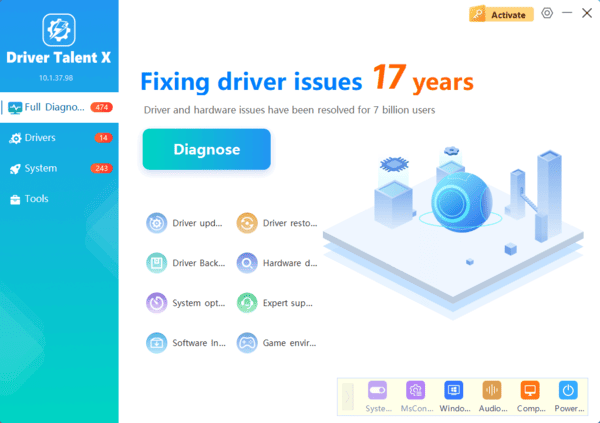
Download and Install Driver Talent X: Download Driver Talent X from the official website
Run a Scan: Open the application and click Scan. The tool will detect any outdated or missing drivers
Install the Updates: After scanning, select the drivers you want to update and click Repair Now to install the updates automatically
Restart Your System: Once the installation is complete, restart your device to apply the updates
Conclusion
Updating Dell drivers for Windows 11 is crucial to maintaining your system's optimal performance, security, and compatibility. Whether you choose to use Dell SupportAssist, Windows Update, Device Manager, or third-party tools like Driver Talent X, regularly updating drivers ensures your Dell laptop or desktop functions at its best. Stay proactive with driver updates to improve your system's efficiency, resolve issues, and enhance overall user experience.
