

If your Dell laptop or desktop shows screen flickering, low resolution, lag, black screens, or game crashes, the likely culprit is an outdated or corrupted graphics driver. Graphics drivers let Windows communicate properly with Intel, NVIDIA, or AMD GPUs, so a bad driver can cause display issues even on powerful Dell systems. The good news is that most driver-related problems can be fixed without replacing hardware. Updating the graphics driver usually restores screen stability, boosts performance, and resolves compatibility issues with Windows updates, games, and creative software. This guide covers the best ways to update Dell graphics drivers on Windows and what to do if issues persist after updating.
Why Dell Graphics Drivers Matter
A graphics driver is more than a simple support file. It controls how your Dell system handles screen output, resolution, refresh rate, video playback, 3D acceleration, and GPU-intensive tasks. Whether your Dell PC uses integrated Intel graphics, a dedicated NVIDIA GPU, AMD Radeon graphics, or a hybrid setup, the correct driver plays a major role in overall system stability.
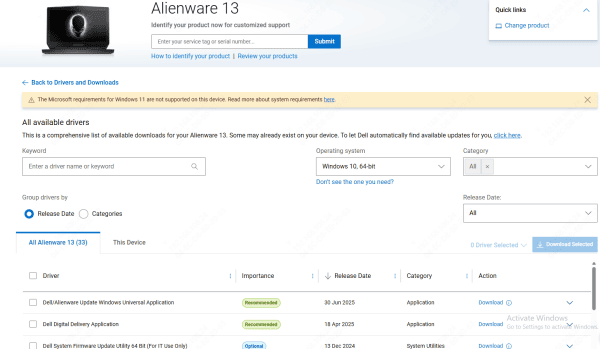
How to Update Dell Graphics Drivers from Dell Support
If you prefer to use Dell's own driver packages, that is also a reliable method. Dell often customizes graphics drivers for specific laptop and desktop models, especially on systems with switchable graphics or business-focused hardware
Start by identifying your Dell model or Service Tag. Then go to Dell's support page, choose your operating system, and look under the video or graphics section. Download the latest driver listed for your system and run the installer. Once the installation is complete, restart the PC
Update Dell Graphics Drivers Through Device Manager
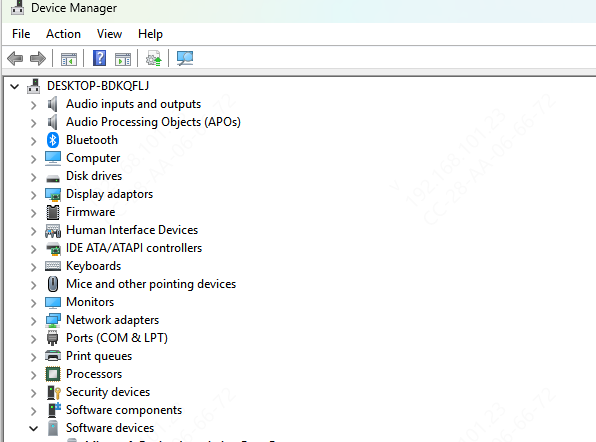
Windows Device Manager can also be used to update the graphics driver, although it is usually the least complete option. Open Device Manager, expand Display adapters, right-click the graphics device, and choose Update driver. Then select the option to search automatically.
The Fastest Way to Update Dell Graphics Drivers
For many Dell users, the easiest method is to use a driver management tool that can detect the hardware automatically and match the correct graphics driver without manual searching. This is especially useful on Dell systems with custom hardware combinations, hybrid graphics, or older laptop models where choosing the wrong driver can create new display problems.
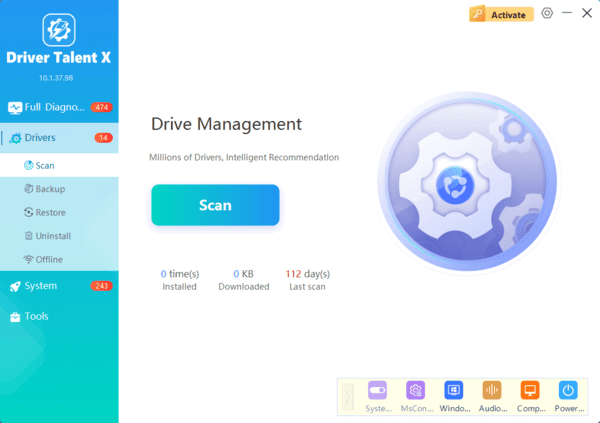
Driver Talent X is one option for this. It can scan your system, identify outdated or damaged drivers, and help update Intel, NVIDIA, AMD, and chipset-related components more efficiently. This is particularly helpful when Dell SupportAssist does not solve the issue or when manual installation keeps failing.
Mistakes to Avoid When Updating Dell Graphics Drivers
One common mistake is downloading a random graphics driver without checking whether it fits the exact Dell system. Another is installing a new driver over a broken older one again and again without doing a clean reinstall first. Some users also rely only on Device Manager and assume that if Windows says the best driver is already installed, the system must be fully up to date
You should also avoid downloading drivers from unofficial sites. That can lead to driver mismatches, failed installations, or security risks. For the safest results, use Dell's official driver packages, trusted driver management tools, or the GPU vendor's official installer when appropriate for your system
Final Thoughts
Updating the graphics driver is one of the most effective ways to improve display performance and stability on a Dell laptop or desktop. If your system is showing flickering, black screens, low resolution, poor gaming performance, or other graphics-related problems, the driver is one of the first places to look.
Once the correct graphics driver is installed and the system is restarted, many common Dell display problems disappear quickly. If they do not, a clean reinstall, Windows update, or BIOS check usually reveals the next step. In most cases, the problem is fixable, and proper driver maintenance is what keeps the system running smoothly.
