

The "Currently, this hardware device is not connected to the computer. (Code 45)" error appears when Windows can no longer detect or communicate with a connected device. It commonly affects USB devices, Bluetooth hardware, printers, scanners, and other peripherals, and may be caused by loose connections, damaged ports, missing drivers, Windows update conflicts, or hardware failure.
In this article, we'll explore the causes of the Code 45 error and provide several effective solutions to help you quickly restore device connectivity.
1. What Is the Code 45 Error?
Code 45 is a general error code in Windows Device Manager, which means:
"Currently, this hardware device is not connected to the computer".
This error appears when the operating system cannot detect a hardware device or the device has been temporarily disconnected. It commonly affects the following:
USB external devices (mouse, keyboards, external hard drives, etc.)
Bluetooth devices
Printers or scanners
Internal hardware that fails to be recognized due to system errors
2. Common Causes of the Code 45 Device Manager Error
Improperly connected hardware
Loose USB or port connection
Corrupted or missing device drivers
System updates causing device recognition issues
Hardware failure
3. How to Fix Code 45 Device Manager Error
Method 1: Reconnect the Device
This is the simplest method and works for most USB or Bluetooth devices:
Disconnect the device (e.g., unplug the USB).
Wait a few minutes, then reconnect it.
Open Device Manager to check if the device is now detected.
Method 2: Check Hardware Connections or Ports
Make sure USB devices are connected to the motherboard's native USB ports (avoid using front-panel USB or USB hubs).
Try a different USB cable or port.
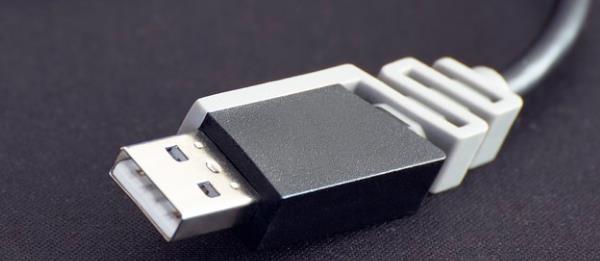
Test the device on another computer to see if it works properly.
Method 3: Run the Hardware Troubleshooter
Go to Settings > Update & Security > Troubleshoot.
Click "Additional troubleshooters".
Find "Hardware and Devices", and click "Run the troubleshooter".
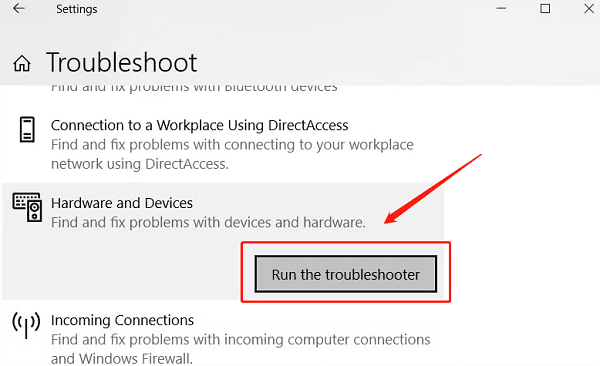
Follow the on-screen instructions to fix common issues.
Method 4: Check for Windows Updates
Click Start, then go to Settings > Update & Security.
Under "Windows Update", click "Check for updates".
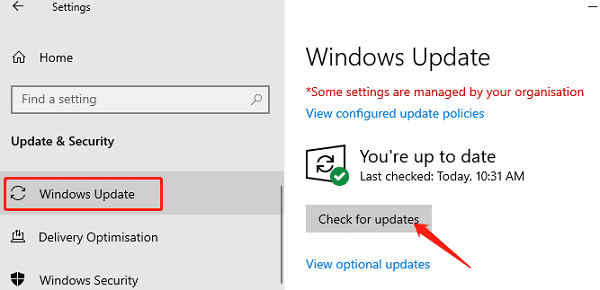
If updates are available, click "Download and install".
Restart your PC after installation to apply the updates.
Method 5: Update Device Drivers
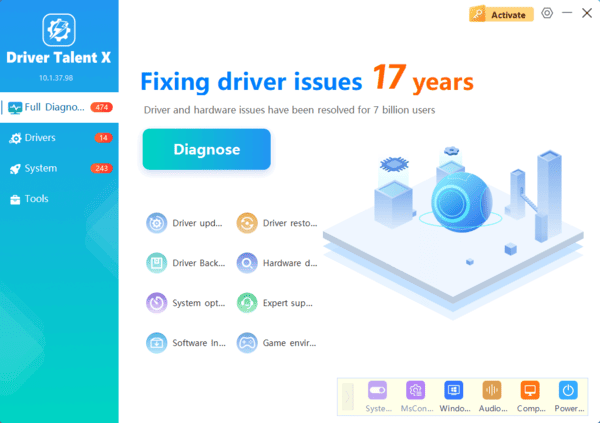
Driver issues are a major cause of hardware not being recognized. It's recommend to use Driver Talent X, which automatically detects, downloads, and installs the most compatible drivers for your hardware.
Click the Download button to get the latest version of Driver Talent X. Install and launch the software.
Under the Drivers section, click "Scan" to detect the status of all drivers.
Click "Upgrade" next to any driver that needs updating.
Restart your PC after the update to apply changes.
4. Frequently Asked Questions
Q1: Could Code 45 indicate hardware damage?
Yes. If the device is not recognized on multiple computers, it may be physically damaged.
Q2: Can I fix Code 45 through BIOS settings?
Usually not, but make sure the device's interface is not disabled in BIOS.
Q3: What if my Bluetooth device frequently shows Code 45?
This may be caused by power management settings. Try disable the power save settings in the device's properties.
Code 45 is a common but often fixable Device Manager error. In most cases, it results from a disconnected device or driver issue. By reconnecting the device, updating drivers, or running troubleshooting tools, you can quickly resolve the problem.
If these methods don't work, consider checking if the hardware itself is faulty.
