Is Death Stranding 2 constantly crashing on your PC? The game may suddenly close during exploration, freeze while loading a new area, or display a black screen during cutscenes. Some players may also encounter graphics driver errors or unexpected system restarts.
Death Stranding 2: On the Beach is a demanding PC game that relies on compatible graphics drivers, stable hardware, and properly configured rendering settings. Corrupted game files, background applications, or incompatible system components can also contribute to crashes.
Fortunately, several troubleshooting methods can help restore stability. This guide explains how to fix Death Stranding 2 crashing on Windows.
Method 1: Verify Death Stranding 2 Game Files
Corrupted or missing game files can cause startup failures, loading errors, and unexpected crashes. If Death Stranding 2 started crashing after an update, verifying the installation is particularly useful.
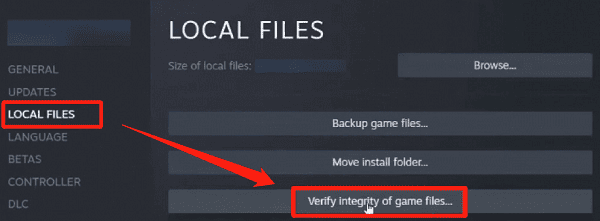
Verfy Game Files on Steam
Open Steam.
Go to Library.
Right-click Death Stranding 2: On the Beach.
Select Properties.
Open Installed Files.
Click Verify integrity of game files.
Wait for the process to finish.
Steam will check the installation and download replacement files when necessary.
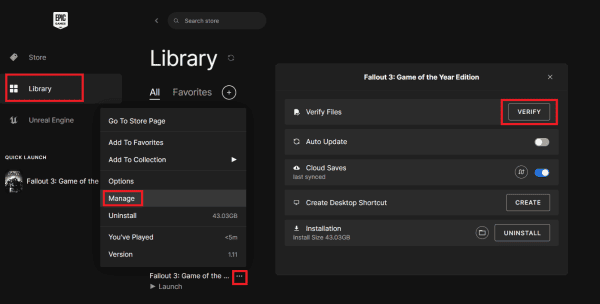
If you use the Epic Games Store, open the game's management options and use the available verification feature.
Restart the game after verification.
Method 2: Disable Frame Generation and Adjust Upscaling
Launch Death Stranding 2
Open the graphics settings.
Temporarily disable Frame Generation.
Select a supported upscaling option.
Reduce demanding graphics settings if necessary.
Method 3: Update or Reinstall Graphics Drivers
Graphics drivers play an important role in game rendering and system stability.
If your installed graphics driver is outdated, corrupted, or incompatible with the current game version, Death Stranding 2 may experience freezes, rendering errors, or unexpected crashes. Checking graphics drivers is a useful starting point, especially when other demanding games also experience problems.
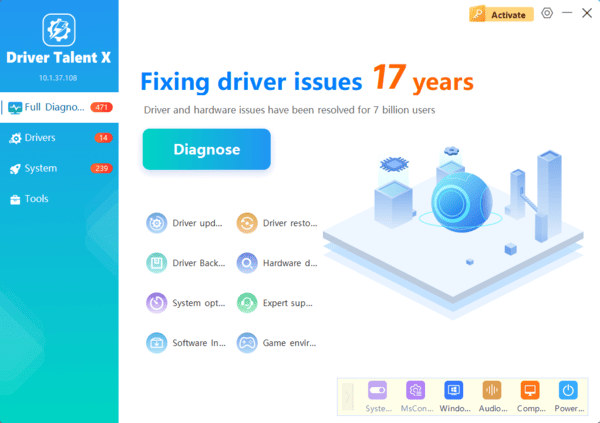
Update Graphics Drivers with Driver Talent X
Driver Talent X is a Windows driver management utility that can identify supported missing, outdated, or problematic drivers.
It provides an additional way to check graphics driver compatibility and other relevant driver issues.
Download Driver Talent X.
Install and launch the application.
Click Scan to examine your computer.
Review the detected graphics driver issues.
Install an appropriate compatible update if available.
Restart Windows.
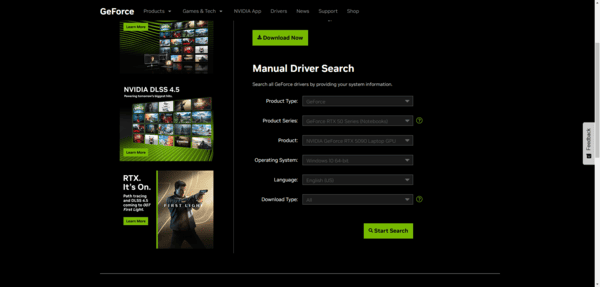
Install Graphics Drivers Manually
You can also download drivers directly from NVIDIA, AMD, or Intel.
Identify your graphics card model and select the appropriate driver for your Windows version.
Method 4: Lower Graphics Settings and Limit FPS
Lower texture quality if video memory is limited.
Reduce demanding shadow and lighting effects.
Lower rendering resolution when necessary.
Temporarily disable optional ray tracing effects.
Set a stable frame rate limit.
Reduce unnecessary background GPU usage.
Apply one or two changes at a time.
Method 5: Disable Overlays and Background Applications
Open Steam.
Right-click Death Stranding 2.
Select Properties.
Open General.
Disable Enable the Steam Overlay while in-game.
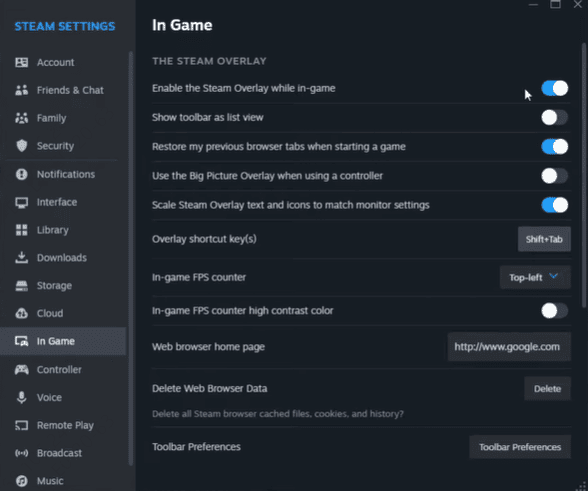
You can also temporarily disable Discord and graphics card recording overlays.
Method 6: Update Windows and Repair System Files
Damaged Windows system components can sometimes affect game stability. If Death Stranding 2 crashes alongside other applications, checking Windows updates and system files may help.
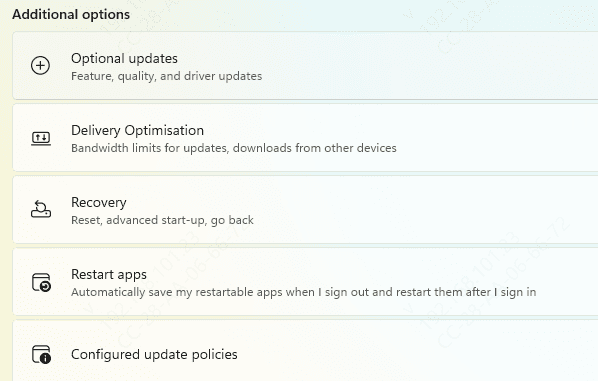
Install Windows Updates
Press Windows + I.
Open Windows Update
Click Check for updates.
Install applicable updates.
Restart Windows.
Run DISM and SFC
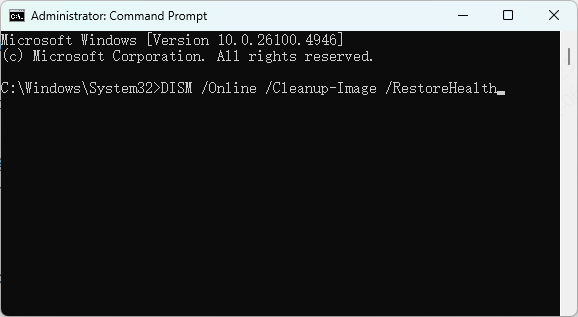
Open Command Prompt as an administrator.
Enter:
DISM /Online /Cleanup-Image /RestoreHealth
Wait for the process to finish.
Then run:
sfc /scannow
Restart Windows after the scan completes.
How to Prevent Death Stranding 2 Crashing Again
Keep Death Stranding 2 updated through Steam or the Epic Games Store.
Use compatible graphics drivers and review developer patch notes.
Avoid unstable overclocking or undervolting configurations
Choose graphics settings appropriate for your hardware.
Monitor CPU and GPU temperatures during demanding gameplay.
Close unnecessary background applications and maintain sufficient available storage space.
Regularly back up important save data to protect your progress.
Conclusion
Death Stranding 2 constant crashing may result from incompatible graphics drivers, corrupted game files, demanding graphics settings, or hardware instability.
Start by updating compatible drivers, verifying game files, and testing without frame generation. If crashes continue, review background applications, Windows system files, and hardware stability. Following these methods can help identify the cause and improve Death Stranding 2 stability on your Windows PC.