

The Dell Inspiron 15 5000 series is a popular mid-range laptop lineup designed for everyday productivity, home office work, and light entertainment. It balances performance, portability, and affordability, making it a common choice for students and professionals.
This guide provides a clear review of its specifications and performance, followed by a detailed setup and optimization guide. To ensure the best experience, driver updates using Driver Talent X are placed at first, as outdated or missing drivers are the most common cause of performance and stability issues.
Dell Inspiron 15 5000 Specifications Overview
The Inspiron 15 5000 series comes in multiple configurations, but most models share similar core hardware options. Common specifications include:
Intel Core i5 or i7 processors (11th to 13th generation, depending on model year)
AMD Ryzen 5 or Ryzen 7 options on select models
Integrated Intel Iris Xe or AMD Radeon graphics
8 GB or 16 GB DDR4 RAM
256 GB or 512 GB SSD storage
15.6-inch Full HD display
Windows 10 or Windows 11 preinstalled

These specs make the Inspiron 15 5000 suitable for office applications, web browsing, video streaming, and light content creation.
Real-World Performance Review
Everyday Productivity: The Dell Inspiron 15 5000 handles multitasking smoothly after driver updates. Applications such as Microsoft Office, browsers with multiple tabs, and video conferencing tools run without noticeable lag.
Multimedia and Streaming: Full HD video playback is smooth, and audio quality improves significantly once the correct Realtek audio driver is installed. Integrated graphics are sufficient for streaming and casual photo editing.
Gaming and Graphics: This laptop is not designed for heavy gaming. However, light games and older titles run acceptably at low to medium settings. Keeping graphics drivers updated is essential to avoid crashes or frame drops.
Battery Life: Battery performance varies by configuration, but optimized drivers can noticeably extend battery life. Power management drivers play a key role in reducing background power drain.
Proper Setup Guide for Dell Inspiron 15 5000
Step 1: Complete Windows Updates
Open Settings > Update & Security > Windows Update.
Click "Check for updates", install all available updates.
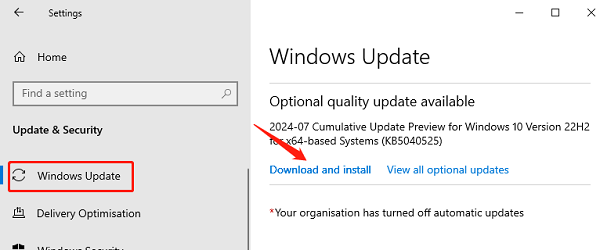
Restart the system if prompted.
Step 2: Optimize Power Settings
Go to Control Panel > Power Options.
Select Balanced for daily use.
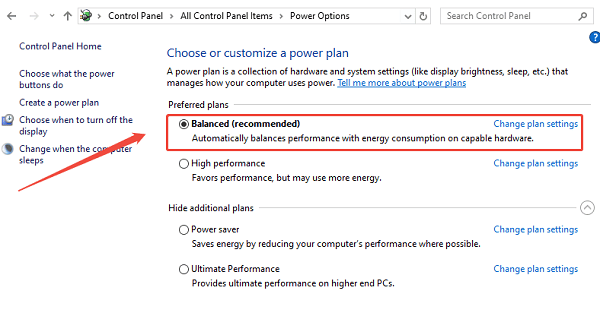
Use Best performance only when plugged in.
Step 3: Adjust Startup Programs
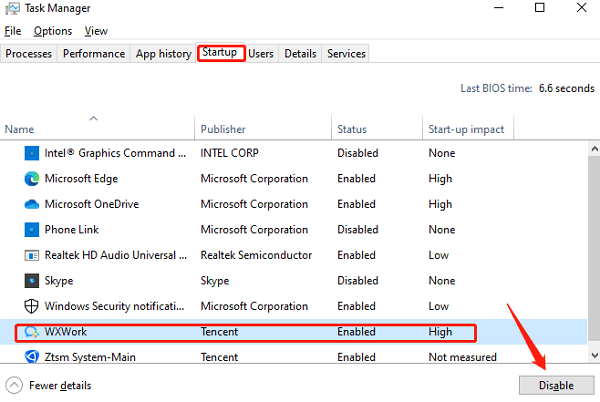
Press Ctrl + Shift + Esc to open Task Manager.
Go to the "Startup" tab, disable unnecessary startup applications.
Step 4: Update BIOS (If Needed)
Only update BIOS if you experience stability issues or compatibility problems.
Use Dell's official support page and follow instructions carefully.
Common Issues and Additional Fixes
Laptop Running Slow:
Update all drivers using Driver Talent X.
Check available storage space and free up disk space.
Increase RAM if your model supports upgrades.
WiFi or Bluetooth Not Working:
Reinstall network drivers.
Reset network settings in Windows.
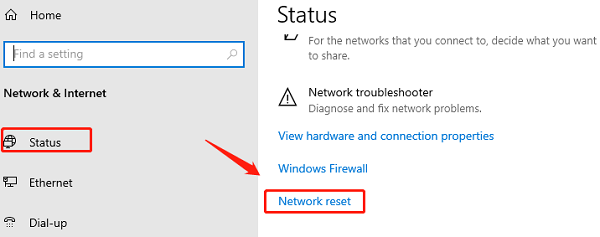
Disable and re-enable the network adapter in Device Manager.
Overheating or Loud Fan Noise:
Clean air vents and fans.
Update chipset and thermal management drivers.
Avoid blocking ventilation during use.
Display Issues:
Update graphics drivers.
Adjust screen resolution to native settings.
Disable unnecessary visual effects in Windows.
Update Dell Drivers

Download and Install:
Click the "Download" button to download the software package.
Run the installer and follow the on-screen instructions to complete installation.
Run Scan:
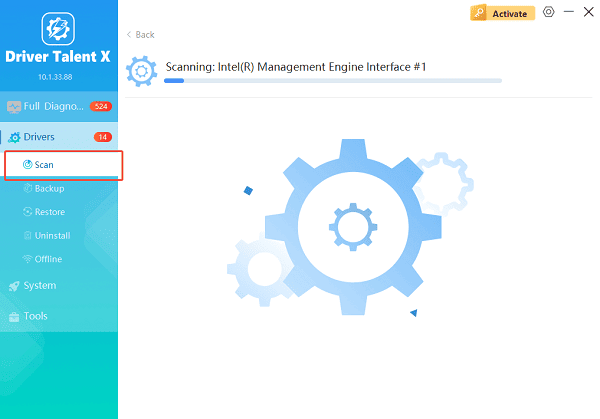
Open the program from the desktop shortcut or Start menu, go to "Drivers" > "Scan", click "Scan".
Driver Talent X will detect outdated, missing, or corrupted drivers, including graphics, chipset, display, and BIOS-related drivers.
Update All Drivers:
Locate essential drivers such as graphics, chipset, WiFi, Bluetooth, audio, and touchpad. Click the "Repair Now" button.
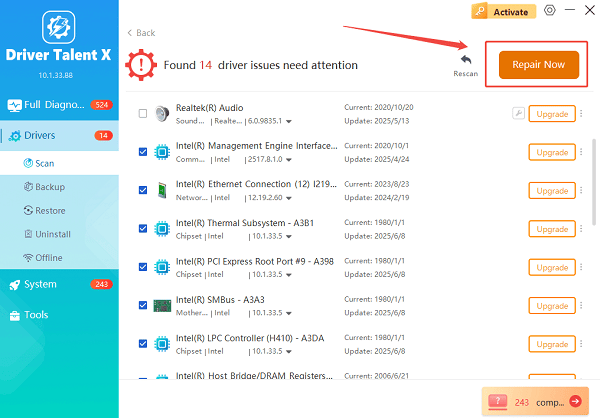
Driver Talent X will download the latest, certified drivers specific to your Dell laptop.
Restart Your Laptop:
Wait until the installation finishes without interruption.
Restart your laptop to apply all changes properly.
Updating drivers first ensures accurate performance evaluation and prevents common issues such as screen flickering, WiFi drops, slow boot times, and overheating.
Is the Dell Inspiron 15 5000 Worth It?
The Dell Inspiron 15 5000 series delivers solid performance for its price range, especially when properly set up and maintained. Its true potential is unlocked after updating all system drivers, optimizing Windows settings, and keeping the system clean and organized. While it is not a gaming powerhouse, it excels in everyday tasks and remains a reliable choice for most users.
Final Thoughts
A smooth experience on the Dell Inspiron 15 5000 depends heavily on correct driver installation and system optimization. Starting with Driver Talent X to update all drivers ensures stability, better performance, and fewer system issues. Combined with proper setup steps and routine maintenance, this laptop can deliver consistent and reliable performance for years of daily use.
