

The Dell Latitude 5550 is a reliable business laptop built for productivity, portability, and everyday computing tasks. However, like any Windows device, it may occasionally encounter driver-related problems that affect system performance and hardware functionality. In this guide, we'll provide fast, safe, and effective solutions to fix Dell Latitude 5550 driver errors, helping users of all experience levels restore their laptop's performance and keep their system running smoothly.
Windows Update Driver Fix
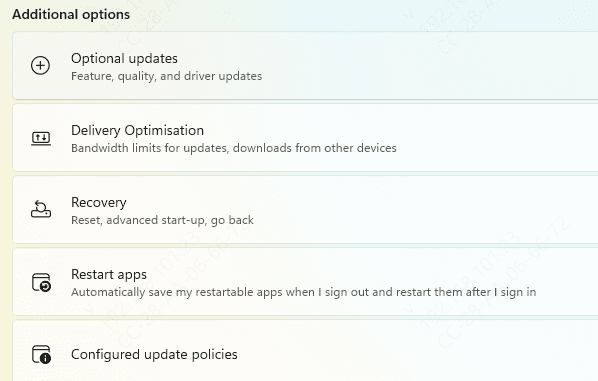
Press Windows + I → go to Update & Security → Windows Update
Click Check for Updates
Open Optional Updates → look for available driver updates
This may include graphics, network, audio, and chipset drivers
Download and install the recommended updates
Restart your laptop to apply changes
Tips
Optional driver updates may not install automatically; always check manually if you notice issues
Windows Update ensures that drivers are tested and stable for your system
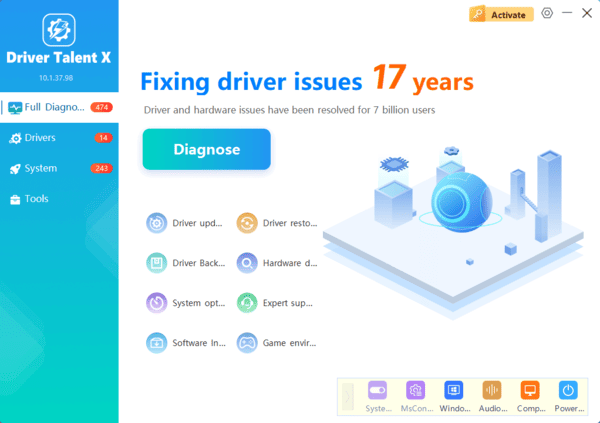
Repair with Driver Talent X
For a fast, hassle-free solution, Driver Talent X is highly recommended.
How to Use Driver Talent X
Download and install Driver Talent X from the official website
Click Scan to detect driver issues
Click Repair/Update All or select specific dell drivers
Restart your laptop to apply changes
Dell SupportAssist Repair
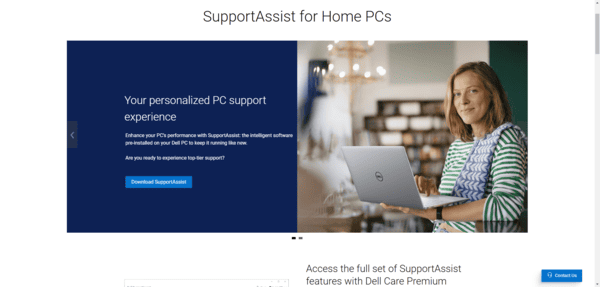
Open Dell SupportAssist → go to Drivers & Downloads
Click Scan for Updates
Review the detected drivers → click Update All
Restart the laptop to apply updates
Windows Update Driver Fix
Press Windows + I → Update & Security → Windows Update
Click Check for Updates
Open Optional Updates and look for driver updates
Download and install recommended updates → restart
Manual Driver Repair Solutions
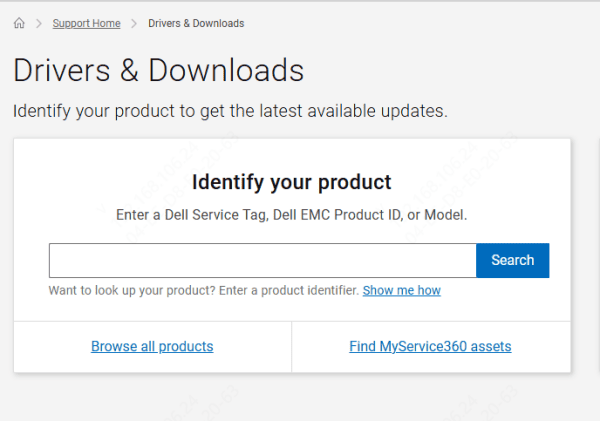
Visit Dell Drivers & Downloads
Enter Latitude 5550 → select your operating system
Download necessary drivers: chipset, graphics, audio, network, BIOS
Install each driver step by step following on-screen prompts
Restart your laptop after completing all installations
Device Manager Method
Open Device Manager → locate the problem device
Right-click → Uninstall device → confirm
Reinstall the latest driver from Dell's website or using Windows automatic search
Restart your laptop
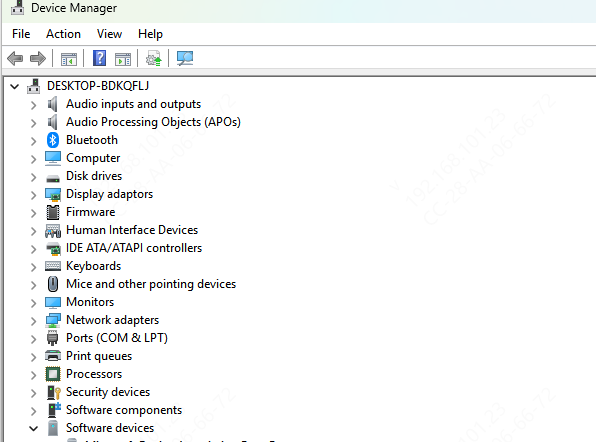
This method is ideal for troubleshooting specific drivers or reinstalling corrupted ones.
Advanced Troubleshooting Tips
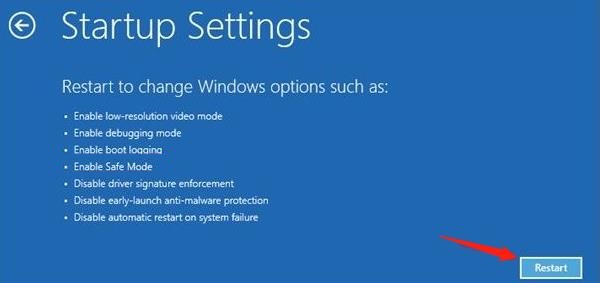
Safe Mode Installation – boot into Safe Mode to install drivers when normal installation fails
Driver Rollback – Device Manager → Driver tab → Roll Back Driver to restore the previous stable version
Clear Old Drivers – uninstall outdated or conflicting drivers before reinstalling
BIOS and Firmware Checks – ensure the system recognizes all hardware components correctly
Resolve Driver Conflicts – particularly between chipset vs graphics or audio vs peripherals
Conclusion
Driver errors on the Dell Latitude 5550 can cause crashes, device malfunctions, and performance issues, but they are easily fixable. By combining automatic tools, manual updates, and professional software like Driver Talent X, you can resolve problems quickly and safely. Routine maintenance, preventive steps, and one-click solutions ensure that your Dell Latitude 5550 remains stable, fast, and fully functional, even for non-technical users. With these strategies, fixing driver errors has never been easier.
