

Keeping your system's drivers up to date is essential for ensuring that your computer performs optimally and remains stable. Dell provides a straightforward way to download the necessary drivers, whether you're troubleshooting issues or performing a fresh installation. This guide will walk you through the process of downloading Dell drivers, with multiple methods depending on your needs.
Method 1: Download Dell Drivers from Dell Support Website
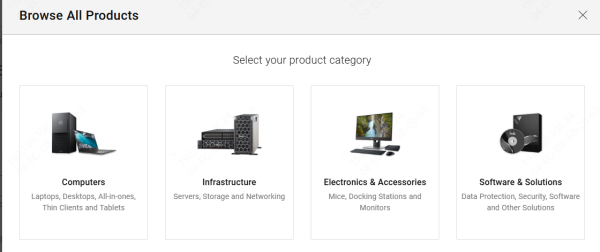
Visit Dell Support: Open your web browser and go to the Dell Support website
Enter Your Dell System's Service Tag
Every Dell computer has a unique Service Tag or Express Service Code. You can find this on a label on your device. Enter the Service Tag in the search bar, or you can use Dell's "Detect My Product" tool to automatically find your model
Select Your Operating System: Choose your operating system (e.g., Windows 10, Windows 11, etc.) from the dropdown menu to ensure you download the correct drivers for your version
Browse Driver Categories: After selecting your operating system, you'll see a list of available drivers. The drivers will be grouped into categories such as:, Audio, Video, Network, or Chipset
Install the Driver: After downloading the driver, locate the file in your Downloads folder. Double-click the file to launch the installation wizard and follow the on-screen instructions to complete the installation process
Method 2: Use Driver Talent X for Automatic Driver Downloads
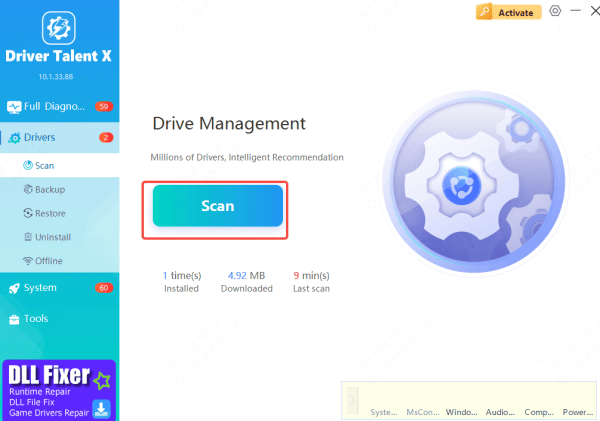
While manually downloading and updating drivers from Dell's website is effective, it can sometimes be time-consuming and requires checking multiple sources for different device drivers. Driver Talent X is an all-in-one solution that can automate and simplify the process for you.
Automatically Scan for Outdated Drivers: This software scans your system to identify outdated, missing, or corrupt drivers. It simplifies the process by eliminating the need to manually search for the latest drivers
Download and Install Drivers in One Click: Once the scan is complete, you can easily download and install the necessary updates with just one click, saving you time and effort
Using Driver Talent X makes managing your system drivers much more convenient and hassle-free, ensuring your system always has the latest drivers for optimal performance. You can download and start using it today for a streamlined driver management experience
Method 3: Use Dell SupportAssist
Dell SupportAssist is a software tool that automatically detects outdated drivers and offers to update them. This method is ideal for users who want a hassle-free, automated solution.
Download Dell SupportAssist: Visit the Dell SupportAssist page to download the program for your system
Install the Software: Open the downloaded file and follow the prompts to install SupportAssist on your computer
Run SupportAssist: Once installed, launch Dell SupportAssist. The tool will automatically scan your system for outdated drivers
Update Drivers: If any outdated drivers are found, SupportAssist will present a list and allow you to update them

Method 4: Use Windows Device Manager
If you only need to update specific drivers, you can use Windows Device Manager. Here's how:
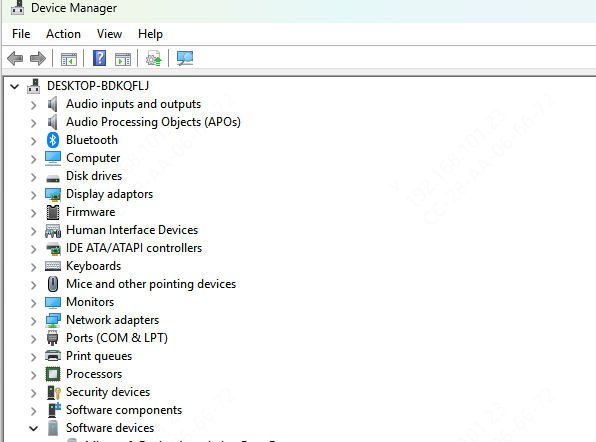
Open Device Manager: Right-click the Start button and select Device Manager from the menu
Find the Driver Category; Expand the appropriate category (e.g., Display Adapters for graphics drivers, Network Adapters for Wi-Fi drivers)
Update Driver: Right-click the device you want to update and select Update Driver. You'll be prompted with two options:
Search automatically for updated driver software – Windows will look for the latest drivers on the internet
Conclusion
Downloading and updating drivers is essential for ensuring your Dell computer runs smoothly and efficiently. Whether you choose to download drivers manually from Dell's support website, use Dell SupportAssist for automatic updates, or update individual drivers through Device Manager, keeping your drivers up to date will help you avoid hardware issues and enhance your system's performance. Regularly check for new updates to make sure your system remains in top condition.
