

Keeping drivers up to date is a crucial aspect of maintaining the performance, security, and stability of any computer, including the Dell Latitude 5420. Drivers are essential software components that enable the operating system to communicate with the hardware on a laptop, such as the graphics card, audio system, network adapters, and more. Regularly updating these drivers ensures the best performance, resolves compatibility issues, and protects against security vulnerabilities. This comprehensive guide walks through various methods to update drivers on a Dell Latitude 5420, helping users keep their device running at its optimal capacity.
Why Updating Drivers on Dell Latitude 5420 Is Important
Enhanced Performance: Driver updates often come with optimizations and bug fixes, leading to smoother system performance
Security Fixes: Keeping drivers updated ensures the laptop remains protected against security vulnerabilities
Compatibility: Updated drivers ensure your Dell Latitude 5420 works with the latest software, peripherals, and devices
New Features: Updated drivers may unlock new functionality, offering more capabilities for your hardware
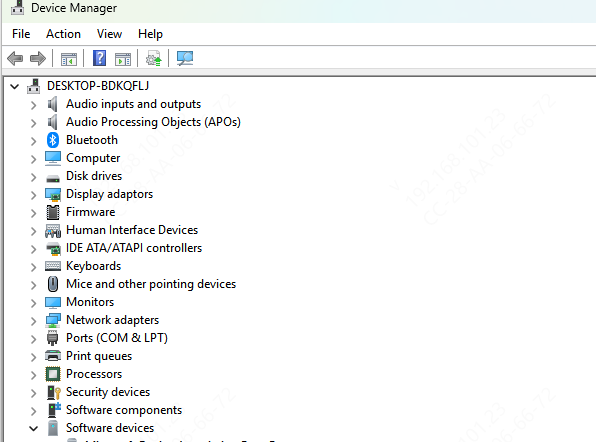
Updating Drivers Using Windows Device Manager
Open Device Manager: Right-click on the Start button and select Device Manager
Select Device Category: Expand the device category you wish to update (e.g., Display Adapters, Network Adapters, Sound, Video and Game Controllers)
Update Driver: Right-click on the device and select Update Driver
Search Automatically: Choose "Search automatically for updated driver software." Windows will search online for any updates
Install Updates: If an update is found, follow the prompts to install it
Restart: After the update is complete, restart the laptop to finalize the installation
Downloading Drivers from Dell's Official Website
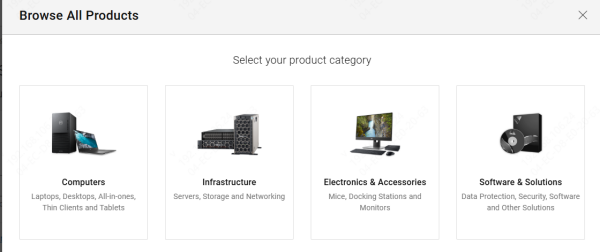
For users who want to manually download and install drivers, the official Dell Support website offers an easy way to locate and download the required drivers.
Visit Dell Support: Go to the official Dell Support Website
Search for Your Laptop: Enter the Dell Latitude 5420 model or service tag number
Select Drivers & Downloads: Navigate to the Drivers & Downloads section of your product page
Select Operating System: Choose the operating system (Windows 10 or Windows 11)
Download the Drivers: Locate the drivers you need (e.g., graphics drivers, Wi-Fi drivers, audio drivers) and click Download
Install the Drivers: After downloading, run the installer and follow the on-screen instructions
Restart: Once installation is complete, restart the laptop
Using Driver Talent X for Automatic Driver Updates
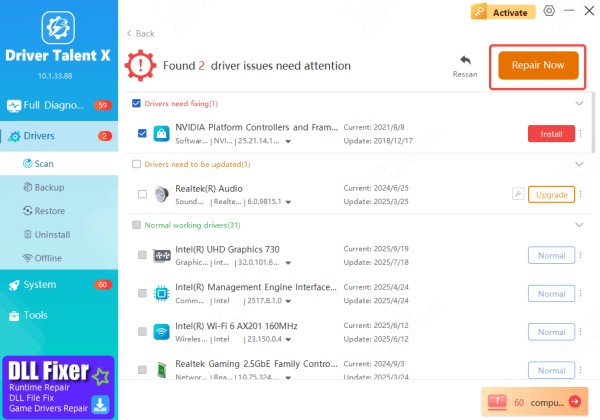
For those who prefer a more automated solution, Driver Talent X is a great tool that can scan and install the latest drivers for the Dell Latitude 5420. This software helps users avoid manual updates and ensures they are always using the most compatible drivers.
Download Driver Talent X: Visit the official website and download the Driver Talent X installer
Install the Software: Run the setup file and follow the on-screen instructions to install the software
Run a Scan: Launch Driver Talent X, go to the Drivers section, and click Scan
The software will scan your system for outdated drivers
Update Drivers: Once the scan is complete, the software will display a list of drivers that need updating. Select the drivers you want to update and click Repair Now or Update
Restart the Laptop: After the update is complete, restart your Dell Latitude 5420 to apply the changes
Using Dell SupportAssist
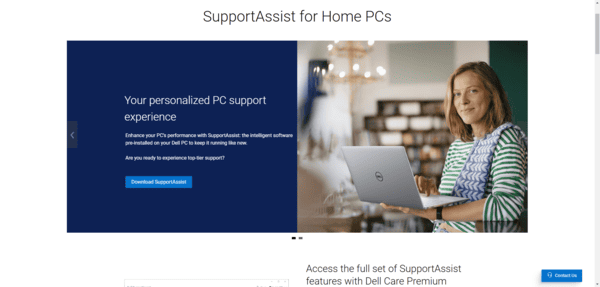
Open Dell SupportAssist: Search for "SupportAssist" in the Windows search bar and launch the app
Check for Updates: Click on the "Check for Updates" button to begin the process. SupportAssist will scan the system for outdated drivers
Install Updates: Once the scan is complete, it will list the drivers that need updating. Users can either update all drivers or select specific ones
Restart: After installing the updates, restart the laptop to apply the changes
Troubleshooting Common Driver Issues
If a driver fails to install, ensure you are downloading the correct version compatible with your laptop model and operating system
Conclusion
Regularly updating drivers on the Dell Latitude 5420 is essential for maintaining optimal performance and resolving compatibility issues. Whether using Dell SupportAssist, Device Manager, Driver Talent X, or downloading drivers manually from the Dell support website, each method ensures your laptop is running smoothly. By following these simple steps, users can keep their Dell Latitude 5420 in top shape and enhance overall performance, security, and user experience.
