

Dell computers rely on properly installed drivers to keep hardware components working correctly with Windows. When drivers become outdated, corrupted, or incompatible, users may experience problems such as slow performance, missing features, unstable connections, or hardware errors. This guide covers different methods to update Dell drivers safely, helping you find the right drivers, fix common issues, and maintain reliable system performance.
Why Are Dell Driver Updates Important
Improved Performance: New drivers often contain improvements that enhance the performance and efficiency of your hardware. For example, a graphics card driver update could improve the frame rate in your games, while an audio driver update might result in better sound quality
Bug Fixes: Drivers frequently come with fixes for bugs that may be causing issues with your hardware. These bugs might include random crashes, missing device features, or even complete hardware failures
Enhanced Compatibility: As Dell releases new operating system updates (like Windows 10 or 11), updated drivers ensure that your hardware remains compatible with the latest OS features and performance enhancements
Security Patches: Drivers can sometimes contain security vulnerabilities that hackers exploit. Updating your drivers ensures that any known security weaknesses are patched, protecting your system from potential threats
Hardware Support: As you add new peripherals or install new software, you might need specific drivers to ensure full compatibility. Dell driver updates ensure that all connected devices, like printers, external hard drives, and gaming accessories, work seamlessly
Method 1: Using Dell SupportAssist
Run the Program: Open the program after installation
Click on "Get Drivers & Downloads": SupportAssist will automatically detect your Dell device and scan for outdated drivers
Install Updates: The tool will present a list of available updates. Simply click Install next to the audio, graphics, or any other driver you need to update
Reboot: After installation, restart your system to complete the update

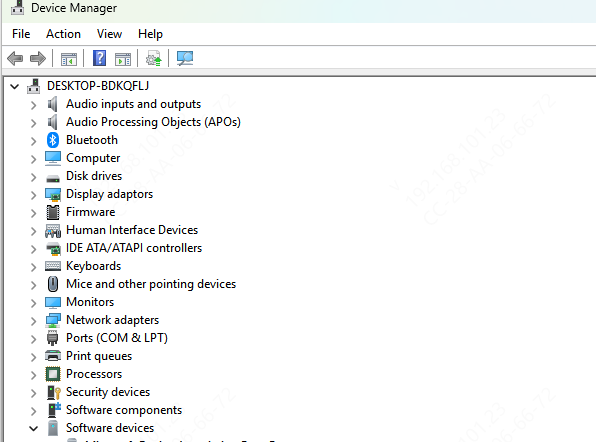
Method 2: Updating Drivers via Device Manager
Open Device Manager: Right-click the Start button and select Device Manager
Find Your Hardware: Locate the hardware component you want to update (e.g., audio, display adapter)
Right-click and Select Update Driver: Right-click the driver you want to update and select Update driver
Search for Updates: Select Search automatically for updated driver software. Windows will search for and install any available updates
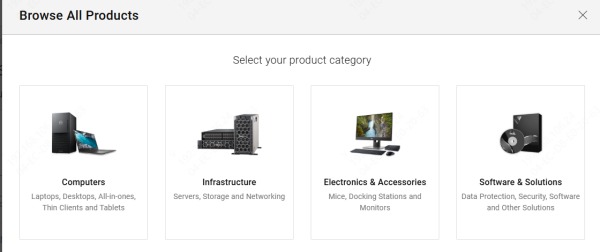
Method 3: Downloading Drivers from Dell Support
Dell's official support site offers downloadable drivers for all its devices. To manually download drivers:
Go to the Dell Support Website: Visit the official Dell support page and enter your device's Service Tag (located on the bottom or back of your laptop or desktop)
Choose the Correct Operating System: Make sure the drivers are compatible with your version of Windows (e.g., Windows 10 or Windows 11)
Download the Drivers: Locate the drivers you need (audio, graphics, network, etc.) and download them
Install the Drivers: Run the downloaded installer and follow the on-screen instructions to install the drivers
Reboot the Device: Restart your computer to finalize the installation
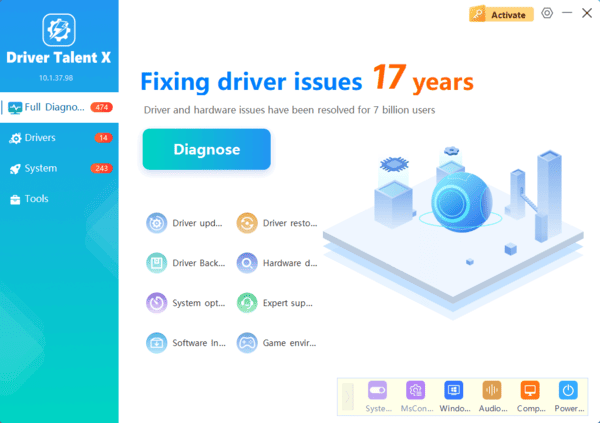
Method 4: Using Driver Talent X
For users looking for an easier and more automated way to update and fix drivers, Driver Talent X is a powerful tool designed to automatically detect and install the correct drivers for your Dell device. Here's how to use Driver Talent X to update your Dell drivers:
Download and Install Driver Talent X
Visit the official Driver Talent website and download the tool
Run the installer and follow the on-screen instructions to install it
Run a Full Driver Scan
Open Driver Talent X after installation. Go to Drivers → Scan
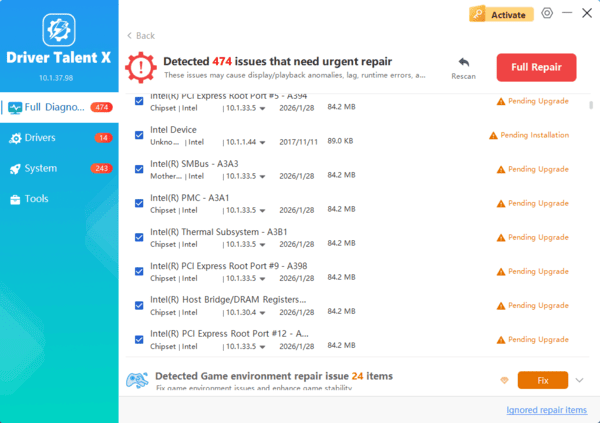
The tool will scan your system for outdated, missing, or corrupted drivers, including: Audio drivers (Realtek, IDT, or Conexant), Graphics drivers, Chipset and system controllers, and Network and Bluetooth drivers
Apply Driver Fixes
After the scan is complete, select Repair Now to fix any issues found
Driver Talent X will automatically install the correct drivers for your Dell device, including the latest audio, video, and network drivers
Restart Your Dell Device
Once the updates are complete, reboot your Dell laptop or desktop to apply the changes and restore optimal functionality, particularly audio and video performance
Conclusion
Updating your Dell drivers is a simple but essential task that can significantly improve your system's performance and fix various issues. Whether you use Dell SupportAssist for automatic updates or choose to manually download drivers from Dell's website, staying on top of driver updates will keep your Dell device running smoothly. By following the steps outlined in this guide, you can ensure that your system is equipped with the latest drivers, which means better performance, enhanced security, and a smoother overall experience.
