

Keeping Dell Latitude 7450 drivers up to date can help maintain stable performance and prevent problems with Wi-Fi, audio, graphics, USB devices, and other hardware. Missing, outdated, or corrupted drivers may lead to crashes, connection failures, display issues, or devices that stop working correctly. This guide will show you fast, safe, and effective ways to update drivers, covering automatic tools, manual updates, scenario-based troubleshooting, and prevention tips to keep your Dell Latitude 7450 running smoothly.
Spot the Symptoms of Outdated Drivers
Audio Issues: No sound, distorted audio, or microphone problems
Network Failures: Wi-Fi or Ethernet dropping, slow speeds, or network not detected
USB or Peripheral Malfunctions: Devices not recognized or malfunctioning
Display Problems: Flickering, low resolution, or graphics glitches
System Instability: Frequent crashes, freezes, or application errors
Dell SupportAssist
Dell SupportAssist is an official tool designed for automatic detection and repair of driver issues.
Download and install Dell SupportAssist from the official website
Open the program and navigate to Drivers & Downloads → Scan for Updates
Review the detected drivers and click Update All
Restart your laptop to apply changes

Windows Update
Windows Update can also provide stable, tested drivers, especially for network, graphics, and chipset components.
Press Windows + I → Update & Security → Windows Update
Click Check for Updates
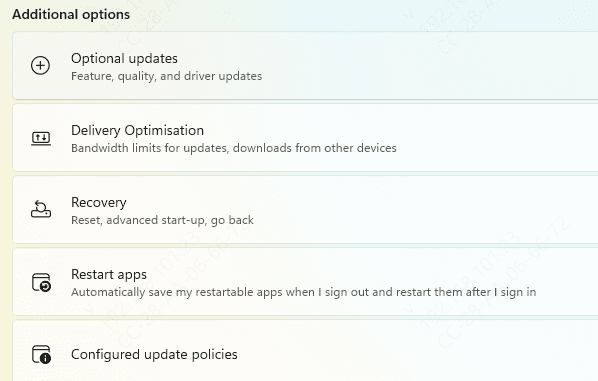
Open Optional Updates and review driver updates (graphics, audio, network, and chipset)
Download and install recommended updates
Restart your laptop to finalize the installation
Note: Optional updates may not install automatically, so it's important to check manually if you encounter device issues
Manual Update Solutions
Sometimes automatic methods may not fix every driver issue. In these cases, manual updates are effective.
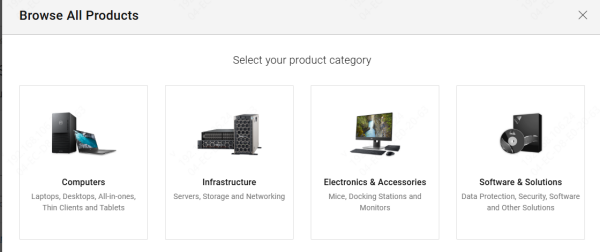
Visit Dell Drivers & Downloads
Enter Latitude 7450 and select your operating system
Download drivers individually: chipset, graphics, audio, network, BIOS
Install each driver following the on-screen instructions
Restart your laptop after all installations
Note: Start with chipset and graphics drivers as they often solve the majority of system issues
Device Manager Method
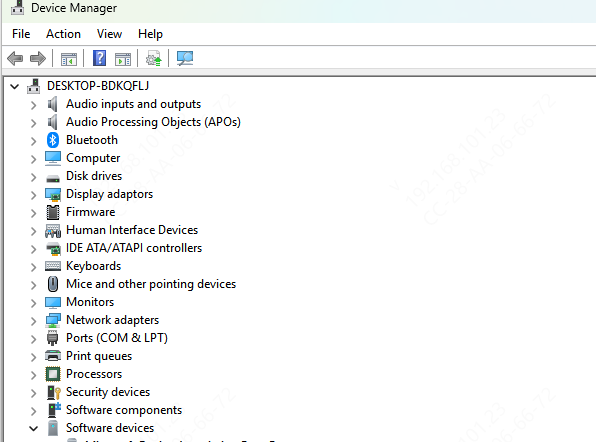
Open Device Manager → locate the device with the issue
Right-click → Uninstall device → confirm deletion
Reinstall the latest driver from Dell's website or use Search automatically for updated driver software
Restart your laptop
This method is ideal for specific or stubborn drivers that fail during automatic updates
One-Click Professional Solution with Driver Talent X
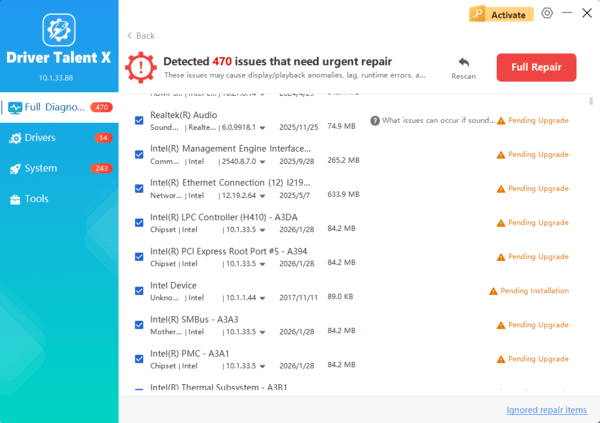
For a fast and safe solution, Driver Talent X is highly recommended:
Key Features
Automatically detects outdated, missing, or corrupted drivers
One-click repair and update for all system components
Backup and restore to prevent errors during installation
Supports both beginners and advanced users
How to Use
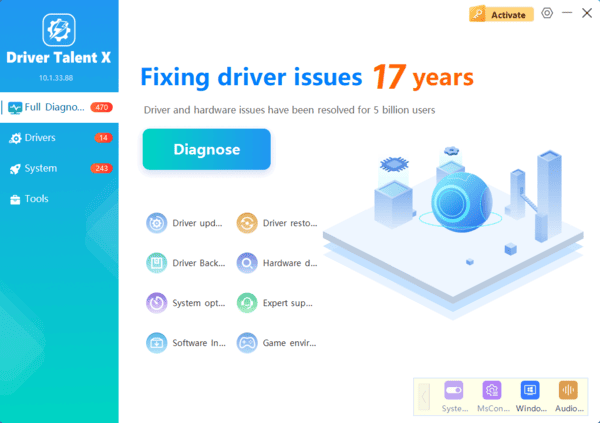
Download and install Driver Talent X from the official website
Click Scan to detect driver issues
Click Repair/Update All or select individual drivers
Restart your laptop to finalize updates
Frequently Asked Questions
How do I find the correct drivers for my Dell Latitude 7450?
Use the laptop's Service Tag on Dell's support website. This is important because Dell has released similarly named Latitude models from different generations, and their drivers are not interchangeable.
Which Dell drivers should be installed first after reinstalling Windows?
Install the chipset and system drivers first, followed by graphics, network, audio, storage, touchpad, and peripheral drivers. Restart when prompted so Windows can correctly identify dependent hardware.
What should I do if a driver update causes instability?
Open Device Manager, select the affected device, and use Properties > Driver > Roll Back Driver. If rollback is unavailable, uninstall the driver and reinstall the previous stable version from Dell. A restore point can also reverse broader changes.
Conclusion
Outdated dell drivers on the Dell Latitude 7450 can lead to crashes, device malfunctions, and performance problems—but these issues are completely fixable. By combining automatic tools like Dell SupportAssist and Windows Update, manual updates, and professional software like Driver Talent X, you can maintain your laptop's stability, performance, and reliability. Routine maintenance, proactive checks, and one-click repair solutions ensure your Dell Latitude 7450 continues to run smoothly—even for non-technical users. With these strategies, fixing driver errors has never been easier.
