

Discord is one of the most popular communication platforms for gamers, streamers, and online communities. However, some Windows users experience a frustrating issue where Discord suddenly displays a black screen, fails to load properly, or shows a blank window during screen sharing.
The Discord black screen problem can occur when launching the application, sharing games, or watching another user's stream. Common causes include outdated graphics drivers, hardware acceleration conflicts, corrupted cache files, and incompatible application settings.
Fortunately, most Discord display problems can be resolved through a few troubleshooting steps. This guide explains how to fix Discord black screen issues on Windows 10 and Windows 11.
Why Does Discord Keep Showing a Black Screen?
Outdated or incompatible graphics drivers
Hardware acceleration conflicts
Corrupted Discord cache files
Outdated Discord application files
Conflicts with screen recording software or overlays
Incorrect screen-sharing settings
Windows graphics compatibility issues
Protected content that cannot be captured
Temporary application or streaming errors
1. Restart Discord Completely
Press Ctrl + Shift + Esc to open Task Manager.
Select the Processes tab.
Find Discord in the application list.
Right-click Discord and select End task.
Close any remaining Discord processes.
Wait a few seconds.
Launch Discord again.
2. Disable Discord Hardware Acceleration
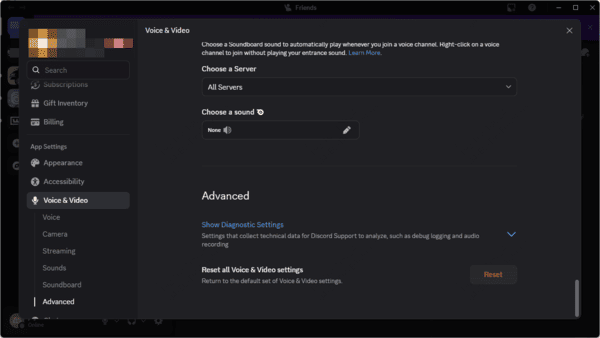
Open Discord.
Click the User Settings icon near your username.
Navigate to Advanced.
Find Hardware Acceleration.
Turn off the option.
Confirm the change if prompted.
Restart Discord.
3. Update Graphics Drivers
Graphics drivers control how Windows applications communicate with the graphics card. Outdated, corrupted, or incompatible graphics drivers may contribute to Discord black screen problems, particularly during video playback and screen sharing.
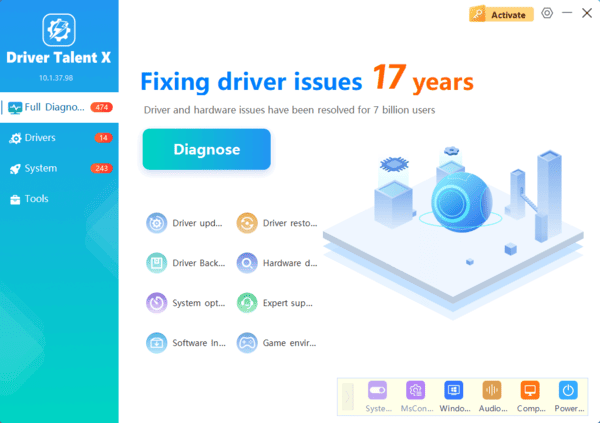
If you want an automated way to check for supported driver issues, Driver Talent X can help review your Windows system. Driver Talent X scans for certain missing, outdated, or problematic drivers and displays available update or repair recommendations.
4. Clear Discord Cache Files
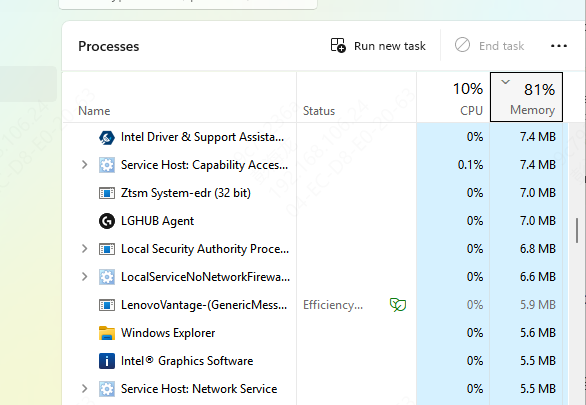
Completely close Discord using Task Manager.
Press Windows + R to open Run.
Type %appdata%\discord and press Enter.
Locate the Cache, Code Cache, and GPUCache folders if present.
Delete these cache folders.
Restart Discord.
5. Check Windows Graphics Preferences
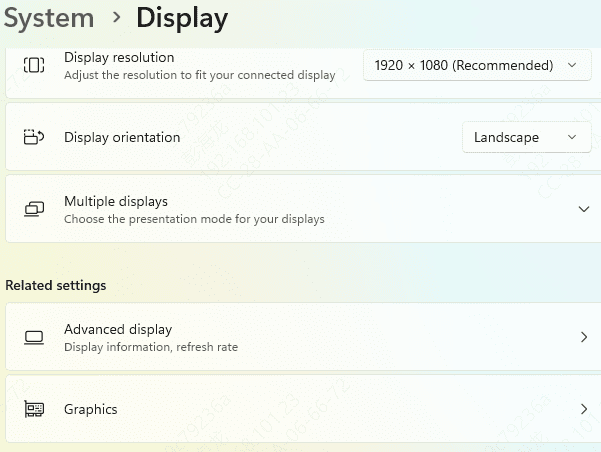
Press Windows + I to open Settings.
Navigate to System > Display > Graphics.
Find Discord in the application list.
Add the Discord executable if necessary.
Open its graphics options.
Review the available GPU preferences.
Select an appropriate option for your configuration.
Save the setting and restart Discord.
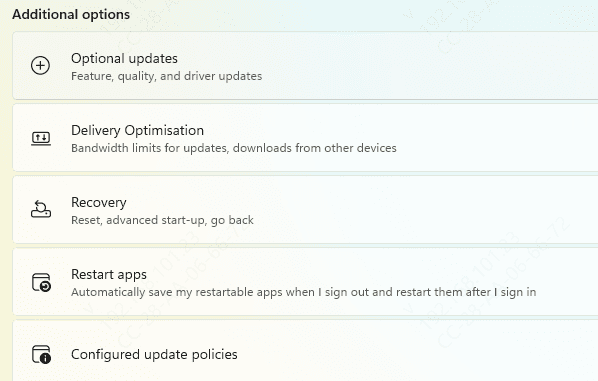
6. Check Windows Updates
Open Settings > Windows Update.
Check for relevant available updates.
Install compatible updates and restart Windows if required.
Conclusion
Discord black screen problems can occur during application startup, screen sharing, or stream playback. The appropriate solution depends on when the problem appears and what is causing it.
By identifying the cause and applying the appropriate fixes, you can resolve many Discord black screen issues and restore normal communication, streaming, and screen sharing on Windows 10 and Windows 11.
