

The Epson WorkForce ES-400 is a high-speed duplex document scanner designed for home offices, businesses, and users who need to digitize large amounts of paperwork. With its automatic document feeder and double-sided scanning capabilities, it provides an efficient way to convert paper documents into digital files.
However, to use the scanner properly on a Windows computer, you need a compatible Epson ES-400 driver. Missing, outdated, or corrupted drivers can cause problems such as the scanner not being detected, scanning failures, or communication errors.
If you are looking for an Epson ES-400 driver download, this guide explains several ways to download, install, and update the driver on Windows 10 and Windows 11. It also provides troubleshooting solutions for common scanner problems.
Method 1: Download Driver from the Official Website
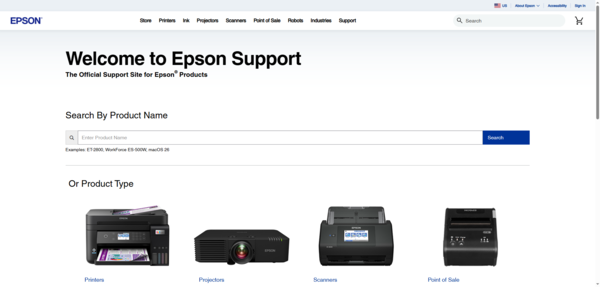
Step 1: Visit the official Epson Support.
Step 2: Enter Epson WorkForce ES-400 in the product search box.
Step 3: Select the correct scanner model from the search results.
Step 4: Download the appropriate installation file.
Step 5: Run the installer and follow the on-screen instructions.
Method 2: Install Driver Through Windows Update
Windows Update can sometimes provide compatible scanner drivers automatically.
This method is useful when Windows detects the scanner but does not have the appropriate driver installed.
On Windows 11
Connect the Epson ES-400 to your computer.
Press Windows + I to open Settings.
Select Windows Update.
Click Check for updates.
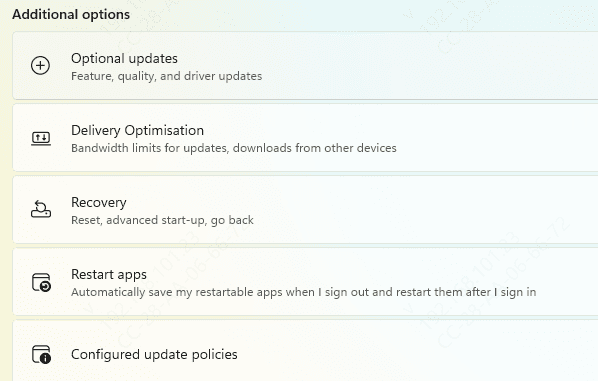
Open Advanced options > Optional updates.
Expand Driver updates if available.
On Windows 10
Open Settings.
Select Update & Security.
Click Windows Update.
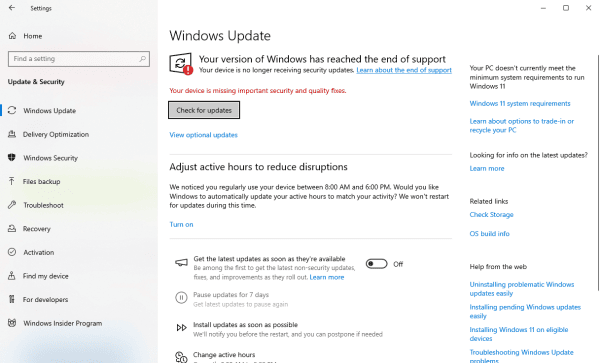
Select Check for updates.
Open View optional updates if available.
Check for relevant scanner driver updates.
Install the appropriate update.
Method 3: Check Epson ES-400 Drivers with Driver Talent X
If you want another way to check for outdated or problematic Windows drivers, Driver Talent X can help review supported driver issues.
Driver Talent X is a driver-management utility that scans Windows computers for certain missing, outdated, or damaged drivers and displays available update or repair recommendations.
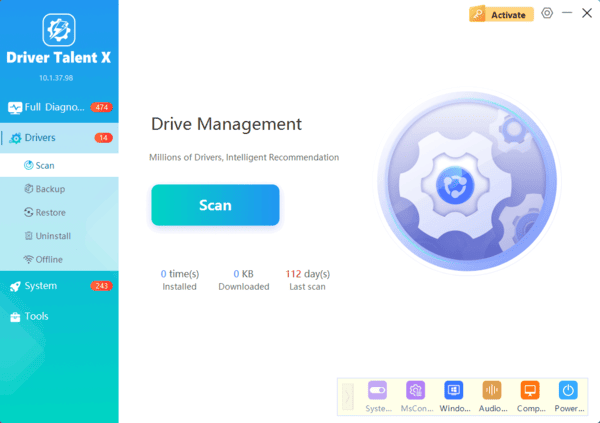
Driver Talent X may help identify supported driver problems, but it does not replace Epson Scan 2 or guarantee availability of the complete Epson software package.
For the scanner's full functionality, Epson's official software remains the preferred option.
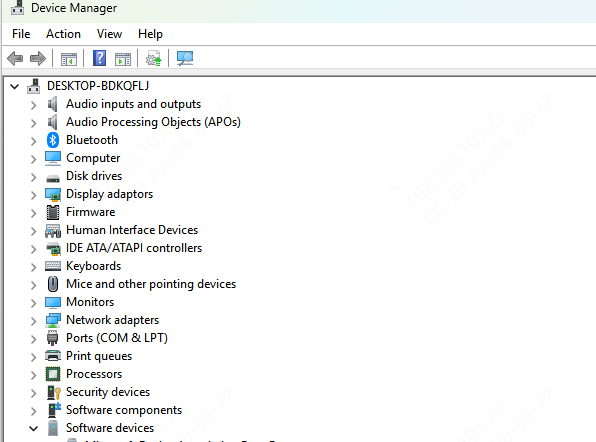
Method 4: Update Driver Using Device Manager
Windows Device Manager provides another way to check and update scanner drivers. This method is useful when the Epson ES-400 appears in Windows but is not functioning correctly.
Right-click the Start button.
Select Device Manager.
Expand Imaging devices, Cameras, or another relevant device category.
Locate the Epson ES-400 scanner.
Right-click the device and select Update driver.
Choose Search automatically for drivers.
Set Up Epson ES-400 After Driver Installation
Once the driver is installed, configure the scanner and perform a test scan.
Connect the Scanner
Make sure the Epson ES-400 is powered on and connected to your computer using a suitable USB cable.
For initial setup, connect the scanner directly to a USB port rather than through a hub.
Open Epson Scan 2
Launch Epson Scan 2 or another compatible scanning application.
Select the Epson ES-400 if the application asks you to choose a scanner.
Perform a Test Scan
Place a document in the automatic document feeder.
Open the scanning application.
Select the appropriate document size.
Choose the desired output format.
Start scanning.
Confirm that the scanned file is saved correctly.
With the correct driver, proper setup, and regular maintenance, your Epson WorkForce ES-400 can continue delivering efficient document scanning for everyday office tasks.
