

The IRQL_NOT_LESS_OR_EQUAL error is a common Windows Blue Screen of Death (BSOD) issue that occurs when a driver or system process tries to access an invalid memory address. To protect your system from further damage, Windows immediately stops and displays the error. In most cases, the problem is caused by faulty, outdated, or incompatible drivers. However, issues such as bad RAM, newly installed hardware, overclocking settings, or corrupted system files can also trigger this BSOD. In this guide, we'll explain the causes of the IRQL_NOT_LESS_OR_EQUAL error and provide effective solutions to troubleshoot and restore system stability.
Note the File Name on the Blue Screen
The file name shown on the BSOD points directly to the responsible driver. Common examples: nvlddmkm.sys is the NVIDIA graphics driver, atikmdag.sys is the AMD graphics driver, ntoskrnl.exe points to RAM or overclocking issues, tcpip.sys points to a network driver problem, storport.sys points to a storage controller driver.
Uninstall Recently Installed Software
IRQL crashes frequently begin after installing new software or a Windows Update. Go to Settings → Apps → sort by install date → uninstall applications installed just before the crashes started, particularly antivirus, VPN, or overclocking utilities
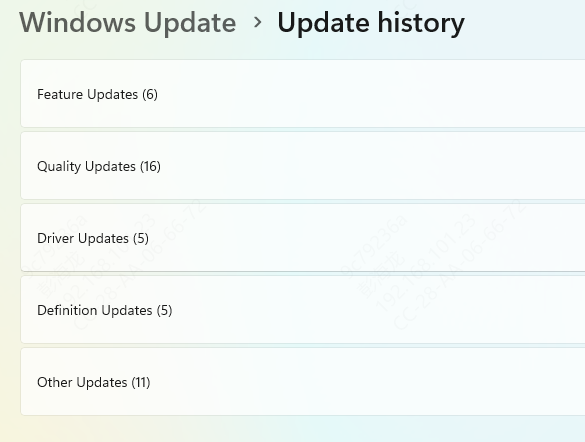
If crashes began after a Windows Update: Settings → Windows Update → Update history → Uninstall updates → remove the most recent update and restart
Run Windows Memory Diagnostic
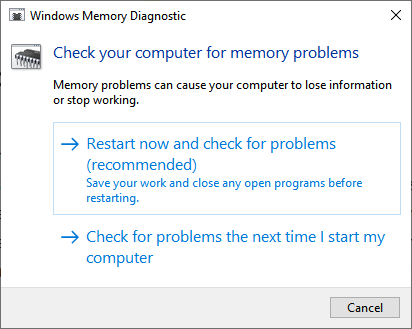
Faulty RAM is a common cause, especially when ntoskrnl.exe appears on the crash screen. Press Win, search for Windows Memory Diagnostic, and select Restart now and check for problems. Results appear in the notification area after the next login
For a more thorough test, create a bootable MemTest86 drive and run the extended test outside Windows. If errors are found, remove RAM sticks one at a time to identify the failing module and replace it
Run System File Checker and DISM
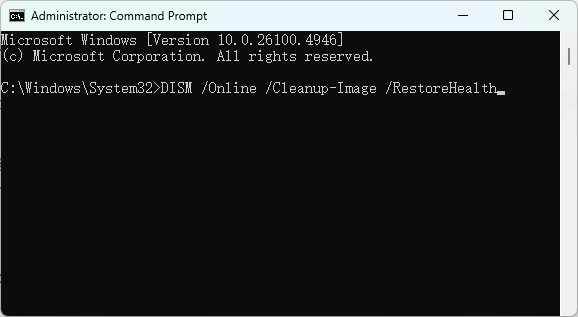
Open Command Prompt as administrator and run:
sfc /scannow
If it cannot repair all files, run:
DISM /Online /Cleanup-Image /RestoreHealth
Update or Roll Back the Problem Driver
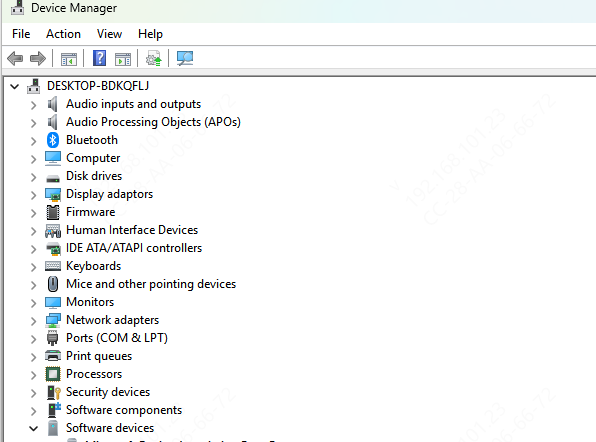
If a file name was visible, target that driver first. For a crash that started after a recent driver update, roll it back: Device Manager → find the device → right-click → Properties → Driver tab → Roll Back Driver → restart
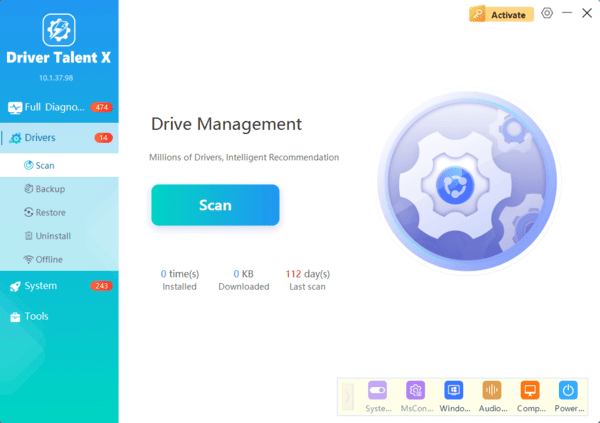
When the problem driver is unclear or multiple drivers may be involved, scan all drivers at once. Download and install Driver Talent X. Open Driver Talent X → Drivers tab → click Diagnose
Review flagged entries — focus on GPU, network adapter, and chipset drivers. Click Full Repair on affected entries. Restart and monitor for recurrence
Disable Overclocking
Overclocking causes memory access violations by running hardware outside validated specifications. Restart and enter BIOS, restore all CPU and memory values to default or Auto, and disable XMP or EXPO memory profiles
In GPU overclocking software such as MSI Afterburner, reset all values to stock. Restart and monitor. If crashes stop at stock settings, overclocking was the cause
Perform a Clean Boot
Kernel-level third-party software — antivirus, VPN drivers, anti-cheat tools — can conflict with Windows and trigger IRQL crashes
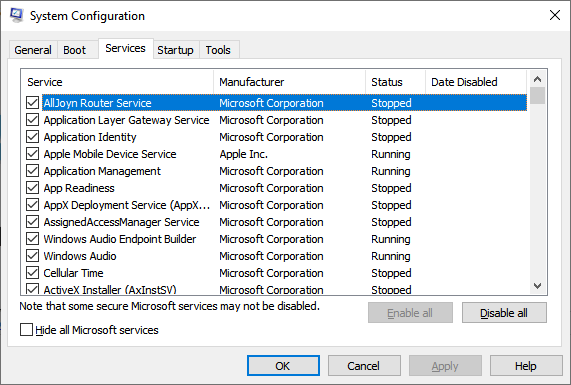
Press Win + R, type msconfig, go to the Services tab, check "Hide all Microsoft services," click Disable all, then disable all startup items in the Startup tab
Restart and test. If crashes stop, re-enable services in small groups until the crash returns to identify the conflicting application
IRQL_NOT_LESS_OR_EQUAL is most commonly caused by a driver conflict, faulty RAM, or overclocking. The blue screen file name is the fastest diagnostic clue — target that driver through Fix 1 or scan all drivers with Driver Talent X through Fix 2. When ntoskrnl.exe is shown, test RAM. When software fixes don't resolve it, check overclocking settings and newly installed hardware.
