

A sudden blue screen mentioning netio.sys often points to a problem somewhere in Windows' networking environment rather than the file itself. The crash may occur while browsing the web, downloading files, playing online games, or using a VPN, and it can repeatedly restart the computer if the underlying conflict remains unresolved. Network adapter drivers, security software, damaged Windows components, and memory or disk errors are among the possible triggers. This guide explains how to troubleshoot these areas and fix netio.sys BSOD errors safely on Windows.
1. What Is netio.sys?
netio.sys stands for Network Input Output System Driver—a core system file in Windows responsible for handling network data transmission and communication. It is involved in managing network adapters, firewalls, and antivirus network filtering. Because of its critical role, any damage or conflict related to netio.sys can easily trigger a blue screen crash.
2. Symptoms of netio.sys Blue Screen Errors
Blue screen with the error code: SYSTEM_SERVICE_EXCEPTION (netio.sys)
System crashes while browsing or using download tools
Sudden restarts when gaming or streaming online videos
Blue screens often occur during high network activity
Error appears after installing third-party antivirus software
3. Common Causes of netio.sys BSOD
Corrupted or incompatible network drivers
Conflicts with third-party antivirus or firewall software
Incomplete system updates or corrupted system files
Malware infecting system network components
Faulty hard drive or memory (RAM)
4. How to Fix netio.sys Blue Screen Errors
Method 1: Reset Network Settings
Go to Settings > Network & Internet.
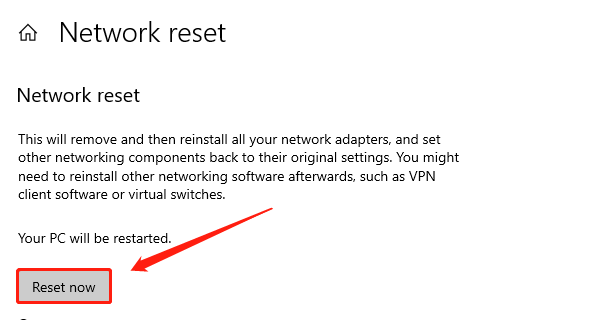
Under the Status tab, scroll down and select "Network reset".
Click "Reset now" and restart your system to restore network settings to default.
Method 2: Repair System Files
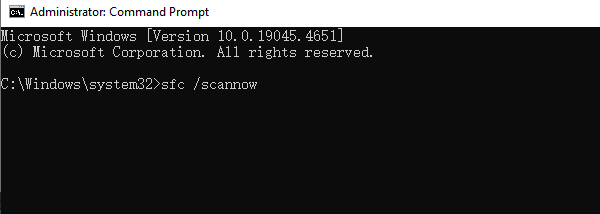
Open Command Prompt as Administrator.
Run the following command and press Enter: sfc /scannow
After the scan finishes, run: DISM /Online /Cleanup-Image /RestoreHealth
Restart your computer once the process is complete.
Method 3: Run Windows Memory Diagnostic
Press Win + R, type "mdsched.exe", and press Enter.
Click "Restart now and check for problems (recommended)".
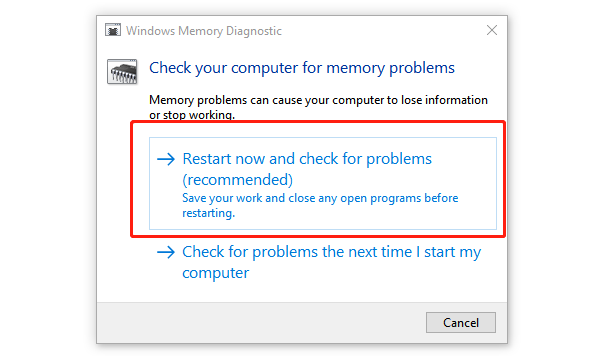
Your PC will reboot and scan for memory issues (may take a few minutes).
After reboot, Windows will display the diagnostic results.
Method 4: Update Network Drivers
Faulty network drivers are a leading cause of netio.sys-related BSODs. It's recommended to use Driver Talent X, which can automatically detect, download, and install the best-matched drivers for your device.
Download the latest version of Driver Talent X and install it.
Launch the software and go to the Drivers tab, then click "Scan".
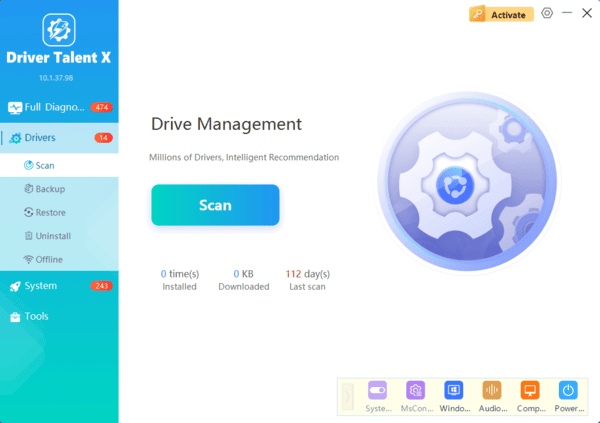
Find your network driver in the scan results and click "Upgrade".
After the update is complete, restart your computer.
Method 5: Check Hard Drive for Errors
Open Command Prompt (as Administrator) and run: chkdsk C: /f /r
Restart your PC to allow the disk check to run.
After the repair, check if the BSOD issue is resolved.
Method 6: Uninstall or Disable Third-Party Antivirus Software
Some antivirus programs can conflict with netio.sys, causing blue screens.
Solution:
Temporarily uninstall or disable the antivirus/firewall.
Use Windows Defender as a safer alternative.
Reboot your system and check if the issue persists.
5. Tips to Prevent netio.sys BSOD Errors
Keep Windows and network drivers up to date.
Use official or well-supported antivirus software, and avoid running multiple security programs simultaneously.
Avoid installing unverified or pirated software/drivers.
Back up your data regularly to avoid unexpected losses.
Although netio.sys BSOD errors are common, they can usually be resolved by updating network drivers, resetting network settings, and repairing system files. If you encounter this type of blue screen, it's best to troubleshoot step-by-step using the methods above.
Maintaining up-to-date drivers and a clean system environment is key to ensuring system stability. If the problem persists, consider contacting technical support or your device manufacturer for further assistance.
