

If PEAK is not launching, freezes on the loading screen, crashes unexpectedly, or runs with severe lag on Windows, the problem may be caused by outdated graphics drivers, damaged game files, missing DirectX or Visual C++ components, background software conflicts, unstable network conditions, or system compatibility issues. This guide explains several practical ways to fix PEAK startup and performance problems.
1. Common Symptoms of Peak Game Failing to Launch or Lagging
No response or crash upon launching the game
The game freezes on the loading screen and doesn't reach the main menu
Laggy graphics or delayed input during gameplay
Crashes or abnormal behavior after a game update
Error messages or crash reports appear
2. Main Causes of Peak Game Startup or Lag Issues
Incompatible or insufficient system configuration
Graphics driver or DirectX component errors
Corrupted game cache or installation files
Background software conflicts or high system resource usage
Unstable internet connection affecting game loading
Antivirus or firewall mistakenly blocking game processes
3. How to Fix Peak Game Startup or Performance Issues
Method 1: Run the Game as Administrator
Locate the Peak shortcut on your desktop.
Right-click it and select Properties > Compatibility tab.
Check "Run this program as an administrator", then click "Apply" and "OK".
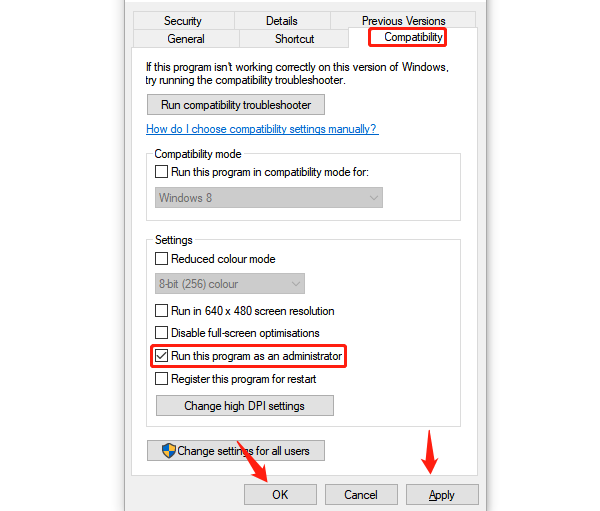
Try launching the game again. This helps avoid permission-related issues.
Method 2: Check System and Network Status
Optimize Network Environment:
Use a wired connection or ensure stable Wi-Fi signal.
Pause any downloads that consume bandwidth to prevent game lag.
Close Unnecessary Background Programs:
Open Task Manager and end high-resource apps.
Temporarily disable antivirus and firewall to check for false blocking.
Method 3: Repair DirectX and VC++ Runtime
Download the latest DirectX Runtime from Microsoft's official site.
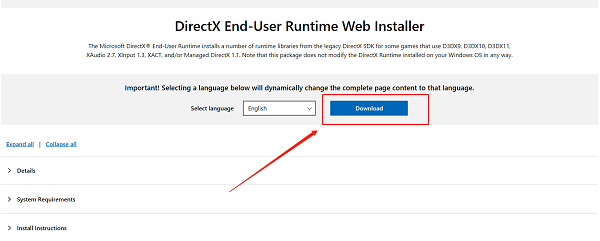
Install the complete Microsoft Visual C++ Redistributable runtime libraries.
Restart your computer and relaunch the game.
Most crashes are linked to missing or damaged runtime components.
Method 4: Update Graphics Drivers
Graphics drivers are essential for ensuring smooth game performance. It's recommend to use Driver Talent X, a smart driver manager that can automatically detect, download, and install the most compatible drivers for your system.
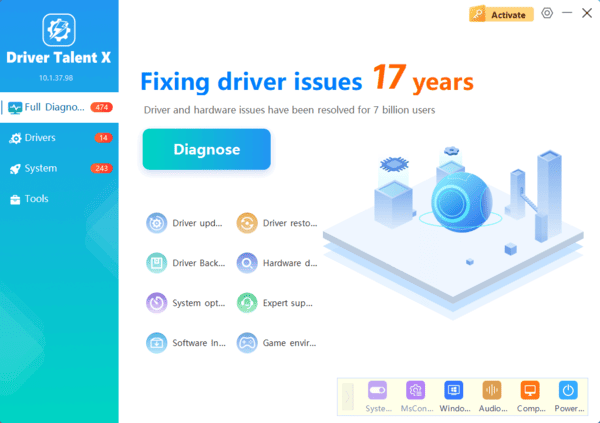
Method 5: Update Windows System
Press Windows + I to open Settings > Update & Security.
Click "Check for updates" in the "Windows Update" section.
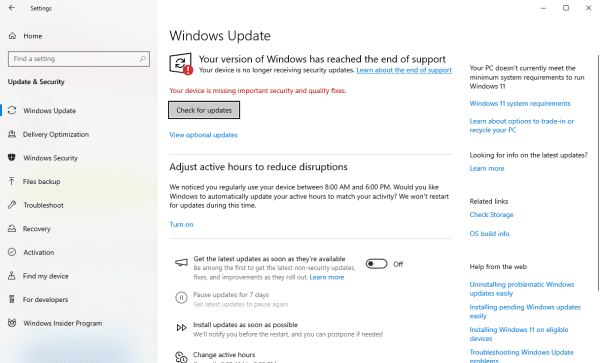
Install all available updates and restart your system.
Method 6: Reinstall the Game
Close the game and clear its cache.
Uninstall Peak Game and download the latest version from the official source.
Ensure game files are complete to avoid loading errors or crashes.
4. Frequently Asked Questions
Q1: What should I do if the game freezes at startup?
A: Close all background programs, update graphics drivers, and run the game as administrator.
Q2: After an update, the game won't launch and shows a file error. What now?
A: Uninstall the game and reinstall the latest version to ensure file integrity.
Q3: The game lags badly during play. Any fixes?
A: Lower the in-game graphics settings, disable visual effects, and check your internet and system load.
Conclusion
PEAK startup failures, crashes, and lag are commonly caused by damaged game files, missing runtime components, outdated graphics drivers, or background software conflicts. Start by closing unnecessary programs, checking the network, and running the game with the required permissions. Next, repair DirectX and Visual C++ components, install Windows updates, and update the graphics driver manually or with Driver Talent X. Reinstall PEAK only if the simpler fixes do not restore stable performance.
Issues with Peak Game not launching or lagging are typically caused by system environment problems, outdated drivers, or corrupted game files.
By updating your system, repairing runtimes, and reinstalling the game if necessary, most problems can be resolved quickly. To maintain optimal performance, keep your system and game version up to date regularly.
