

USB-C flash drive not recognized on Windows? This guide covers 7 fixes — trying a different port, updating drivers with Driver Talent X, checking Disk Management, disabling USB selective suspend, Safe Mode, power management, and testing on another device.
I. Common Causes
Poor contact between the USB-C port and the flash drive
Missing, corrupted, or outdated drivers
Abnormal system power management settings
Insufficient power supply (common with docking stations)
Damaged file system (e.g., shown as RAW format)
Hardware failure of the USB flash drive
Lack of hot-swapping or compatibility support for USB-C in the system
II. 7 Quick Fixes
Method 1: Try a Different Port
Plug the USB-C flash drive directly into a motherboard USB-C port (avoid docking stations).
Clean the port and check for looseness.
Avoid using multi-functional USB-C hubs or adapters.
Tip: Use original or high-quality USB-C data cables to prevent interference or power supply issues.
Method 2: Update Drivers
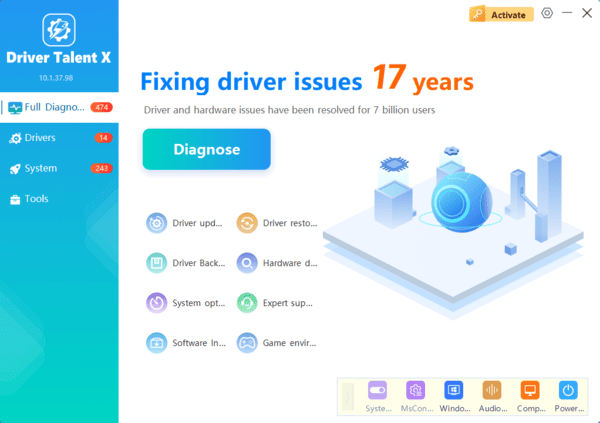
Outdated, corrupted, or incompatible drivers may prevent your USB-C flash drive from being recognized. It's recommend to use Driver Talent X, which automatically updates drivers efficiently and minimizes errors caused by manual installation.
Click the download button to get the latest version of Driver Talent X, then install and launch the software.
Go to the "Drivers" section and select "Scan" to detect all driver statuses on your PC.
Locate the disk driver in the scan results and click "Upgrade".
Restart your computer to ensure the new driver takes effect.
Method 3: Check Disk Management
Right-click the Start button and select "Disk Management".
Check for unallocated disks or partitions displayed as RAW format.
If recognized but no drive letter is assigned, manually assign one.
If RAW is shown, try using a data recovery tool or format the drive for reuse.
Method 4: Disable USB Selective Suspend
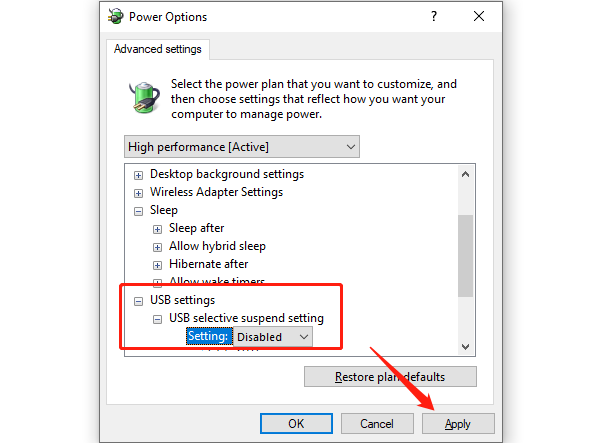
Go to Control Panel > Power Options > Change plan settings > Change advanced power settings.
Find USB settings > USB selective suspend setting.
Set it to "Disabled", click "Apply", and restart your computer.
Method 5: Boot into Safe Mode
Restart your computer in Safe Mode (press F8 or use Settings > Recovery > Advanced Startup).
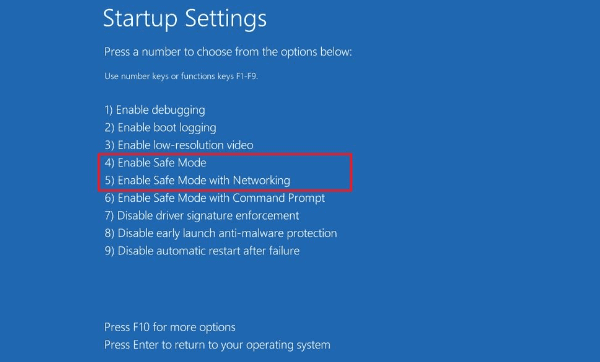
Insert the USB-C flash drive and check if it is recognized.
If it works, third-party software conflicts (like antivirus or disk tools) may be the cause—consider disabling or uninstalling them.
Method 6: Adjust Device Power Management
In Device Manager, right-click the flash drive under disk drives and select "Properties".
Go to the "Power Management" tab.
Uncheck "Allow the computer to turn off this device to save power".
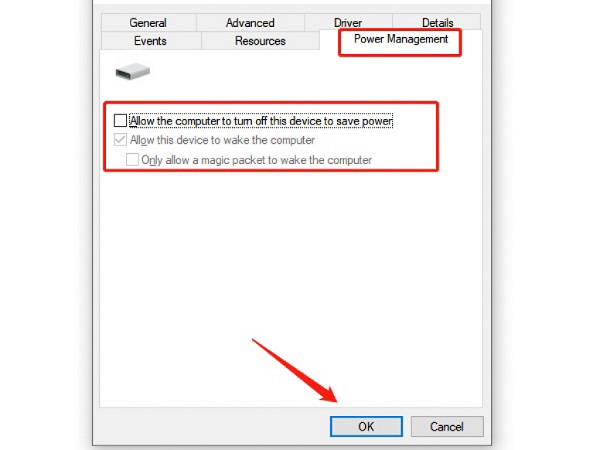
Click "OK" and restart your PC.
Method 7: Test on Another Device
Plug the flash drive into another computer with a USB-C port.
If it's not recognized on any device, the flash drive itself may be damaged. Contact the manufacturer's support or consider replacing it.
III. Additional Tips
Regularly back up important data stored on your USB drive to avoid data loss.
Avoid using USB-C devices in hot or humid environments.
Ensure the USB-C port is free of dust or debris before connecting.
Do not plug the flash drive into a phone while charging to avoid current instability.
