Did your Windows 11 computer stop booting normally after installing update KB5094126? Some users have reported unexpected system freezes, black screens, blue screen errors, and repeated startup failures following this update. In certain cases, Windows becomes stuck during startup or repeatedly displays the BitLocker recovery screen.
Microsoft released KB5094126 on June 9, 2026, for Windows 11 versions 24H2 and 25H2. The cumulative update includes security improvements and system fixes. However, some users have experienced stability problems after installation.
If your computer started freezing or failing to boot after KB5094126, this guide explains how to uninstall the update, repair Windows startup, check drivers, and restore system stability.
Method 1: Uninstall KB5094126 from Windows Settings
Press Windows + I to open Settings.
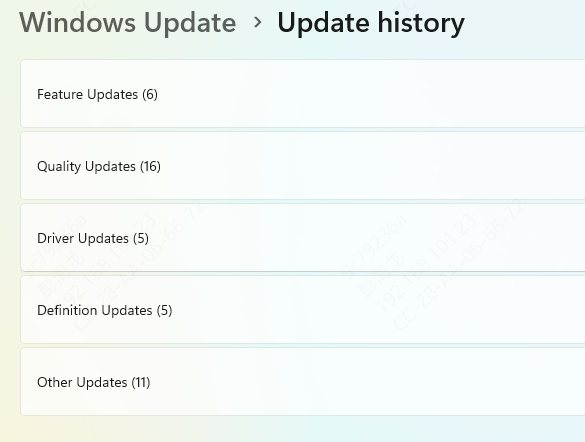
Select Windows Update.
Click Update history.
Scroll down and select Uninstall updates.
Locate KB5094126 if it appears.
Click Uninstall.
Follow the on-screen instructions.
Restart your computer.
Method 2: Remove the Latest Quality Update Through Windows Recovery
Enter Windows Recovery Environment
Select Troubleshoot.
Click Advanced options.
Choose Uninstall Updates.
Select Uninstall latest quality update.
Choose the appropriate Windows installation if prompted.
Follow the recovery instructions.
Restart the computer.
Method 3: Start Windows 11 in Safe Mode
Open Windows Recovery Environment.
Select Troubleshoot.
Click Advanced options.
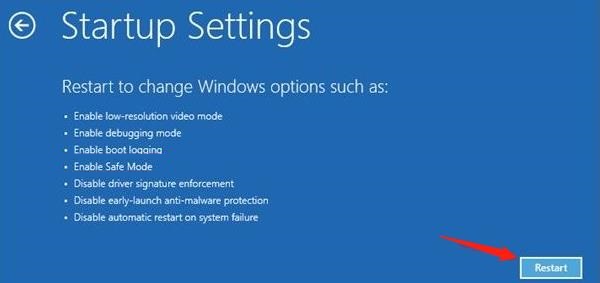
Choose Startup Settings.
Select Restart.
Press 4 or F4 to enable Safe Mode.
Method 4: Repair Windows Startup Problems
Enter Windows Recovery Environment.
Select Troubleshoot.
Open Advanced options.
Click Startup Repair.
Select the Windows installation if requested.
Wait for the diagnostic process to finish.
Restart the computer.
Method 5: Investigate BitLocker Recovery and Secure Boot Issues
Check the recovery key ID displayed on the screen.
Locate the matching BitLocker recovery key.
Enter the recovery key when prompted.
Allow Windows to continue starting.
Back up important data once access is restored.
Method 6: Check and Update Compatible Drivers
Driver compatibility problems can contribute to Windows freezes, blue screens, and unexpected restarts. Graphics, chipset, storage controller, and network drivers are particularly important for system stability.
If Windows becomes accessible after recovery, check whether relevant drivers require attention.
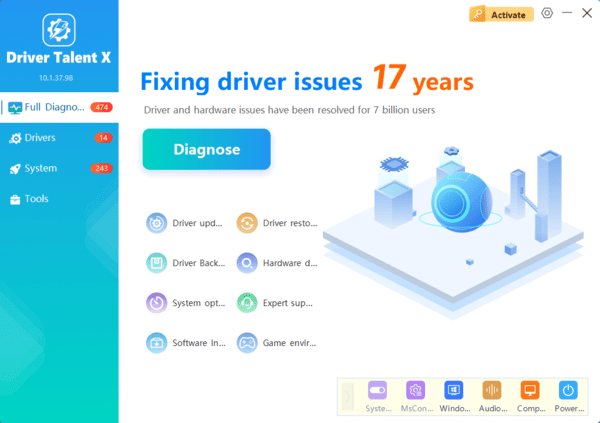
Driver Talent X is a Windows driver management utility that can identify supported missing, outdated, or problematic drivers.
It provides an additional way to review driver compatibility after restoring Windows.
Download Driver Talent X.
Install and launch the application.
Click Scan to examine your computer.
Review detected driver issues.
Install appropriate compatible updates if necessary.
Restart Windows.
Method 7: Repair Windows System Files
Run DISM
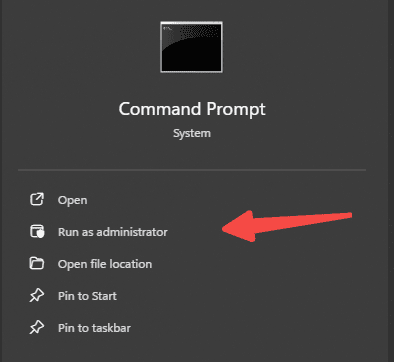
Search for Command Prompt.
Select Run as administrator.
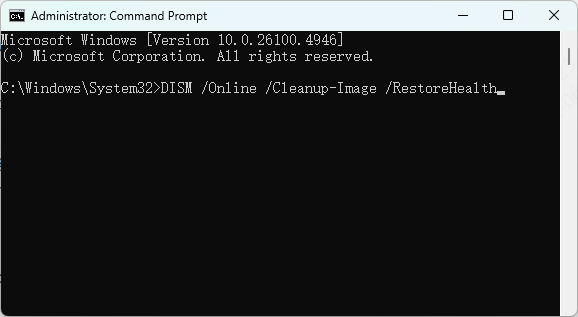
Enter the following command:
DISM /Online /Cleanup-Image /RestoreHealth
Press Enter.
Wait for the process to finish.
DISM checks and repairs certain Windows component store problems.
Run System File Checker
After DISM completes, enter:
sfc /scannow
Press Enter and wait for the scan to finish.
Restart Windows afterward.
Method 8: Install Later Windows Updates
If KB5094126 was involved in your startup problem, a later cumulative update may provide additional compatibility improvements.
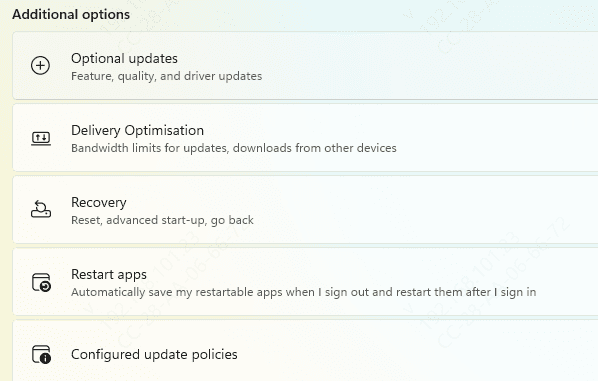
Open Settings.
Select Windows Update.
Click Check for updates.
Review available updates.
Install applicable security and quality updates.
Restart the computer.
By following these recovery methods and protecting important data, you can identify possible causes and work toward restoring normal Windows 11 operation.