

If your Acer laptop screen is blank, flickering, frozen, or completely unresponsive, the problem may be caused by power issues, incorrect display settings, corrupted graphics drivers, BIOS configuration errors, or failing hardware. In many cases, the screen can be restored without replacing the display. This guide explains several practical ways to fix an Acer laptop screen not working.
Preliminary Checks
Power & Battery: Ensure your laptop is powered on and the battery is sufficiently charged. Plug in the power adapter to rule out battery issues
Adjust Brightness: Press the Fn + brightness keys to ensure the display isn't dimmed completely
External Display Test: Connect your laptop to an external monitor using HDMI, DisplayPort, or VGA. If the external monitor works, the issue likely lies with your laptop screen or its connection
Physical Inspection: Look for cracked screens, loose hinges, or damaged internal cables that might affect the display
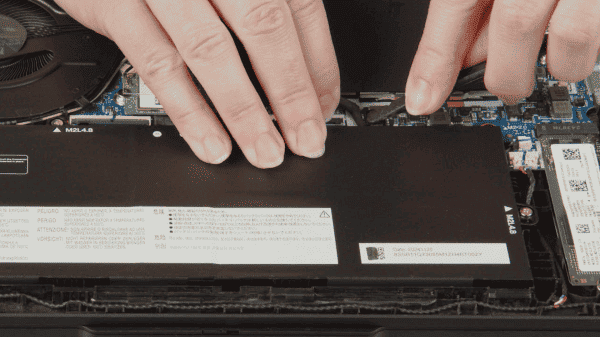
Perform a Soft Reset
Shut down the laptop completely
Disconnect the power adapter and remove the battery (if removable)
Press and hold the Power button for 15 seconds to discharge residual power
Reconnect the battery and power adapter, then restart the laptop
This simple procedure often fixes temporary freezes, blank screens, or flickering issues
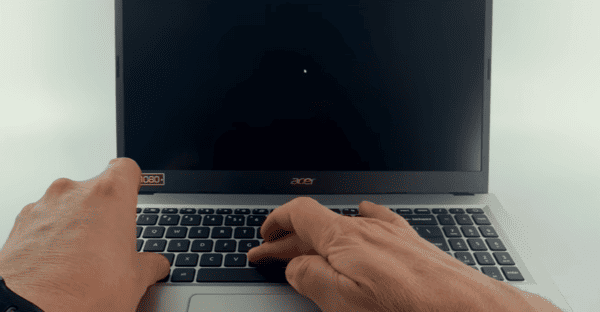
Update or Rollback Display Drivers
Outdated or corrupted graphics drivers are a common cause of screen issues.
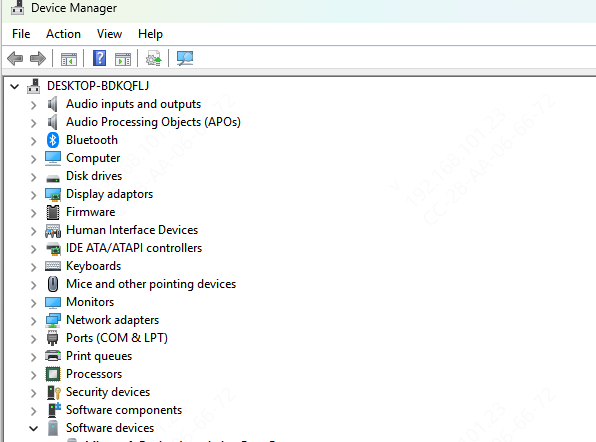
Step 1: Update via Device Manager
Press Windows + X → Device Manager → Display adapters
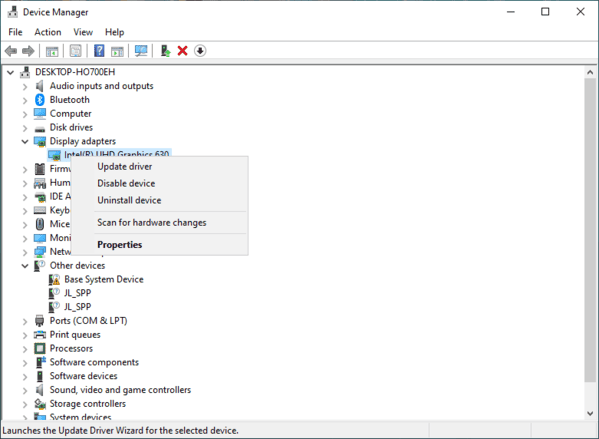
Right-click your GPU → Update driver → Search automatically for updates
Restart your laptop after the installation
Step 2: Rollback Drivers
If your display stopped working after a recent driver update:
Right-click the GPU → Properties → Driver tab → Roll Back Driver
Confirm rollback and restart your laptop
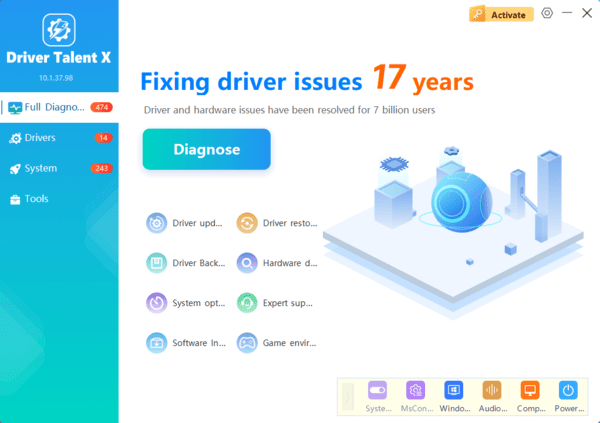
Step 3: Use Driver Talent X
Driver Talent X simplifies driver updates and repairs:
Download and install Driver Talent X from the official website
Open the software and click Scan to detect outdated, missing, or corrupted GPU and display drivers
Click Repair/Update All to automatically update drivers and create a backup restore point
Restart your laptop after updates
Adjust Display Settings
Incorrect display settings can also cause issues:
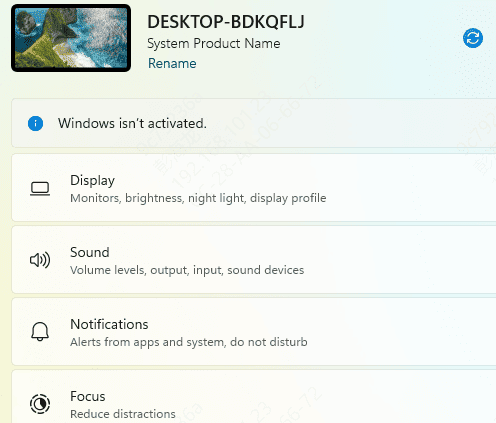
Check resolution and refresh rate via Settings → System → Display → Advanced display settings and set the recommended values
Switch between display modes using Windows + P: Laptop screen only, Duplicate, Extend, or Second screen only
Disable conflicts with multiple monitors if connected
Check BIOS / Firmware Settings
Sometimes screen problems originate from BIOS settings:
Restart the laptop and press F2 or Del to enter BIOS
Ensure integrated or dedicated GPU settings are correct
Restore BIOS to default if unsure
Save changes and restart the notebook
Advanced Solutions
If none of the above steps work:
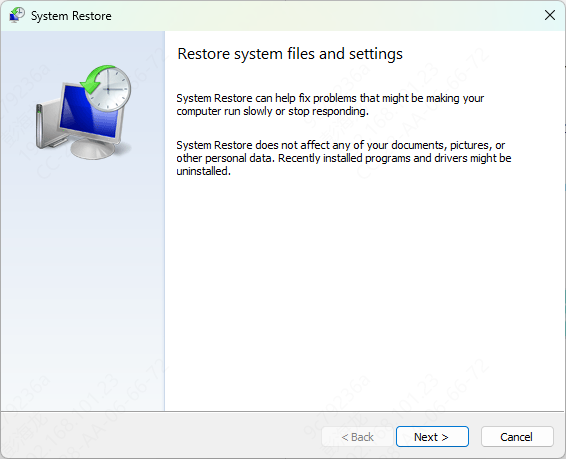
Reinstall Windows: Corrupted system files may prevent the display from working correctly
Contact Acer Support: Persistent issues might indicate a failing screen, GPU, or motherboard that requires professional repair
Frequently Asked Questions
Why is my Acer laptop powered on but the screen remains black?
The laptop may have incorrect display-output settings, a graphics-driver problem, loose display cable, faulty panel, or memory issue. Press Win + Ctrl + Shift + B, then test an external monitor.
What does it mean if an external monitor works correctly?
The GPU and Windows are probably functioning, while the built-in display panel, backlight, or internal display cable may be faulty. A technician may need to inspect the hardware.
How can I tell whether the Acer screen problem is hardware-related?
Hardware failure is more likely if the screen remains blank before Windows loads, shows physical damage or lines, or fails while an external monitor works. Test whether the Acer logo or BIOS appears at startup.
Conclusion
Acer laptop screen problems can stem from software, drivers, BIOS, or hardware issues. Start with soft resets and driver updates, adjust display settings, and check BIOS configurations. For persistent problems, test hardware components or consider reinstalling Windows. Using Driver Talent X simplifies driver management, ensuring your laptop's display and other hardware run reliably and efficiently.
