

Experiencing a Blue Screen of Death (BSOD) on your Acer laptop can be alarming. It occurs when Windows encounters a critical system error it cannot recover from, often forcing an automatic restart. Common causes include outdated or faulty drivers, hardware issues, Windows update conflicts, malware, or corrupted system files. While an occasional BSOD may not be serious, repeated crashes usually indicate underlying problems that should be fixed to maintain system stability and prevent data loss.
Understanding the Blue Screen of Death
Driver errors (graphics, chipset, network, or storage drivers)
Hardware failure, such as RAM or hard drive issues
Recent Windows updates or software installations
Malware or virus infections
Corrupted system files
Identify the Error Code and Cause
Before fixing the BSOD, identify what triggered it:
Read the Stop Code: When the blue screen appears, note the stop code (e.g., DRIVER_IRQL_NOT_LESS_OR_EQUAL, SYSTEM_SERVICE_EXCEPTION)
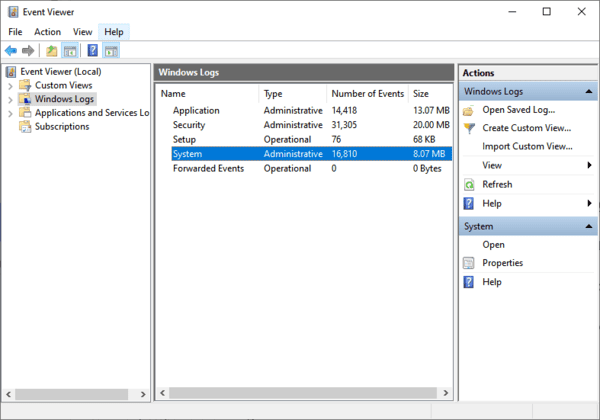
Check Event Viewer: Open Windows → search Event Viewer → Windows Logs → System. Look for critical errors around the time the BSOD occurred
Analyze Dump Files: Windows creates memory dump files (.dmp) when a crash occurs. Tools like BlueScreenView or WhoCrashed can analyze these files and help pinpoint faulty drivers or hardware
Identifying the cause is crucial, as it allows you to target the right solution and avoid unnecessary troubleshooting
Preliminary Steps Before Fixing
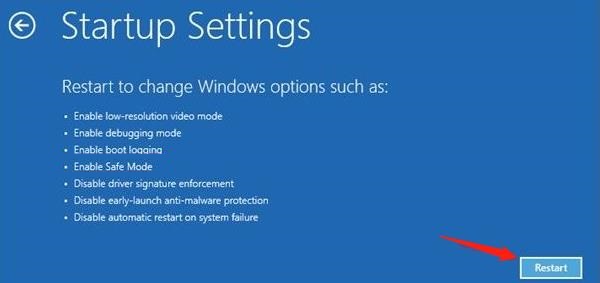
Restart in Safe Mode: Press F8 or Shift + Restart → Troubleshoot → Advanced Options → Startup Settings → Safe Mode. Safe Mode runs minimal drivers and prevents repeated crashes
Disconnect Peripherals: Remove USB drives, external hard drives, or other devices that may cause driver conflicts
Check Recent Changes: Note any recent software or driver installations that coincided with the BSOD. These may need to be rolled back
Update or Rollback Drivers
Faulty drivers are one of the most common BSOD triggers. Fix them using these methods:
Step 1: Update Drivers via Device Manager
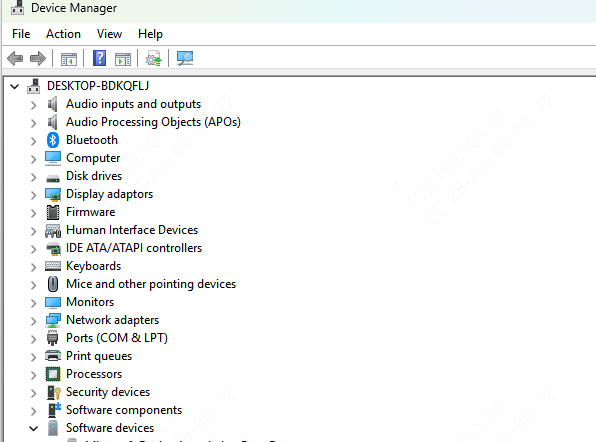
Open Device Manager → expand categories like Display adapters, Network adapters, or Storage controllers
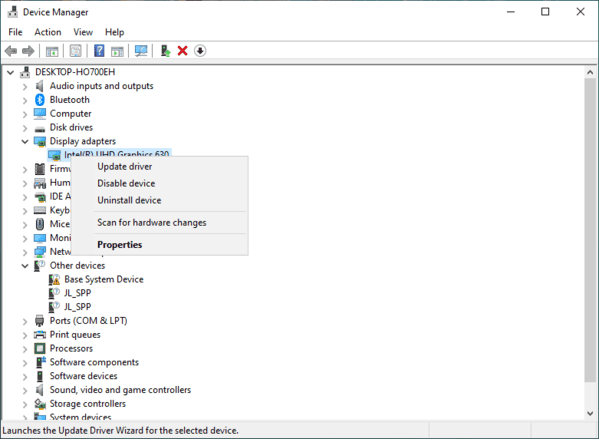
Right-click the device → select Update driver → choose Search automatically for drivers
Restart your laptop after updating critical drivers
Step 2: Roll Back Problematic Drivers
In Device Manager → right-click device → Properties → Driver tab → Roll Back Driver
Confirm rollback if a recent driver update caused the BSOD
Step 3: One-Click Driver Management with Driver Talent X
Download and install Driver Talent X
Open the software → click Scan to detect outdated, missing, or corrupted drivers
Click Repair/Update All or select specific drivers
Driver Talent X automatically creates a backup and restore point, minimizing risk during updates
Restart your laptop to apply changes
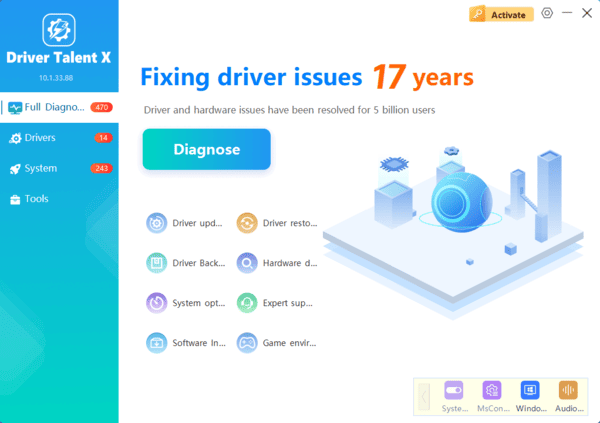
Driver Talent X is ideal for users who want a fast, safe, and reliable way to manage all drivers at once.
Run System File Checks
Corrupted Windows files can also trigger BSODs. Repair them with these steps:
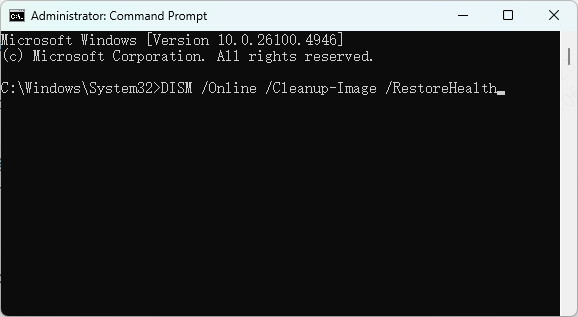
Open Command Prompt as Administrator
Run: sfc /scannow → wait for the system file checker to detect and fix corrupted files
Run: DISM /Online /Cleanup-Image /RestoreHealth → repairs the Windows image if system files are damaged
Restart your laptop after these scans and check whether the BSOD persists
Windows Update and Patch Fixes
Sometimes BSODs occur due to faulty Windows updates
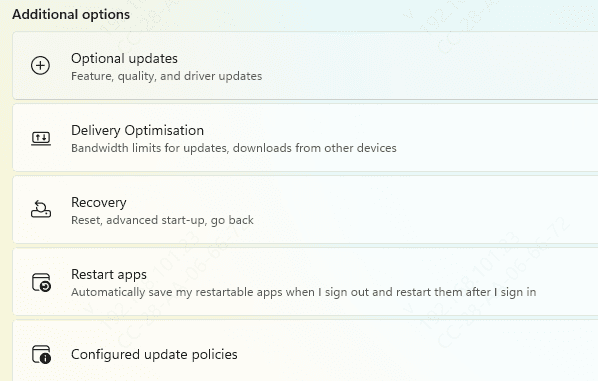
Go to Settings → Update & Security → Windows Update → Check for updates → install pending updates
If BSOD appeared after a recent update → Settings → Update history → Uninstall updates → remove the problematic one
Use System Restore if needed to revert to a stable point before the error occurred
Keeping Windows fully patched prevents driver and software conflicts
Check Hardware Health
Hardware failures can also trigger BSODs. Steps to check:
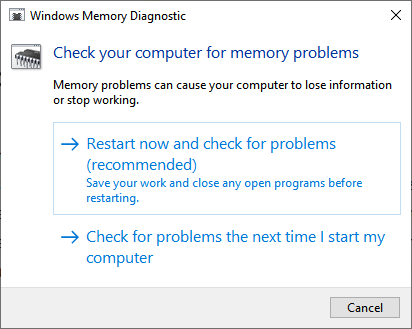
Test RAM: Use Windows Memory Diagnostic → Restart and scan for memory errors, or use MemTest86 for advanced testing
Check Storage Drives: Run chkdsk /f /r in Command Prompt to scan for hard drive or SSD errors
Check Cooling & Power: Ensure the laptop is not overheating and the battery/power supply is stable
Faulty RAM or drives often cause recurring BSODs, so detecting them early is crucial
Advanced Options for Persistent BSOD
If the BSOD persists despite all the above steps:
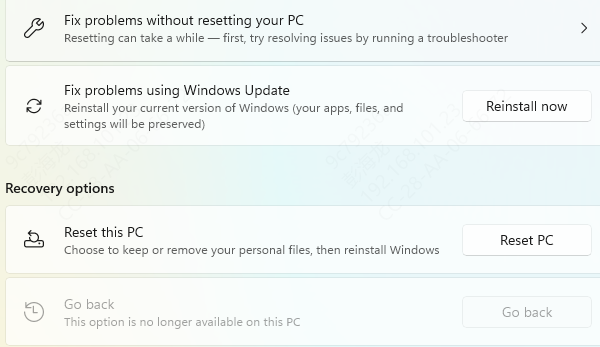
Reset Windows: Settings → Update & Security → Recovery → Reset this PC → Keep personal files
Clean Windows Installation: Perform a full reinstall if corruption is severe
Conclusion
Blue Screen of Death on an Acer laptop can be caused by driver issues, corrupted system files, hardware problems, or Windows updates. By identifying error codes, preparing your system, updating or rolling back drivers, checking hardware, and using tools like Driver Talent X, you can resolve BSOD issues efficiently. Routine maintenance, driver updates, and system monitoring will prevent future BSOD occurrences and keep your Acer laptop stable, fast, and reliable.
