Fortnite usually takes a short time to initialize before displaying the main menu. However, some players encounter a frustrating situation where the game remains stuck on the Initializing screen indefinitely. Clicking Launch again or restarting Epic Games Launcher may produce the same result.
This problem can occur after a game update, a graphics driver installation, or even when Fortnite was working perfectly the previous day.
Fortunately, reinstalling the entire game is not always necessary. By identifying which part of the startup process is failing, you can troubleshoot Fortnite more efficiently and get back into the game.
Why Is Fortnite Stuck on Initializing Forever?
Corrupted or incomplete game files.
Damaged Epic Games Launcher cache.
Incompatible graphics drivers.
Easy Anti-Cheat initialization failures.
Incorrect rendering settings.
Conflicting background applications.
Fix 1: Check Fortnite Server Status
Visit the official Epic Games Server Status page and check the availability of Fortnite services, particularly login and game services.
If Fortnite is undergoing maintenance or experiencing a widespread service interruption, the game may fail to complete authentication or initialization.
In this situation, wait until the affected services are restored. Reinstalling Fortnite or updating your drivers will not resolve a server-side outage.
Fix 2: Completely Restart Fortnite and Epic Games Launcher
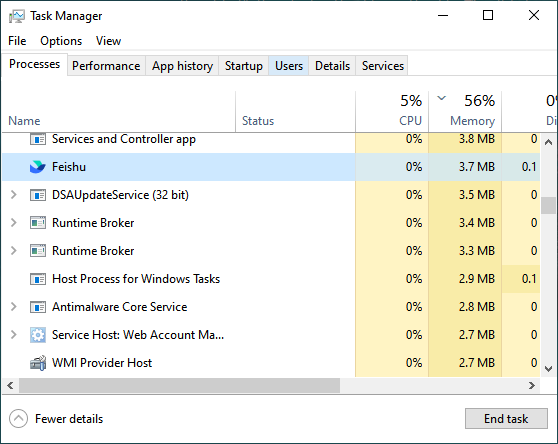
Closing the launcher window does not necessarily terminate all associated background processes. A previous failed launch may leave processes running and interfere with subsequent startup attempts.
Close Fortnite and Epic Games Launcher.
Right-click the Epic Games Launcher icon in the system tray and select Exit.
Press Ctrl + Shift + Esc to open Task Manager.
Locate any remaining Fortnite or Epic Games Launcher processes.
Select the relevant processes and click End task.
Restart your computer.
Open Epic Games Launcher and launch Fortnite again.
Fix 3: Verify Fortnite Game Files
An interrupted download, unexpected shutdown, or incomplete update may leave Fortnite with damaged or missing files.
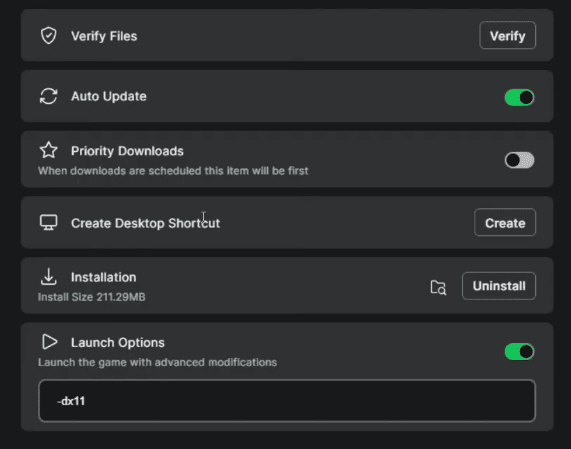
Epic Games Launcher includes a verification feature that checks the integrity of your installation.
Open Epic Games Launcher.
Navigate to Library.
Locate Fortnite and click the three-dot menu.
Select Manage.
Click Verify.
Wait for the verification process to finish.
Launch Fortnite again.
Fix 4: Update or Repair Your Graphics Drivers
Fortnite depends on graphics drivers to initialize its rendering engine and load graphical resources. Incompatible or corrupted drivers may cause startup freezes, black screens, and unexpected crashes.
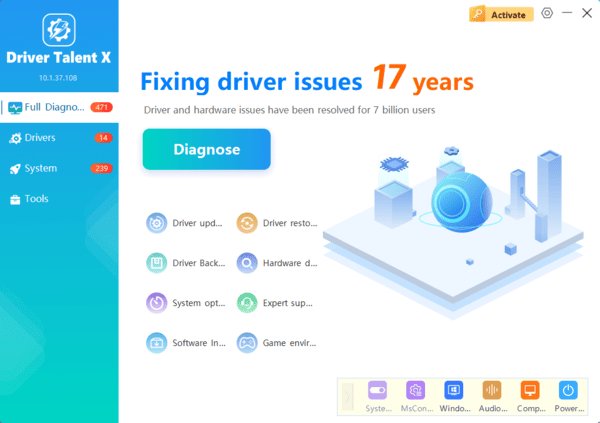
Driver Talent X is a Windows driver management utility that helps identify supported outdated, missing, or problematic hardware drivers.
It can help investigate graphics driver problems involving supported NVIDIA, AMD, and Intel graphics hardware.
If Fortnite stopped working immediately after a graphics driver update, rolling back to a previously working driver may be more effective than installing another update.
Fix 5: Clear Epic Games Launcher Cache
Epic Games Launcher stores temporary web data to improve loading performance. When these cached files become corrupted, the launcher may encounter authentication, interface, or game startup problems.
Completely exit Epic Games Launcher.
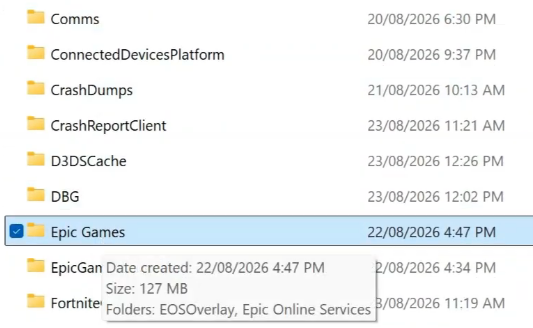
Press Windows + R to open the Run dialog.
Enter the following path:
%localappdata%\EpicGamesLauncher\Saved
Locate folders named webcache or beginning with webcache_.
Delete these cache folders.
Restart Epic Games Launcher.
Launch Fortnite.
Fix 6: Reset Fortnite Configuration Files
Fortnite stores local graphics preferences and other settings in configuration files. Incorrect or damaged settings may prevent the game from completing initialization.
Close Fortnite and Epic Games Launcher.
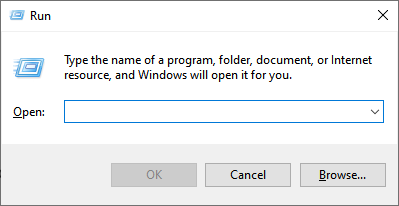
Press Windows + R.
Enter the following path:
%localappdata%\FortniteGame\Saved\Config
Open the Windows client configuration folder, commonly named WindowsClient, if present.
Locate GameUserSettings.ini.
Back up the file and rename it to GameUserSettings_backup.ini.
Launch Fortnite again.
Fix 7: Close Conflicting Background Applications
Potential sources of interference include:
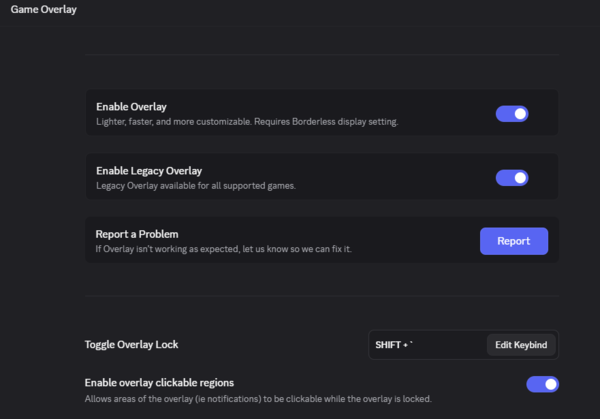
Discord Overlay.
NVIDIA and AMD gaming overlays.
MSI Afterburner and RivaTuner Statistics Server.
Screen recording applications.
Third-party gaming optimization tools.
Hardware monitoring utilities.
Fix 8: Troubleshoot Your Internet Connection
Fortnite communicates with Epic Games services during startup. Even if websites load normally, an unstable connection or network configuration problem may interfere with game authentication.
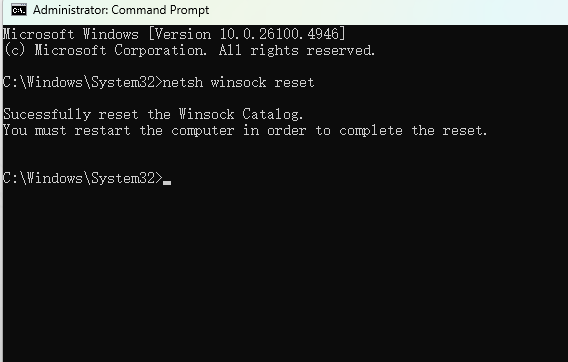
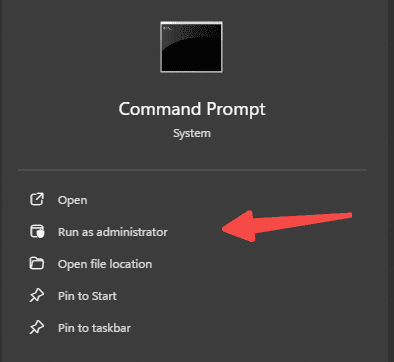
Type Command Prompt into the Windows search box.
Select Run as administrator.
Enter the following command:
ipconfig /flushdns
Press Enter.
Restart Epic Games Launcher.
Fix 9: Check System Components
Fortnite requires compatible operating system components, graphics hardware, and supporting software.
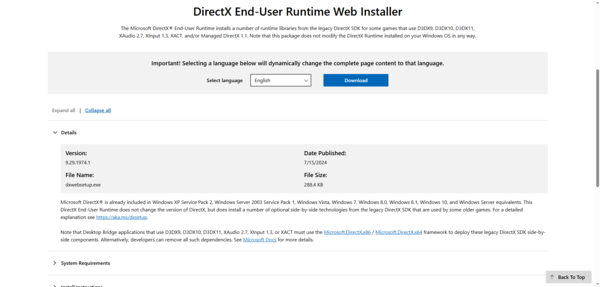
If error messages indicate missing Microsoft Visual C++ components, download the appropriate redistributable packages from Microsoft's official website.
When other Windows applications are also crashing or failing to launch, damaged system files may be involved.
Open Command Prompt as administrator and run:
DISM /Online /Cleanup-Image /RestoreHealth
After the process finishes, run:
sfc /scannow
Fix 10: Reinstall Fortnite
Open Epic Games Launcher.
Navigate to Library.
Locate Fortnite.
Click the three-dot menu and select Uninstall.
Restart your computer.
Download and reinstall Fortnite through Epic Games Launcher.
Conclusion
Fortnite getting stuck on the Initializing screen can result from corrupted game files, launcher cache issues, incompatible graphics drivers, or network connectivity problems. Start by checking Fortnite server status, restarting Epic Games Launcher, and verifying game files. If the problem persists, clear the launcher cache, reset local configuration files, or use Driver Talent X to identify and update supported graphics and network drivers. These troubleshooting methods can help resolve startup failures and restore smooth Fortnite gameplay without unnecessarily reinstalling the entire game.