Forza Horizon 6 delivers an exciting open-world racing experience, but some Windows 11 players may encounter frustrating launch problems before they can even start driving. One possible issue is Forza Horizon 6 Error Code 740, which may appear when Windows cannot start a game-related process with the required permissions.
You might see the error when launching the game through Steam, the Xbox app, or a desktop shortcut. In some cases, the launcher opens normally, but the game refuses to start.
If Forza Horizon 6 is not launching on Windows 11, this guide explains how to troubleshoot Error Code 740 and restore normal game startup.
Fix 1: Restart Windows and Launch Forza Horizon 6 Normally
Exit Steam or the Xbox app.
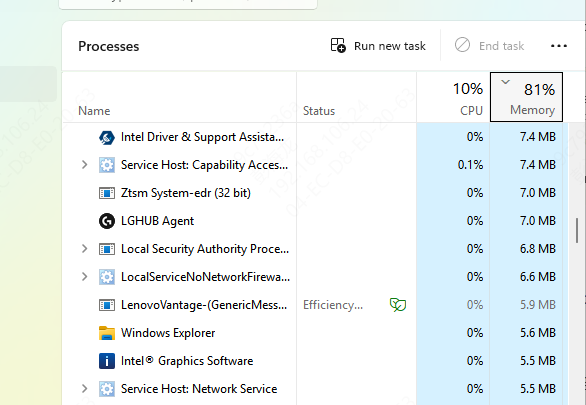
Press Ctrl + Shift + Esc to open Task Manager.
Check for any remaining game or launcher processes.
Close stuck processes associated with the game.
Restart Windows 11.
Open your game launcher normally.
Launch Forza Horizon 6 again.
Fix 2: Check Administrator Permissions
Close Steam or the Xbox app.
Find the launcher shortcut.
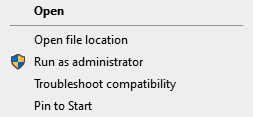
Right-click the shortcut.
Select Run as administrator, if available.
Approve the UAC prompt if you trust the application.
Try launching Forza Horizon 6.
Fix 3: Update Xbox Gaming Services
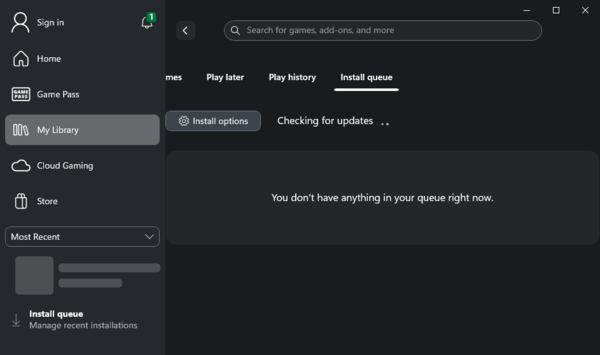
Gaming Services is an important Windows component used by Xbox gaming features. Forza Horizon 6 requires a compatible Gaming Services version on Windows PCs, including systems running the Steam edition If Gaming Services is outdated, the game may display a separate compatibility warning or fail to start correctly.
Press the Windows key.
Search for Microsoft Store.
Open Microsoft Store.
Select Downloads.
Click Check for updates.
Locate Gaming Services.
Install any available update.
Restart Windows.
Fix 4: Repair the Xbox App and Gaming Services
If Forza Horizon 6 fails to launch through the Xbox app, damaged application components may be contributing to the problem.
Windows 11 includes repair options for supported applications.
These options can resolve some app-related problems without requiring a complete reinstall.
Open Settings.
Navigate to Apps > Installed apps.
Find Xbox.
Click the three-dot menu.
Select Advanced options, if available.
Click Repair.
Wait for Windows to finish.
Restart the Xbox app.
Fix 5: Verify Forza Horizon 6 Game Files
Corrupted or incomplete game files can prevent Forza Horizon 6 from launching correctly.
Although damaged game files do not specifically explain every Windows elevation error, verifying the installation can eliminate a common source of startup failures.
Verify Game Files on Steam
Open Steam.
Navigate to Library.
Right-click Forza Horizon 6.
Select Properties.
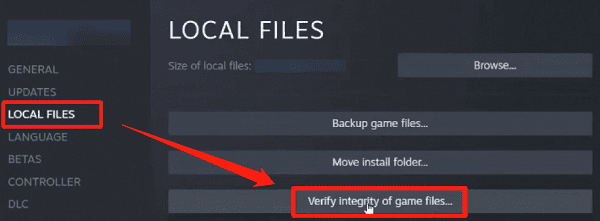
Open Installed Files.
Click Verify integrity of game files.
Wait for Steam to complete the verification.
Steam will check the installed files and replace missing or damaged files when necessary.
Repair Game Files Through the Xbox App
Open the Xbox app.
Navigate to your game library.
Find Forza Horizon 6.
Open the game's management options.
Look for Files or a Verify and Repair option.
Run the available repair process.
The exact menu options may vary depending on the Xbox app version.
Fix 6: Reset the Microsoft Store Cache
The Microsoft Store works with several Windows application and gaming components.
If its cache becomes corrupted or application updates fail to install correctly, some Xbox-related functions may stop working as expected.
Refreshing the Store cache can help resolve certain application problems.
Press Windows + R.
Type the following command:
wsreset.exe
Press Enter.
Wait for the process to finish.
Allow Microsoft Store to reopen.
Check for available application updates.
Restart the Xbox app.
Fix 7: Update Windows
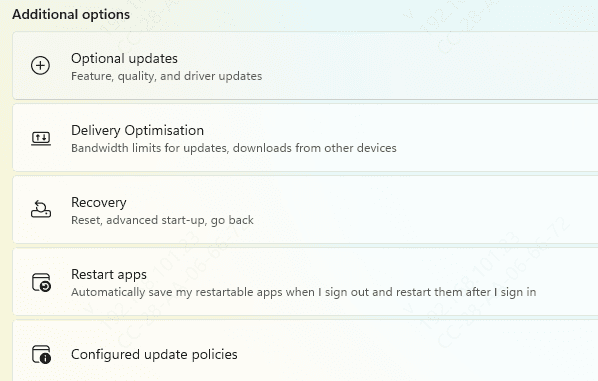
Outdated Windows components can sometimes cause compatibility problems with gaming applications. Installing supported Windows updates helps keep system services, security components, and application dependencies current.
Press Windows + I.
Select Windows Update.
Click Check for updates.
Install relevant available updates.
Restart Windows when prompted.
Fix 8: Check Graphics and System Drivers
Windows Error 740 primarily concerns application permissions, so updating graphics drivers is not a direct fix for the error itself.
However, if Forza Horizon 6 also experiences black screens, graphics initialization failures, or unexpected crashes, checking compatible system drivers may be worthwhile.
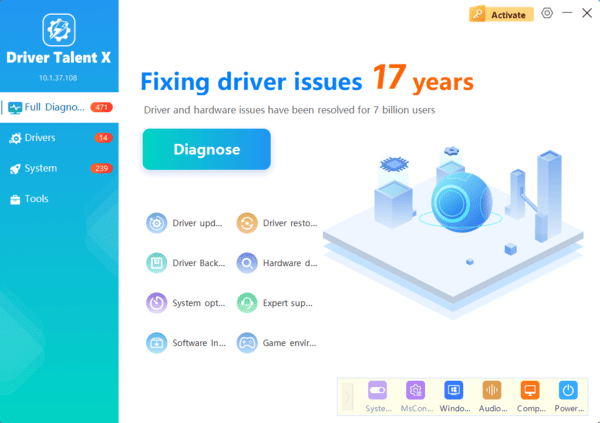
Driver Talent X is a Windows driver management utility that can identify supported missing, outdated, or problematic drivers.
Driver Talent X may help with supported driver-related problems, but it cannot change Windows administrator permissions or repair every game launcher error.
Conclusion
Forza Horizon 6 Error Code 740 on Windows 11 is primarily related to administrator permissions and application elevation issues. Start by restarting the game launcher and checking administrator permissions. If the problem persists, update Gaming Services, repair Xbox components, and verify game files. For additional graphics-related crashes or compatibility issues, Driver Talent X can help identify problematic system drivers. These troubleshooting methods can help resolve launch failures and restore normal Forza Horizon 6 gameplay.