

Update Lenovo Legion Go drivers to improve gaming performance, controller response, connectivity, battery efficiency, and system stability. This guide covers Lenovo Vantage, official Lenovo downloads, Device Manager, and automatic driver updates for graphics, chipset, audio, Wi-Fi, Bluetooth, and other essential components.
Method 1: Update Drivers Using Lenovo Vantage
Download and install Lenovo Vantage from the Microsoft Store if it isn't already installed
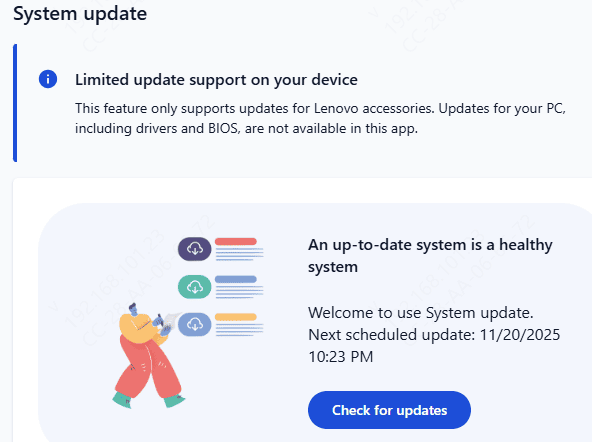
Open the app and navigate to the System Update section
Click Check for Updates to scan your system for outdated drivers
Install all available updates, including graphics, audio, network, and chipset drivers
Method 2: Download Drivers from Lenovo Support Website
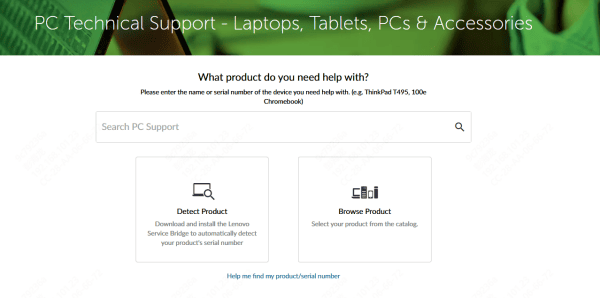
Visit the Lenovo Support website
Enter your Legion Go model or serial number
Navigate to Drivers & Software
Select your operating system (Windows 11/10)
Download the necessary drivers (graphics, audio, network, chipset, etc.) and run the installer
This method guarantees official, model-specific drivers.
Method 3: Update Drivers Automatically
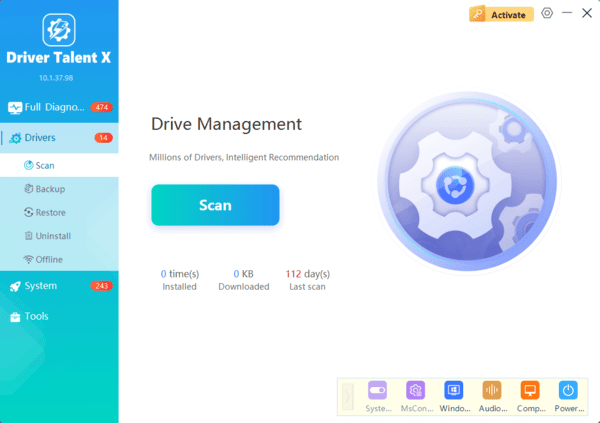
For most users, the fastest and simplest way to keep Lenovo Legion Go drivers up to date is by using an automated driver update tool like Driver Talent X. This software can quickly scan your system for outdated, missing, or corrupted drivers and automatically download and install the latest versions, ensuring your gaming device runs smoothly.

Method 4: Update Drivers via Device Manager
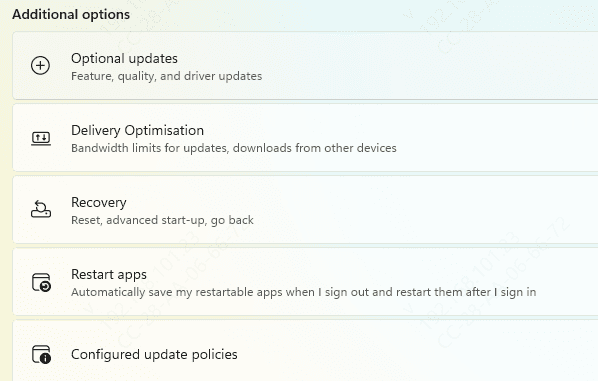
Press Windows + X and select Device Manager
Locate the device that requires an update (e.g., Display adapters for GPU, Network adapters for Wi-Fi)
Right-click the device → select Update driver → Search automatically for drivers.
Follow the on-screen prompts to complete the update
Keeping your Lenovo Legion Go drivers up to date is essential for smooth gaming, stable performance, and hardware reliability. Whether you use an automated tool like Driver Talent X, Lenovo Vantage, Device Manager, or manually download drivers from Lenovo's support site, following these methods ensures your system runs optimally and minimizes crashes, lag, or compatibility issues. Regularly updating drivers helps maintain peak performance and a seamless gaming experience.
