

Finding that your HP laptop won't turn on can be frustrating, especially when you rely on it for work, school, or daily tasks. The issue can be caused by simple power problems, hardware faults, or software conflicts. This guide walks you through practical solutions to get your laptop working again.
Step 1: Check the Power Supply and Battery
Before assuming there's a major hardware failure, start with the basics:
Ensure the power adapter is securely connected to both the laptop and wall outlet
Test the wall outlet by plugging in another device or try a different charger
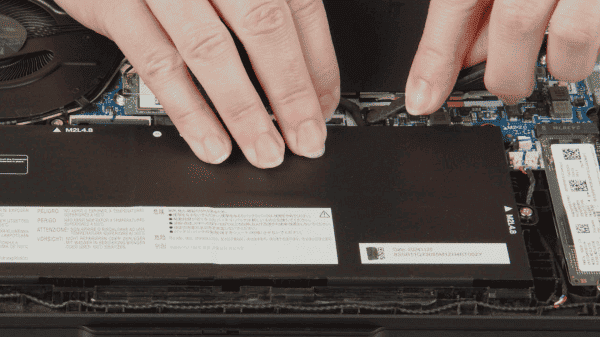
If your HP laptop has a removable battery, disconnect it and try powering the laptop with only the AC adapter
Inspect the charging port and cable for physical damage or bent pins
Step 2: Perform a Hard Reset
Residual charge or a system freeze can prevent startup:
Power off the laptop completely
Disconnect all external devices (USB drives, external monitors, printers)
Press and hold the power button for 15–30 seconds to drain any residual electricity
Reconnect the AC adapter and attempt to power on the laptop
Step 3: Check for Display Issues
Sometimes the laptop is on but the screen remains black:
Listen for fan or drive activity to confirm the system is powering up
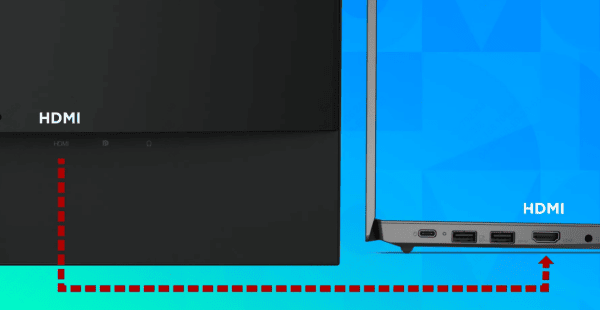
Connect the laptop to an external monitor via HDMI or DisplayPort to check if the internal display is faulty
Try pressing Fn + F keys (often F4, F5, or F8) to toggle between internal and external displays
Adjust screen brightness if the screen appears dim
Step 4: Test RAM and Hardware Components
Hardware conflicts can prevent boot:
Power off the laptop and remove RAM sticks. Reseat them carefully in their slots
Disconnect any easily removable hardware like HDD/SSD or expansion cards
Listen for beep codes or LED patterns, which can indicate specific hardware problems
If the laptop turns on after reseating components, the issue may have been caused by loose connections
Step 5: BIOS/UEFI Troubleshooting
A corrupted BIOS can prevent the system from powering on properly:
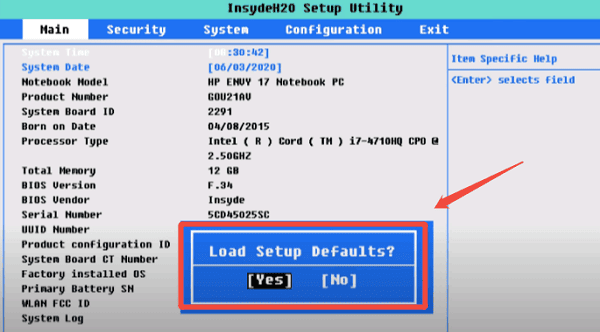
Attempt to enter BIOS/UEFI at startup by pressing Esc, F10, or F2 (depending on your model)
If accessible, reset BIOS settings to default
If the BIOS is inaccessible, consider performing a BIOS recovery using HP's recovery instructions or a BIOS recovery USB
BIOS maintenance is critical for startup stability and hardware communication
Step 6: Update or Repair Drivers and System Software
Even if your laptop powers on partially, outdated or corrupted drivers can prevent full startup:
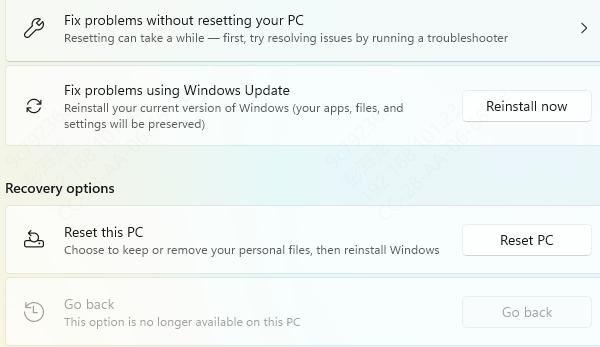
Use Windows Recovery Environment (WinRE) to repair system files or restore Windows if needed.
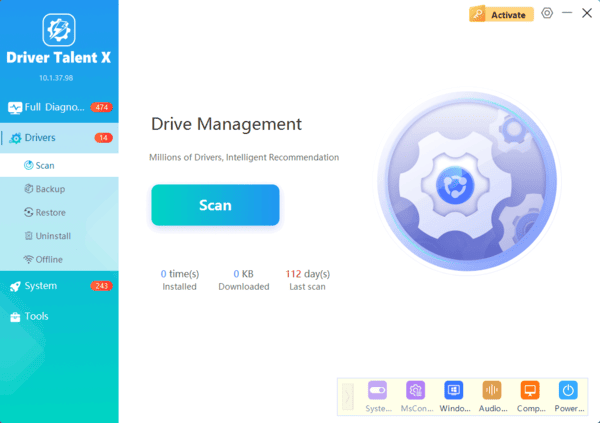
For driver issues, Driver Talent X is a recommended tool. Steps:
Install Driver Talent X
Click Scan to detect missing, outdated, or corrupted drivers
Update or repair critical drivers like chipset, display, and USB controllers
Restart the laptop to ensure changes take effect
Keeping drivers updated improves stability and prevents future startup problems
Conclusion
When an HP laptop fails to turn on, the problem can range from a simple power issue to complex hardware failure. Start with basic troubleshooting: check power and battery, perform a hard reset, test the display, reseat RAM, and check BIOS. Once operational, maintain your laptop's drivers and firmware regularly. Tools like Driver Talent X make it easy to keep drivers updated and prevent future startup issues, ensuring your HP laptop remains reliable for daily use.
