

Experiencing a blank screen or the inability to power up your Dell Inspiron laptop can be frustrating, especially when you rely on it for daily tasks. The issue may stem from various factors, including power problems, software conflicts, or hardware failures. However, most of the time, the problem is solvable with some straightforward troubleshooting. This guide will walk you through the most effective methods to fix your Dell Inspiron laptop not turning on.
Check the Power Supply
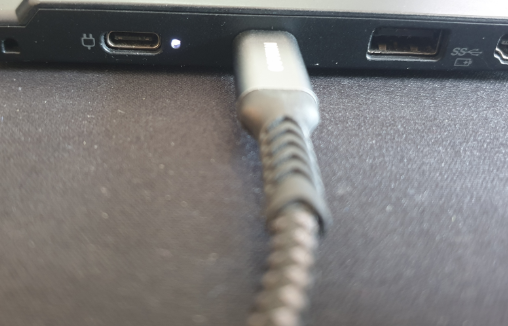
Start by ruling out the most basic issue: power. Ensure that the laptop has enough charge and is properly plugged into a working power outlet
Power Adapter: Make sure the charger is plugged in securely and isn't damaged. Check if the power light on your laptop is on. If it's not, try using a different outlet or charger to rule out a faulty power source
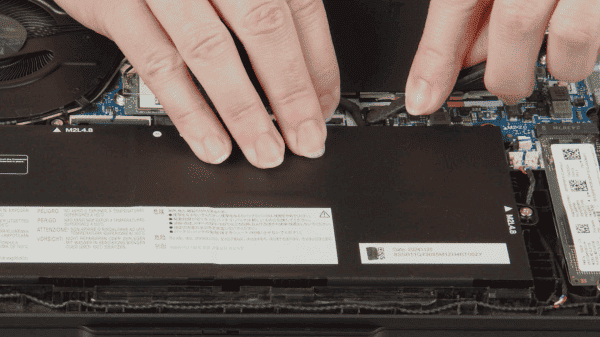
Battery: If your laptop's battery is completely drained, it may not turn on. Try removing the battery (if possible) and plug the laptop directly into the power source
Perform a Hard Reset
A simple hard reset can resolve minor software glitches or issues caused by residual power
Remove External Devices: Disconnect all external devices like USB drives, printers, or external monitors to eliminate any interference
Perform the Reset: Hold down the power button for at least 30 seconds to discharge any residual power
Try Powering It On Again: After holding the power button, reconnect the battery (if it was removed) and plug the laptop into the charger. Then, attempt to power on your laptop again
Check the Display
If you notice that your Dell Inspiron is turning on (you see the power light or hear sounds) but the screen remains blank, the issue could be with the display
Test for Display Activity: Shine a flashlight on the screen and check for any images. If you see a faint image, the backlight may be faulty
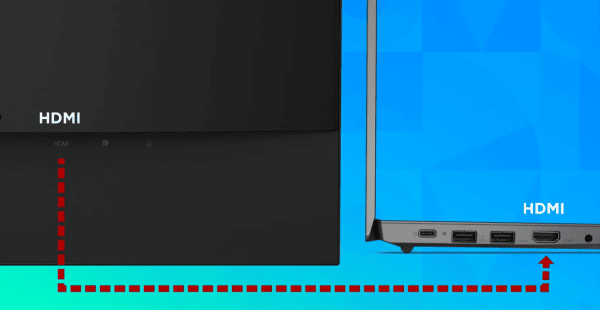
External Display: Connect your laptop to an external monitor or TV via HDMI or VGA cable. If the external display works, it indicates that your laptop screen may be damaged and may require repair
Boot into Safe Mode
Sometimes, startup issues are caused by software problems or driver conflicts. Booting into Safe Mode can help you access your system with only the essential drivers loaded
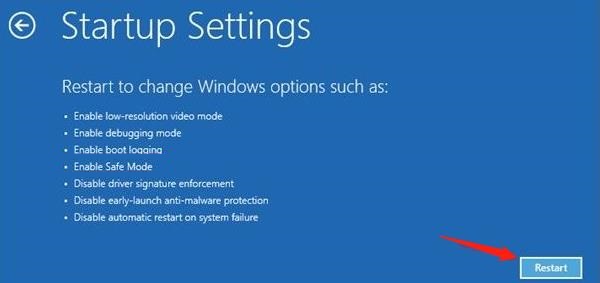
Access Advanced Boot Options: Restart the laptop and press F8 or Shift + F8 during startup to bring up the Advanced Boot Options menu
Select Safe Mode: Choose Safe Mode from the options and allow Windows to load with minimal drivers. If your laptop boots into Safe Mode, it indicates that the problem may be software-related
Update or Reinstall Drivers
Outdated or corrupted drivers can prevent your system from booting correctly. If you can get into Safe Mode, you can update or reinstall critical drivers that might be causing you laptop not powering on
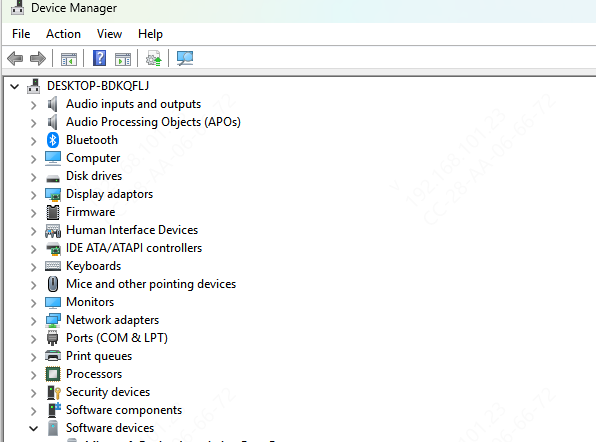
Device Manager
Right-click on the Start menu and select Device Manager
Look for any devices with a yellow warning symbol, indicating that drivers are outdated or corrupted. Right-click and select Update Driver to download the latest drivers
Use Driver Talent X for Automated Driver Updates
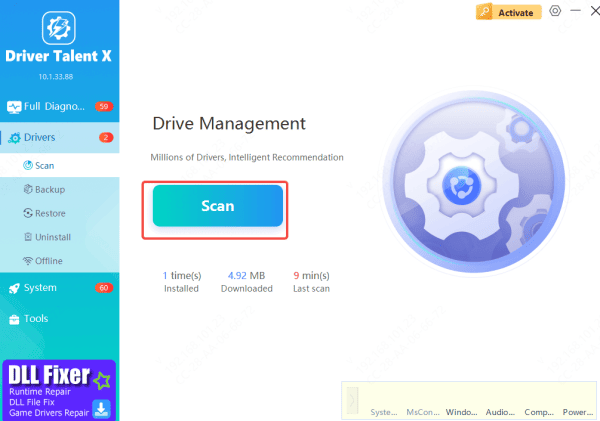
If you find it challenging to manually update your drivers, Driver Talent X can make the process faster and easier. This software automatically scans your system for outdated, missing, or corrupted drivers, allowing you to quickly update them with just a click.
Download and install Driver Talent X from the official website
Open the Software and go to the Drivers section
Click "Scan" to check for outdated or missing drivers
Click "Repair Now" to automatically download and install the latest drivers
Using Driver Talent X ensures that your laptop's drivers are always up to date, reducing the risk of startup issues
Hardware Issues
If none of the previous methods work, you may be dealing with a hardware-related problem
Faulty RAM: Faulty or improperly seated RAM can prevent your system from booting. If you're comfortable doing so, open the back panel and reseat or replace the RAM
Hard Drive Problems: A damaged hard drive can also prevent booting. If you suspect this, consider testing with another hard drive or SSD
Conclusion
Dealing with a Dell Inspiron laptop that won't turn on can be a stressful experience, but by following the troubleshooting steps above, you have a high chance of fixing the issue on your own. Start with basic checks like power supply and battery, and perform a hard reset to rule out minor glitches. If you can access Safe Mode, updating or reinstalling drivers may resolve software-related issues. For a more efficient solution, Driver Talent X can automate the driver update process, ensuring your system runs smoothly. If hardware problems persist, seek professional help for a more in-depth diagnosis. By following these steps, you'll be able to get your Dell Inspiron laptop back in action in no time.
