

Connecting an HP printer to Wi-Fi gives you the flexibility to print wirelessly from a Windows 10 or Windows 11 PC, but setup problems can occur when the printer does not join the correct network, Windows cannot detect it, or the proper driver is missing. A successful wireless setup depends on both network connectivity and correct printer software. This guide explains the complete process, including preparing the printer for wireless setup, connecting through HP Smart or the printer control panel, checking printer drivers with Driver Talent X, adding the printer in Windows, and troubleshooting common detection or offline issues.
Why Use Wi-Fi for HP Printer Setup?
Connecting your HP printer to Wi-Fi allows you to:
Print from any device connected to the same network (PC, laptop, or smartphone).
Reduce cable clutter in your workspace.
Share one printer with multiple devices.
Access advanced features such as HP Smart App printing and cloud printing.
Step 1: Prepare Your HP Printer for Wi-Fi Setup
Before starting, make sure your printer is powered on and in a ready state.
Turn on your HP printer.
Ensure the Wi-Fi indicator light on the printer is blinking. If not, press and hold the Wireless button (or Wireless + Cancel button on some models) until the light starts flashing. This puts your printer into Wi-Fi setup mode.
Place your printer near your Wi-Fi router for a stable connection.
Step 2: Connect Your HP Printer to Wi-Fi (Wireless Setup)
You can connect your HP printer to Wi-Fi using the HP Smart App or the Wireless Setup Wizard (for printers with a display panel).
Method 1: Using the HP Smart App
Download the HP Smart App from the Microsoft Store.
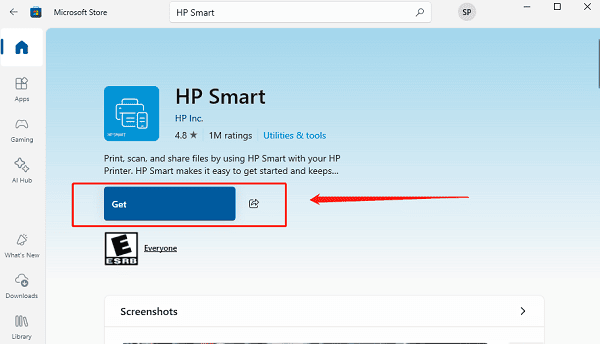
Open the app and click "Set up a new printer".
The app will search for printers in Wi-Fi setup mode.
Select your printer from the list.
Enter your Wi-Fi network name and password.
Follow the on-screen prompts until the setup is complete.
Method 2: Using the Printer Control Panel (for printers with display)
On the printer's control panel, press the Wireless icon.
Select "Wireless Setup Wizard".
From the list of available networks, choose your Wi-Fi network.
Enter your Wi-Fi password using the keypad.
Confirm and wait for the printer to connect. The Wi-Fi light will turn solid blue when connected successfully.
Step 3: Check Printer Drivers
Manually downloading drivers works, but it can take time. A quicker and safer method is to use Driver Talent X, which automatically finds and updates the correct drivers for your printer.
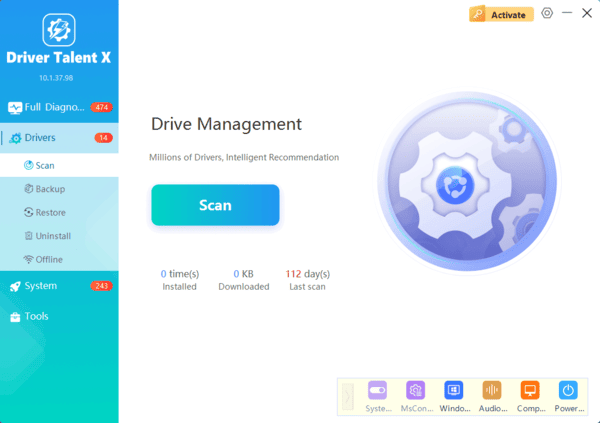
Step 4: Add the HP Printer in Windows
Press Win + I to open Settings.
Go to "Devices" > "Printers & scanners".
Click "Add a printer or scanner".
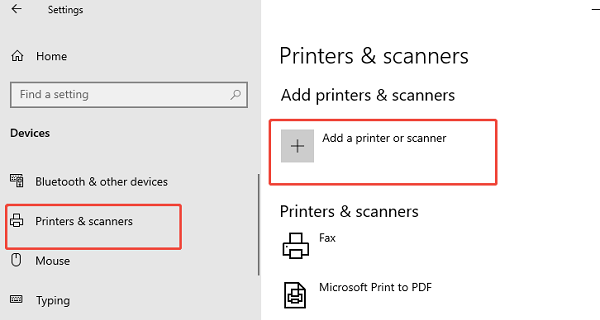
Windows will search for available printers.
Select your HP printer and click "Add device".
Print a test page to confirm everything works.
Frequently Asked Questions
Why can't HP Smart find my printer during setup?
Confirm that the printer is in wireless setup mode and that Bluetooth, Wi-Fi, and location permissions are enabled on the PC. Move the printer closer to the router and restart HP Smart.
Does the printer need to use the same Wi-Fi network as my computer?
Yes. Both devices should normally connect to the same router and network. Also check whether the printer supports only 2.4 GHz Wi-Fi, as many older models cannot join a 5 GHz-only network.
How do I reconnect an HP printer after changing the Wi-Fi password?
Restore the printer's wireless setup mode, then use HP Smart or the Wireless Setup Wizard to enter the new network credentials. Remove and re-add the printer in Windows if it remains offline.
Conclusion
Setting up your HP printer on Wi-Fi in Windows is straightforward if you follow the correct steps.
By following this guide, you'll enjoy hassle-free, cable-free printing and keep your HP printer running smoothly on Windows 10 or Windows 11.
