

Display problems on an Intel Arc A750 can appear as flickering, black screens, visual artifacts, incorrect resolution, or unstable frame rates. Although these symptoms may suggest hardware failure, they are often caused by corrupted drivers, incompatible updates, incorrect display settings, or connection issues. This guide explains several ways to update the Intel Arc A750 driver and troubleshoot any display problems that remain afterward.
Common Display Issues with Intel Arc A750
Screen Flickering: Caused by incompatible or outdated drivers that prevent the monitor from properly syncing with the GPU
Artifacts on Screen: Visual distortions that occur when the graphics card is not being properly recognized by the driver
Low Frame Rates and Stuttering: A sign that the graphics card is underperforming due to an outdated or corrupted driver
Black or Blank Screen: This happens when the driver fails to load correctly, leaving the screen either black or unresponsive
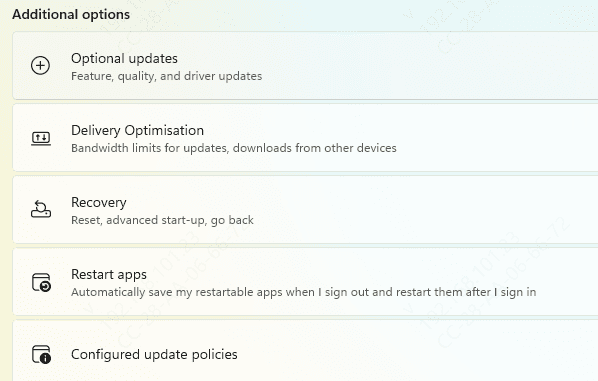
Method 1: Update Drivers via Windows Update
Windows Update is the most basic and straightforward method for updating Intel drivers.
Open Settings by pressing Windows + I
Go to Update & Security > Windows Update
Click Check for Updates to allow Windows to search for available updates, including Intel Arc A750 drivers
If a driver update is available, it will be downloaded and installed automatically
Restart your PC to apply the updates
Method 2: Manually Download A750 Drivers from Website
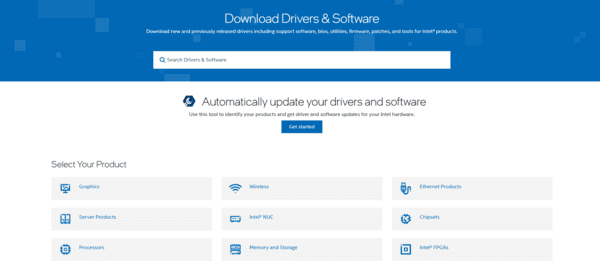
For more control over the update process, you can manually download drivers from Intel's official website.
Visit the Intel Download Center
Search for Intel Arc A750 and choose the correct driver based on your operating system (Windows 11 or 10)
Download the driver and run the installer
Follow the installation prompts and restart your computer
Method 3: Driver Talent X
For an even easier and more automated way to update your Intel Arc A750 driver, Driver Talent X is an excellent option. This tool automates the entire driver update process and ensures you always have the most up-to-date and compatible drivers installed.
Download and Install
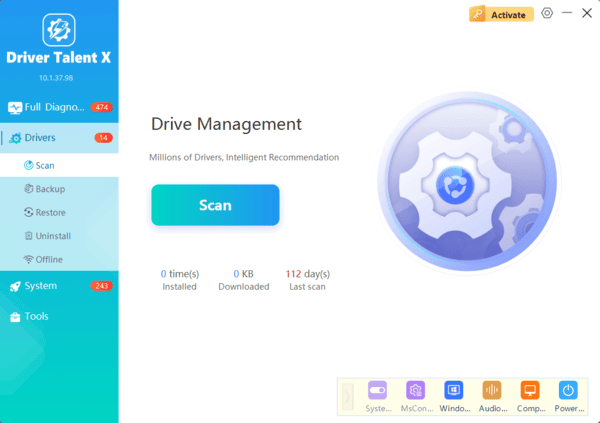
Download Driver Talent X from the official website and install it on your PC
Run System Diagnose
Launch the program and click on Diagnoseto detect outdated or missing drivers
Update Intel Arc A750 Driver
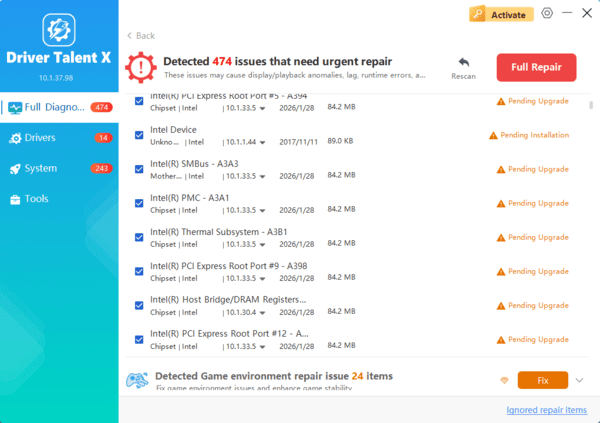
Once the scan is complete, select Intel Arc A750 from the list and click Full Repair
Restart Your PC
After the update is complete, restart your computer to apply the new drivers
By using Driver Talent X, you'll ensure that your Intel Arc A750 drivers are always up-to-date with minimal effort, preventing display issues and enhancing graphics performance.
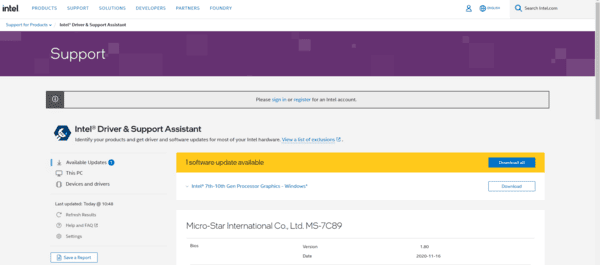
Method 4: Use Intel Driver & Support Assistant (DSA)
Intel's official Driver & Support Assistant (DSA) tool can automatically detect and update Intel drivers, including for the Intel Arc A750.
Download and install Intel Driver & Support Assistant from the Intel website
Open the tool, and it will automatically scan your system for outdated drivers
Once the scan is complete, the tool will display a list of drivers, including Intel Arc A750 updates
Follow the on-screen instructions to download and install the updated driver
Restart your system to finalize the installation
Method 5: Update Intel Arc A750 Drivers via Device Manager
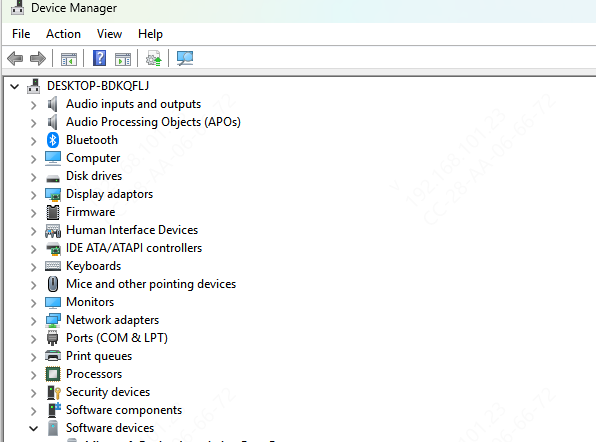
Device Manager allows you to update drivers directly from Windows without downloading additional software.
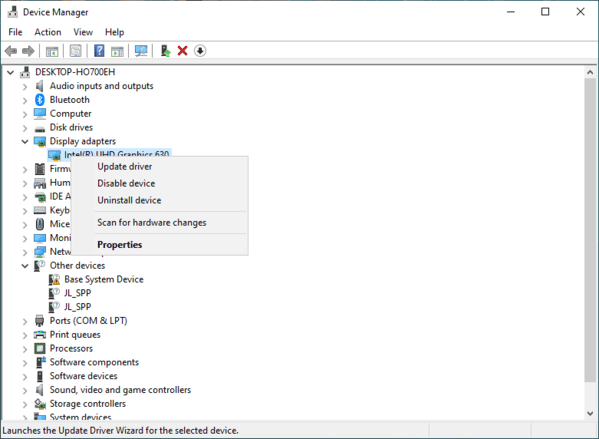
Right-click on Start and select Device Manager
Expand the Display adapters section and locate Intel Arc A750
Right-click on Intel Arc A750 and select Update Driver
Choose Search automatically for updated driver software
Let Windows search for available updates, and if a new version is found, it will be installed automatically
Restart your system to apply the changes
Troubleshooting Post-Update Display Issues
Even after updating your Intel Arc A750 driver, if display issues persist, follow these steps:
Roll Back the Driver: If the new driver causes instability, use Device Manager to roll back to the previous driver version
Adjust Display Settings: Check and adjust the resolution, refresh rate, and other display settings in Settings > Display
Check Monitor and Cable Connections: Ensure all cables and connectors are properly secured
Update Other System Drivers: Sometimes other outdated drivers (chipset, audio, etc.) may also affect graphics performance
Conclusion
Regularly updating your Intel Arc A750 drivers is essential for optimal performance and a smooth visual experience. Whether you use Windows Update, Intel Driver & Support Assistant, Device Manager, or Driver Talent X, updating your drivers ensures better stability, improved performance, and compatibility with the latest software. Follow these steps to resolve display issues and boost your graphics performance to enjoy a better gaming and computing experience.
