

If you're facing display problems such as screen flickering, graphical glitches, or poor performance, the issue may be caused by an outdated or corrupted Intel Iris Xe Graphics driver. Intel Iris Xe graphics is designed to deliver strong performance for everyday use, gaming, and media editing, but driver issues can significantly impact visual quality and system stability. This guide will walk you through the best methods to fix these problems and help you restore your system to optimal Intel Iris Xe graphics performance.
Manually Update the Driver
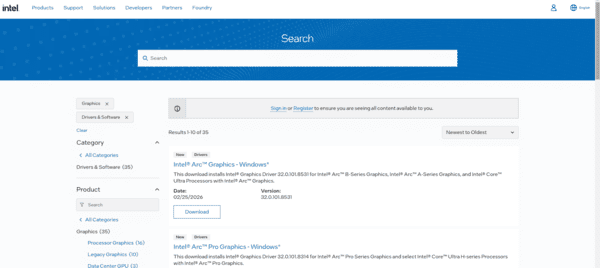
Go to the Intel Download Center and search for the Intel Iris Xe Graphics driver
Download the latest compatible version for your system
Run the installer and follow the on-screen instructions to update the driver
Restart your computer to complete the update
Update Drivers Using Driver Talent X
Download & Install Driver Talent X
Get the Installer: Visit the official Driver Talent X website to download the installer for your system
Install the Software: Run the installer and follow the on-screen instructions to install Driver Talent X on your laptop or desktop
Diagnose for Outdated or Missing Drivers
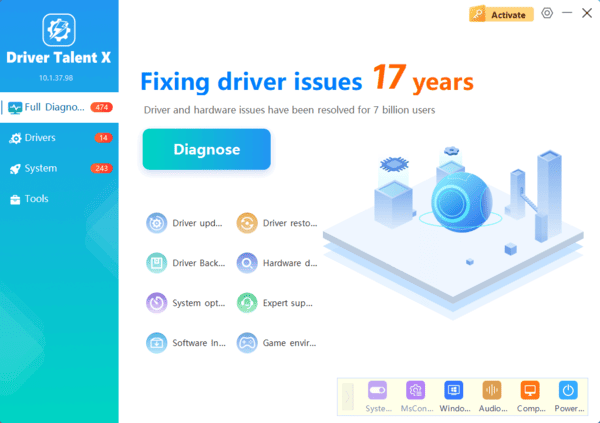
Open Driver Talent X: After installation, open Driver Talent X from your desktop or Start menu
Perform a Diagnose : Go to the Drivers tab and click on Diagnose to check for outdated, missing, or corrupted drivers, including the Intel Iris Xe Graphics driver
Update Intel Iris Xe Graphics Driver
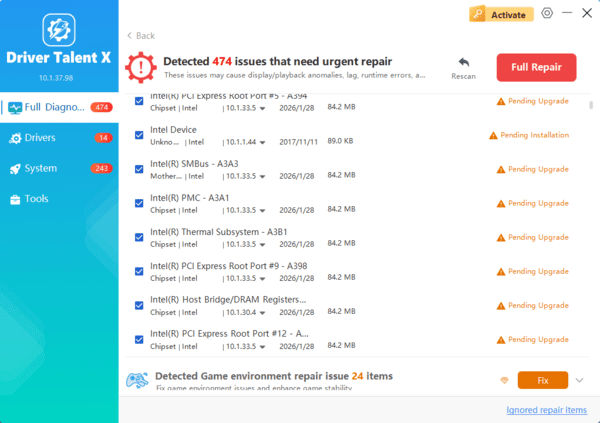
Find the Intel Iris Xe Graphics Driver: In the scan results, locate the Display adapters section where your Intel Iris Xe Graphics driver should be listed
Click Full Repair: Select Full Repair to update the driver to the latest version automatically
Restart Your Computer
Apply Changes: After the driver update is complete, restart your computer to ensure the new Intel Iris Xe Graphics driver is applied correctly
Update Intel Iris Xe Driver Using Windows Update
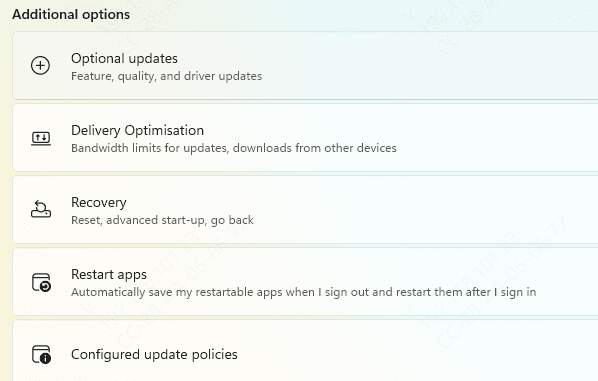
Open Settings and navigate to Windows Update
Click on Check for Updates to search for any available updates
If a driver update for Intel Iris Xe Graphics is available, Windows will download and install it automatically
Restart your PC to apply the changes
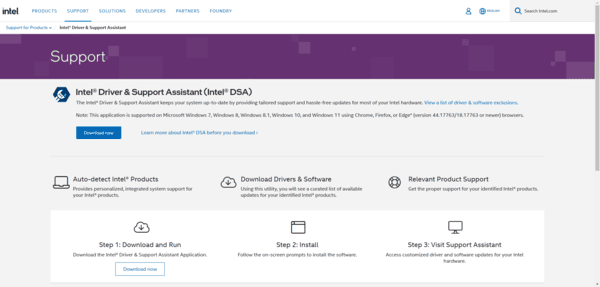
Use Intel Driver & Support Assistant (DSA)
Download and install Intel Driver & Support Assistant from Intel's official website
Once installed, run the tool to automatically scan your system for outdated drivers
The tool will prompt you if an update is available for Intel Iris Xe Graphics. Follow the on-screen instructions to install it
Reinstall the Driver (If Problems Persist)
How to Reinstall:
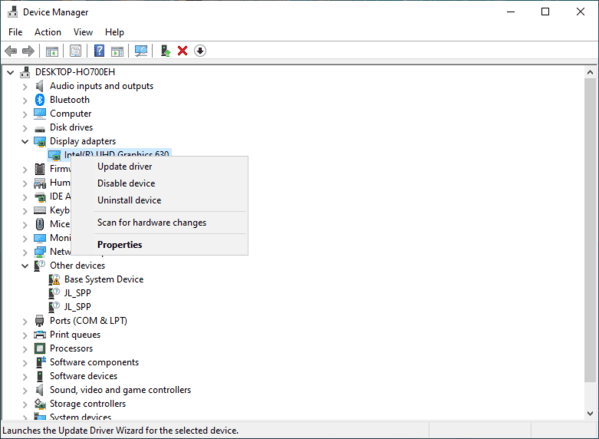
In Device Manager, right-click Intel Iris Xe Graphics and choose Uninstall device
Confirm that you want to delete the driver software
Restart your system, and Windows will automatically reinstall the driver, or you can install the latest one manually
Additional Tips for Resolving Display Problems
Reset Display Settings: Open Intel Graphics Command Center or Intel HD Graphics Control Panel and reset the settings to their default values
Disable Hardware Acceleration: For apps like web browsers, disable hardware acceleration to reduce graphics load and prevent issues
Update Your System BIOS: Sometimes a BIOS update can resolve compatibility problems between your hardware and software, improving overall performance
Check for Conflicting Software: Certain applications may cause display problems by conflicting with your Intel driver. Ensure that no third-party software is interfering with your graphics driver
Conclusion
Keeping your Intel Iris Xe Graphics driver up to date is essential for fixing display issues, improving gaming performance, and ensuring your system runs smoothly. By following these steps, you can quickly solve common graphics problems and enhance your visual experience. Regularly checking for display driver updates will help prevent these issues in the future and keep your system performing at its best.
