A flashing screen on your Lenovo Yoga can make everyday tasks difficult, whether you are browsing the internet, watching videos, or working on important documents. The display may flicker randomly, flash black for a few seconds, or repeatedly change brightness.
Some users experience screen flickering after a Windows update, while others notice the problem when charging their laptop, adjusting the screen angle, or switching between laptop and tablet modes.
Fortunately, not every display problem requires screen replacement. This guide explains how to identify the cause of Lenovo Yoga screen flickering and restore stable display performance on Windows 11 and Windows 10.
Method 1: Determine Whether the Problem Is Software Related
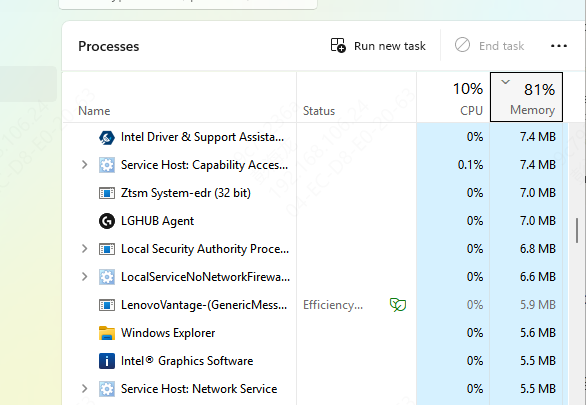
1. Press Ctrl + Shift + Esc to open Task Manager.
2. Observe Task Manager while the screen is flashing.
3. Check whether Task Manager flickers along with the rest of the display.
Method 2: Update or Reinstall Your Graphics Drivers
Graphics driver compatibility is particularly important on Lenovo Yoga laptops because the driver manages display rendering, power consumption, brightness adjustment, and, on supported models, refresh rate transitions.
An incompatible graphics driver may cause the screen to flash when watching videos, waking the laptop from sleep, or switching between applications.
Option 1: Update Graphics Drivers Using Driver Talent X
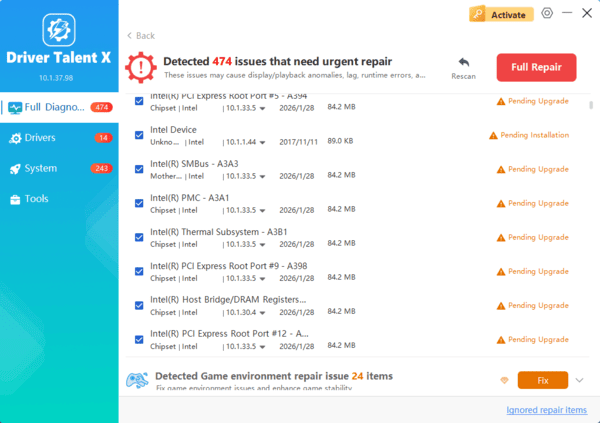
Driver Talent X provides a convenient way to check supported missing, outdated, or problematic device drivers, including graphics drivers.
1. Download Driver Talent X from the official website.
2. Install and launch the software on your Lenovo Yoga.
3. Click Scan to check your drivers.
4. Review the detected graphics driver issues.
5. Install an appropriate compatible driver if available.
6. Restart your laptop after installation.
7. Check whether the screen flashing problem has disappeared.
Option 2: Download Graphics Drivers from Lenovo
Lenovo provides model-specific drivers that may include custom display and power-management features.
1. Visit Lenovo PC Support.
2. Search for your exact Lenovo Yoga model.
3. Navigate to Drivers & Software.
4. Locate the graphics driver category.
5. Download the compatible driver for your operating system.
6. Install the driver and restart your laptop.

Method 3: Change the Display Refresh Rate
Some Lenovo Yoga models support high refresh rates or dynamic refresh rate technology. Switching between refresh rates may contribute to flashing or intermittent black screens when compatibility problems occur.
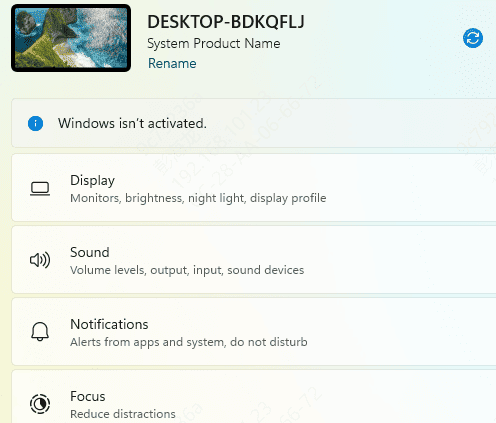
1. Press Windows + I to open Settings.
2. Navigate to System > Display.
3. Select your built-in laptop display.
4. Click Advanced display on Windows 11 or Advanced display settings on Windows 10.
5. Select a supported fixed refresh rate, such as 60 Hz, if available.
6. Disable Dynamic Refresh Rate temporarily if your laptop supports it.
7. Observe whether the screen continues flashing.
If the flickering disappears, investigate graphics driver compatibility and Lenovo firmware updates before returning to your preferred refresh rate.
Method 4: Identify Incompatible Applications
If your Lenovo Yoga screen only flashes while running a particular browser, video player, or application, hardware acceleration or software compatibility may be responsible.
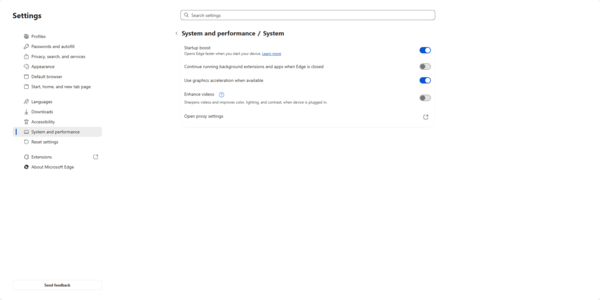
For browser-related flickering, try disabling graphics acceleration temporarily.
In Google Chrome:
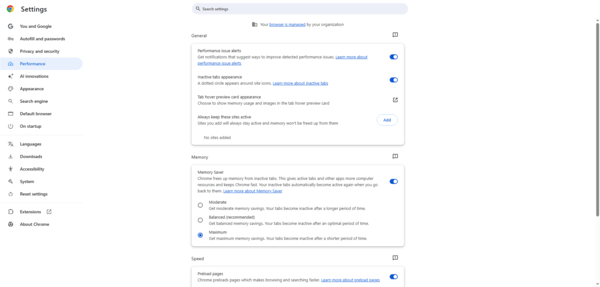
1. Open Chrome Settings.
2. Navigate to System.
3. Turn off Use graphics acceleration when available.
4. Relaunch Chrome.
5. Check whether the flickering disappears.
In Microsoft Edge, look for the equivalent option under Settings > System and performance.
Method 5: Install Lenovo System and Firmware Updates
Lenovo Yoga laptops rely on several system components to manage display output, sleep transitions, power consumption, and convertible laptop functionality.
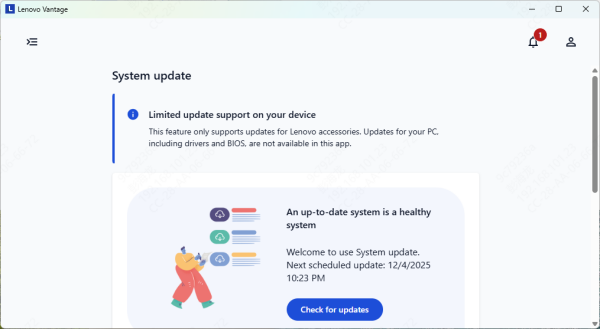
1. Open Lenovo Vantage.
2. Locate the system update section.
3. Check for available updates.
4. Review relevant graphics, chipset, and firmware updates.
5. Install applicable updates and restart your laptop.
Advanced Troubleshooting
Roll Back a Recently Installed Graphics Driver
1. Right-click the Start button.
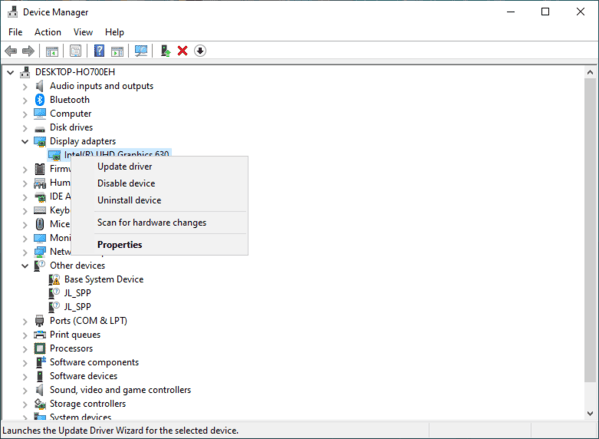
2. Select Device Manager.
3. Expand Display adapters.
4. Right-click the affected graphics device and select Properties.
5. Open the Driver tab.
6. Click Roll Back Driver, if available.
7. Restart your Lenovo Yoga.
Perform a Windows Clean Boot
1. Press Windows + R.
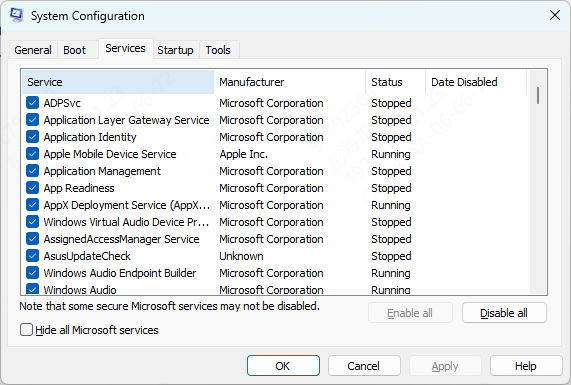
2. Type msconfig and press Enter.
3. Open the Services tab.
4. Select Hide all Microsoft services.
5. Record the original settings and temporarily disable nonessential third-party services.
6. Navigate to the Startup tab and open Task Manager.
7. Disable unnecessary startup applications.
8. Restart your laptop.
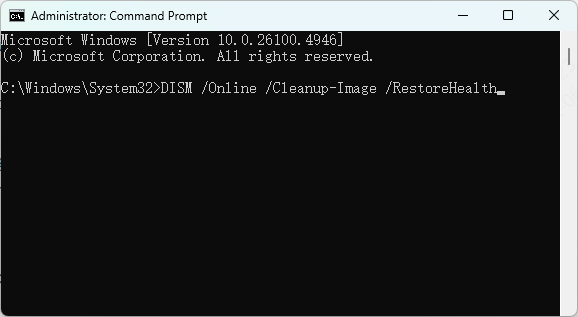
Repair Corrupted Windows System Files
Open Command Prompt as administrator and run:
DISM /Online /Cleanup-Image /RestoreHealth
Once the operation completes, execute:
sfc /scannow
Frequently Asked Questions
Why Does My Lenovo Yoga Screen Flicker Only on Battery Power?
Battery-powered operation may activate different refresh rate, brightness, and display power-saving settings. Checking Panel Self Refresh and other supported power-saving features may help identify the cause.
Is Screen Flickering Normal on a Lenovo Yoga OLED Display?
Some OLED displays use brightness modulation that certain users may perceive as flickering. However, repeated black flashes, severe image distortion, or sudden display interruptions should not automatically be considered normal.
How Do I Know If My Lenovo Yoga Screen Needs Replacing?
Screen replacement may be necessary if professional diagnostics confirm panel failure. However, a damaged display cable or other internal component can produce similar symptoms, so the affected component should be identified before replacing the screen.
Conclusion
Lenovo Yoga screen flickering can result from incompatible graphics drivers, incorrect refresh rate settings, software conflicts, or internal hardware problems. Start by checking Task Manager, adjusting the display refresh rate, and installing relevant Lenovo system updates. Driver Talent X can also help identify and update supported graphics drivers. If the screen continues flashing in BIOS or when adjusting the laptop's screen angle, professional hardware inspection may be necessary. These troubleshooting methods can help identify the underlying cause and restore stable display performance on Windows 10/11.