

A reliable wired internet connection is essential for gaming, streaming, large file transfers, and professional work. MSI users often face problems where the Ethernet port is unrecognized, disconnects intermittently, or shows "No Internet." These issues are typically caused by missing, outdated, or corrupted Ethernet drivers. Keeping it up-to-date ensures maximum speed, stability, and compatibility with the latest Windows updates. This guide will walk you through identifying your hardware, updating drivers via multiple methods, and troubleshooting common problems.
Identify Your Hardware First
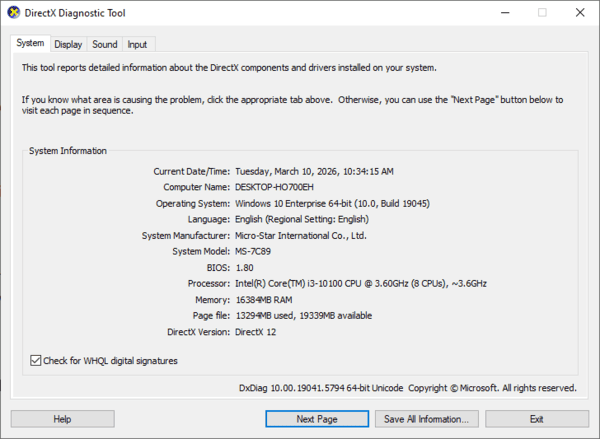
Find Your Model: Press Win + R, type msinfo32, and press Enter. Check BaseBoard Product (e.g., MAG B760 TOMAHAWK WIFI)
Identify the LAN Chip: Right-click the Start button, select Device Manager, and expand Network adapters. Common entries include "Intel Ethernet Connection," "Realtek PCIe GbE," or "Killer E-Series"
If your MSI PC has no internet, download the driver on a second device and transfer it via USB
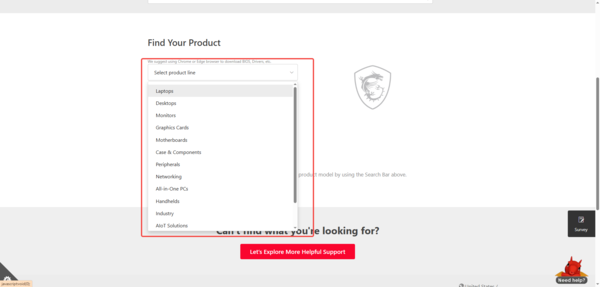
Manual Installation from MSI Support
If MSI Center doesn't detect your hardware, a manual installation ensures you get the exact driver for your motherboard:
Visit the MSI Support Download Center
Enter your motherboard or laptop model and select the product
Go to the Driver tab and select your Windows version (10 or 11)
Expand the LAN category. Download the driver that matches the chipset identified in Device Manager
Extract the ZIP file and run Setup.exe. Follow the prompts to install
Manual installation guarantees the correct driver, which is especially useful for new builds or fresh Windows installs
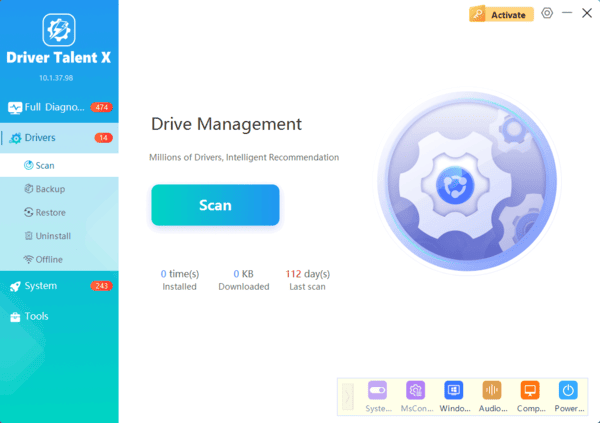
Using Driver Talent X for Automatic Updates
For a fast, all-in-one solution to keep your Ethernet and system drivers current, Driver Talent X is highly effective:
Install Driver Talent X – Download it from the official website and follow the instructions
Scan Your System – Open the software, go to the Drivers tab, and click Diagnose. It identifies outdated, missing, or corrupted drivers, including your Ethernet adapter
Repair & Update Automatically – Select your Ethernet driver from the scan results and click Full Repair. Driver Talent X downloads and installs the correct version automatically
Restart Your System – After installation, restart to ensure changes take effect
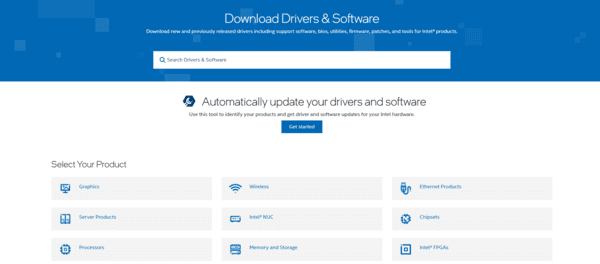
The Chip Manufacturer
For certain high-end LAN controllers, MSI may not always have the latest driver version. If your motherboard uses Intel i225-V or i226-V, or Realtek PCIe controllers, consider the manufacturer's software:
Intel LAN: Use the Intel Driver & Support Assistant to automatically detect and install the latest driver
Realtek LAN: Visit the Realtek PCIe GBE Family Controller page to download the "Auto Installation Program"
These direct sources often include bug fixes for disconnection issues and improved compatibility with high-speed networks
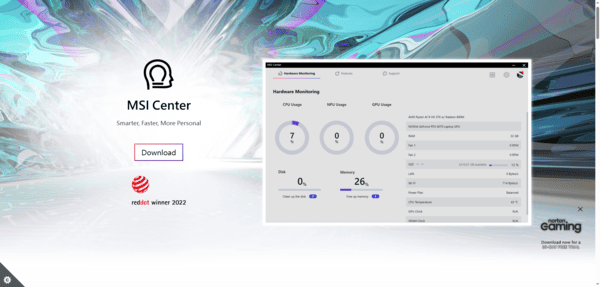
MSI Center
Open MSI Center
Navigate to the Support tab
Click Live Update and then Scan
Locate LAN Driver in the results
Check the box and click Install. Your system may require a restart to finalize the installation
Troubleshooting: Ethernet Still Not Working
Even after updating drivers, a few additional checks may be necessary:
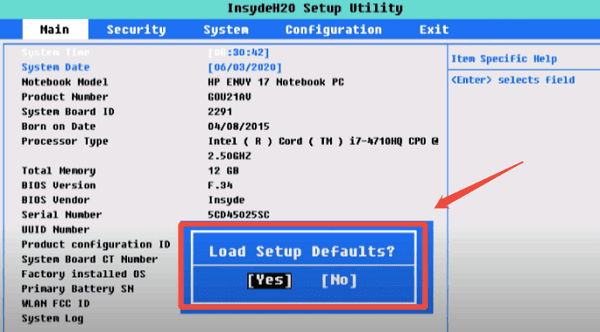
BIOS Check
Restart and press Delete to enter BIOS
Go to Settings > Advanced > Integrated Peripherals
Ensure Onboard LAN Controller is set to Enabled
Windows Network Reset
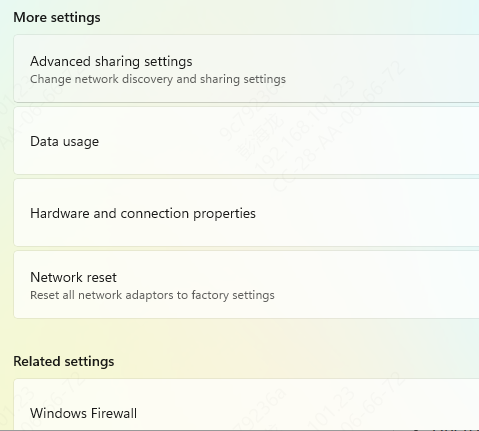
Go to Settings > Network & internet > Advanced network settings > Network reset
Click Reset now. This reinstalls all network adapters and refreshes network configurations
Physical Hardware Verification
Check the Ethernet port LEDs:
Green: Solid connection
Amber/Orange: Data transferring
No light: Possible dead cable, disabled port, or hardware failure
Best Practices for Maintaining Your Ethernet Connection
Regular Updates: Check for driver updates every 1–3 months
Reliable Cables: Use quality Cat5e or Cat6 Ethernet cables to avoid connection drops
Backup Drivers: Keep a copy of the working Ethernet driver for emergency reinstalls
Combine Tools: Use MSI Center for MSI-specific updates and Driver Talent X for system-wide driver health
Conclusion
Updating your MSI Ethernet driver is a straightforward solution to most connectivity problems. MSI Center offers convenience, the manual method provides precision, and Driver Talent X gives an automated, full-system update option.
