

If your MSI laptop or desktop has unstable Wi-Fi, frequent disconnections, slow speeds, or a missing wireless icon, the problem may be related to an outdated, corrupted, or incorrectly installed network driver. Updating the correct Wi-Fi driver can help restore reliable connectivity and improve compatibility with Windows and your wireless hardware. This guide explains several practical ways to update MSI Wi-Fi drivers.
Identify Your Hardware First
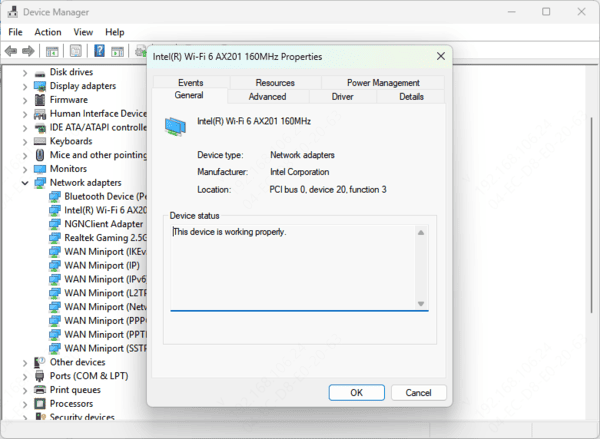
Right-click the Start button and select Device Manager
Expand the Network adapters section
Look for an entry that says "Wi-Fi," "Wireless," or "802.11." (Common manufacturers are Intel, Killer, or Realtek)
Note down the model name (e.g., Intel Wi-Fi 6 AX201)
Method 1: MSI Center
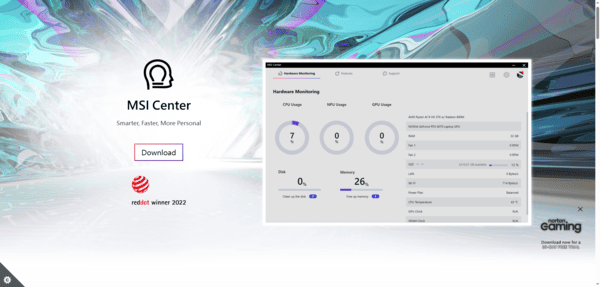
Open MSI Center
Navigate to the Support tab (toolbox icon) and click Live Update
Click Scan
Look for "Wireless LAN Driver" in the list
Check the box and click Install. Your laptop may require a restart to apply the changes
Method 2: Manual Download
Go to the MSI Support Page
Type your Laptop/Motherboard model name (e.g., Katana GF66 or MPG Z790 Edge) into the search bar
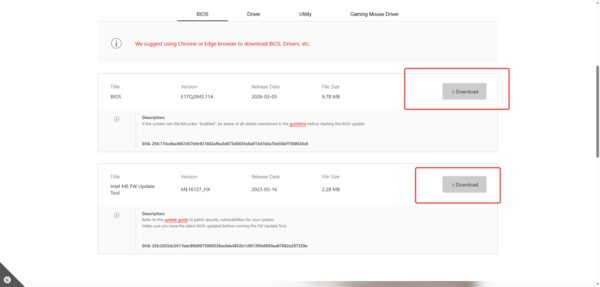
Select your product and go to the Driver tab
Choose your Operating System (Windows 10 or 11)
Find the LAN or Wireless LAN section and download the latest driver
Extract the ZIP file, run the Setup.exe, and follow the on-screen instructions
Method 3: Using Driver Talent X
If you want an even faster and more comprehensive way to update your MSI Wi-Fi driver, Driver Talent X can automatically detect outdated or missing drivers and install them without manual searching.
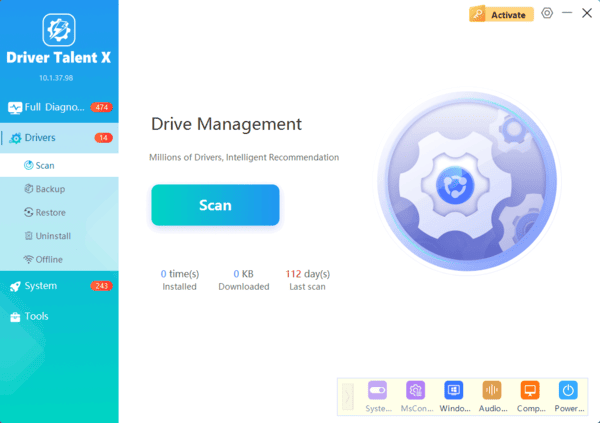
Download & Install Driver Talent X
Scan for Outdated or Missing Drivers
Update Your Wi-Fi Driver
Restart Your Laptop
Troubleshooting: Still No Wi-Fi?
If updating the driver didn't fix the problem, try these "Clean Install" steps:
Uninstall the Old Driver: In Device Manager, right-click your Wi-Fi card and select Uninstall device. Check the box that says "Attempt to remove the driver for this device" and restart. Windows will try to install a fresh base driver automatically
Check the Kill Switch: Some MSI laptops have a physical "Flight Mode" function on the F10 or F12 keys. Ensure you haven't accidentally disabled the wireless radio
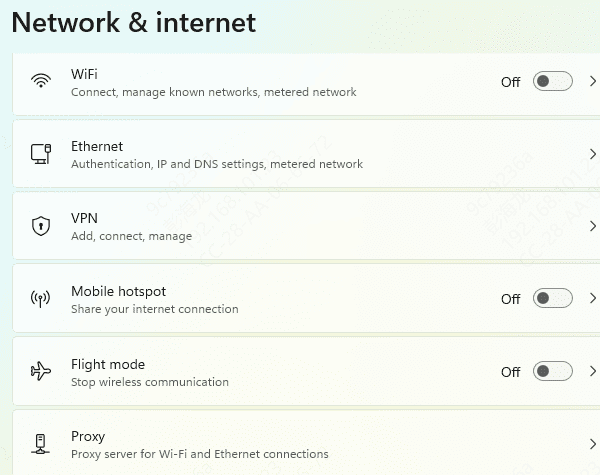
Network Reset: Go to Settings > Network & internet > Advanced network settings > Network reset. This will reinstall all network adapters and reset networking components to their default settings
Frequently Asked Questions
Why are multiple Wi-Fi drivers listed for the same MSI model?
The same MSI model may ship with Intel, Killer, Realtek, or MediaTek wireless adapters. Check the adapter name or its Hardware IDs in Device Manager, then install the package matching the hardware actually installed in your computer.
How can I update the Wi-Fi driver when the MSI computer has no internet?
Download the correct driver on another computer or phone, copy it to a USB drive, and transfer it to the MSI PC. Extract the package, run its installer, and restart Windows after installation.
Will Network Reset delete my saved Wi-Fi information?
Yes. Network Reset removes and reinstalls network adapters while restoring their settings to defaults. Saved Wi-Fi networks, passwords, VPN adapters, and custom IP or DNS configurations may need to be entered again afterward.
Conclusion
Updating your MSI Wi-Fi driver is the first line of defense against connectivity issues. For most users, Driver Talent X is the most convenient tool, but knowing how to manually install drivers from the MSI support site is a vital skill when your internet is completely down.
