

Updating the display driver for an MSI motherboard is a specific task. This driver controls the Integrated Graphics (iGPU)—the visual processing power built directly into your CPU. Unlike a dedicated graphics card (dGPU) like an RTX 4070, the motherboard display driver manages the video output from the HDMI and DisplayPort jacks located on the motherboard's rear I/O panel. Whether you are building a PC without a dedicated GPU, or setting up a multi-monitor rig where your secondary screens run off the motherboard, keeping this driver updated is essential for system stability and high-definition video playback.
Pre-Update Checklist & BIOS Setup
Verify CPU Compatibility: Intel: Ensure your CPU is not an "F" series (e.g., i7-14700F), as these lack an iGPU
AMD: Ensure your CPU is a "G" series (e.g., Ryzen 7 8700G) or a Ryzen 7000/9000 series chip with built-in graphics
Enable Multi-Monitor Support (Pro Tip): If you have a dedicated graphics card installed, MSI motherboards often disable the onboard graphics by default
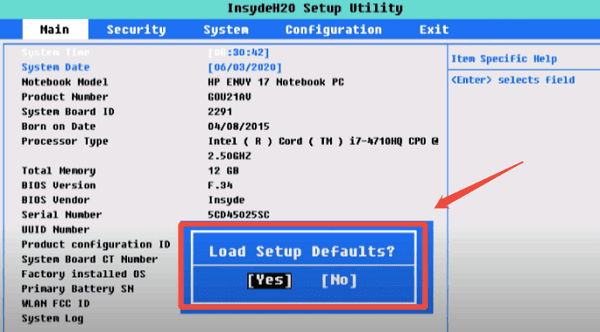
Enter BIOS (Tap Delete on boot)
Go to Settings > Advanced > Integrated Graphics Configuration
Set IGD Multi-Monitor to [Enabled]. This allows Windows to "see" the motherboard ports even while your main GPU is active
Using MSI Center
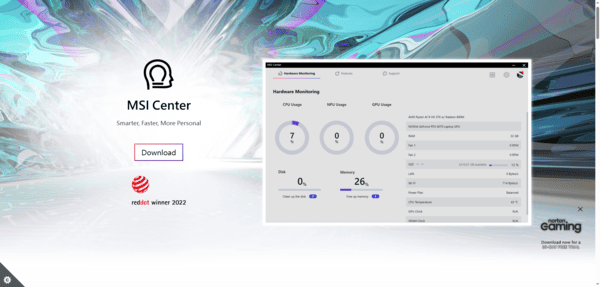
Launch MSI Center: Open the app and navigate to the Support tab
Select Live Update: Click the Live Update button
Scan and Install: Click Scan. Look for "Onboard Graphics Driver" or "VGA Driver." 4. Check the box and click Install. Your screen may flicker or turn black momentarily during the reset; this is a normal part of the driver handshake
Manual Update
Identify Your Model: Type msinfo32 in Windows Search to find your BaseBoard Product name
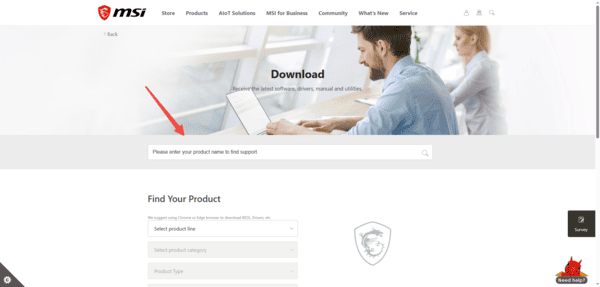
Visit MSI Support: Go to the MSI Support Center
Search and Download: Enter your model name. Navigate to Driver > On-Board VGA Drivers
Install: Download the package, extract the ZIP file, and run Setup.exe
Update Driver with Driver Talent X
Manually updating integrated graphics drivers can sometimes be tricky, especially if Windows has conflicting generic drivers or MSI Center misses the latest versions. Driver Talent X simplifies the process by handling the detection, download, and installation automatically.
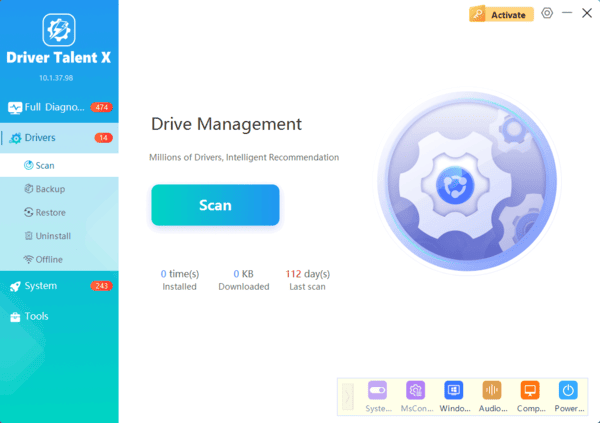
Install Driver Talent X: Grab the installer from the official website and follow the prompts to set it up
Run a Full Driver Scan: Open the software and click Diagnose under the Drivers tab. Driver Talent X will scan for outdated, missing, or incompatible drivers on your system, including your iGPU, chipset, and audio components
Automatic Driver Repair & Update: Click Full Repair, and the program will fetch and install the correct drivers. No more hunting through MSI support pages or guessing which version is compatible with your motherboard
Reboot and Optimize: Restart your PC to apply the updates. Once your system is back up, your integrated graphics will be fully optimized, helping reduce stutter in multi-monitor setups and improving overall video playback quality
Advanced Performance Optimization
Once the driver is installed, you can squeeze more performance out of your iGPU by adjusting how it shares system memory
In BIOS, under Integrated Graphics Configuration, find UMA Frame Buffer Size
Recommendation: If you have 16GB or 32GB of system RAM, set this to 2GB. This provides more "breathing room" for 4K video streaming and reduces stuttering in light creative tasks
Color Range Tweak: Intel Users: Open the Intel Graphics Command Center. Under Display > General, ensure the Quantization Range is set to "Full." This prevents "washed out" blacks on HDMI monitors
Troubleshooting & Deep Fixes
"System Does Not Meet Minimum Requirements": Cause: You likely have an "F" series CPU, or the iGPU is disabled in the BIOS.
DCH Driver Conflicts: If the installer exits unexpectedly, Windows may be "locking" a generic driver
Fix: Open Device Manager, right-click your Integrated Graphics under Display Adapters, select Uninstall Device, and check "Delete driver software." Then, immediately run the MSI installer before Windows Update can intervene
Mixing iGPU and dGPU: If you use your motherboard for a second monitor and a dedicated GPU for gaming, ensure both drivers are updated. Outdated motherboard drivers can cause "stuttering" on your primary gaming monitor even if the game is running on your dGPU
Conclusion
Updating your MSI motherboard display driver is a two-part process: enabling the hardware in the BIOS and installing the correct software via MSI Center or the MSI Support site. By optimizing your UMA Buffer Size and ensuring DCH compatibility, you can transform a standard display output into a stable, high-performance visual hub for multi-monitor setups or home theater PCs.
