

Keeping ASUS motherboard drivers up to date is critical for system stability, hardware compatibility, and optimal performance. Outdated or corrupted chipset, LAN, audio, or SATA drivers can cause boot failures, random crashes, USB issues, and poor system performance.
This guide explains how to download and update ASUS motherboard drivers safely, starting with the most reliable and efficient method using Driver Talent X, followed by several alternative solutions.
Method 1: Update ASUS Motherboard Drivers with Driver Talent X
Updating motherboard drivers manually can be time-consuming and risky if the wrong version is installed. Driver Talent X automates the entire process and ensures you get the most compatible drivers for your exact ASUS motherboard model.
Download and Install:
Click the "Download" button to download the latest installer. Save it to your computer.
Run the installer and follow the setup instructions. Choose the installation directory and complete the installation.
Run a Full System Scan:
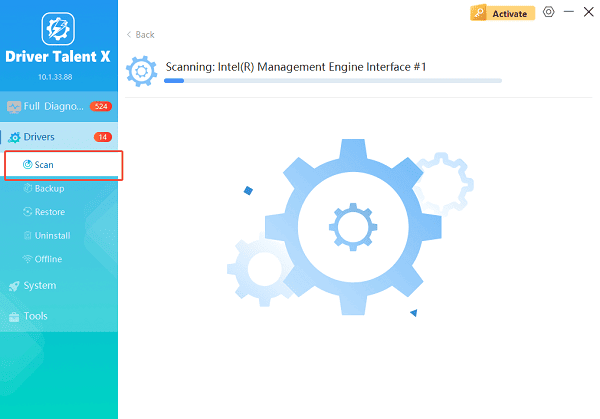
Open the application from the desktop shortcut or Windows Start menu, go to "Drivers" > "Scan", click "Scan".
Driver Talent X will detect outdated, missing, or corrupted drivers across all hardware components.
Update All Drivers:
After the scan is complete, the software will display a list of all drivers that need attention. Select the necessary drivers and click the "Upgrade" or "Repair Now" button.
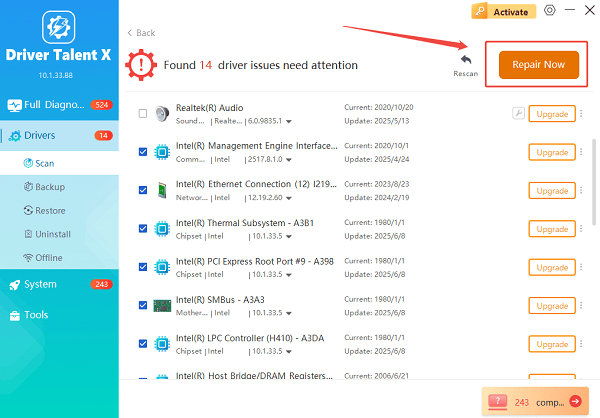
Driver Talent X will reliably download the latest drivers and execute a clean installation, critical for performance enhancements and stability fixes.
Restart Your PC:
Wait for the download and installation process to complete.
Restart your computer to apply the driver changes.
Driver Talent X also creates driver backups automatically, allowing you to roll back to a previous version if any compatibility issue occurs.
Method 2: Download Drivers from the Official ASUS Website
If you prefer manual updates, ASUS provides official drivers for each motherboard model.
How to Download Drivers from ASUS Support:
Press Windows + R, type "msinfo32", and press Enter.
Note the motherboard model listed under "BaseBoard Product".
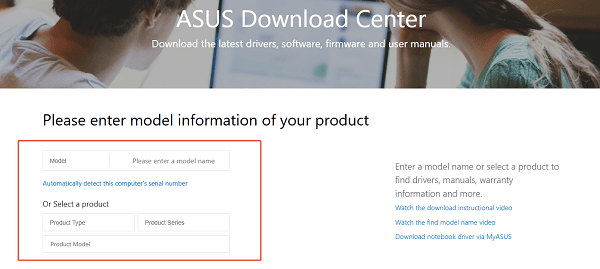
Visit the ASUS Support website.
Enter your motherboard model in the search box.
Select your operating system version.
Download the latest chipset, LAN, audio, and storage drivers.
Install each driver one by one and restart your PC when prompted.
This method requires careful selection to avoid installing incompatible drivers.
Method 3: Update ASUS Motherboard Drivers via Device Manager
Windows Device Manager can update some drivers automatically, though it often does not provide the latest versions.
Steps to Update Drivers Using Device Manager:
1. Right-click the Start menu and select Device Manager.
2. Expand categories such as:
System devices
Network adapters
Sound, video and game controllers
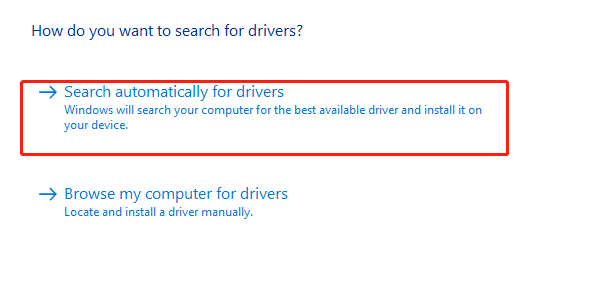
3. Right-click the target device and select "Update driver", choose "Search automatically for drivers".
4. Restart your computer after installation.
This method is suitable for minor updates but not recommended for chipset drivers.
Method 4: Update Chipset Drivers Through Windows Update
Some motherboard drivers are delivered through Windows Update.
How to Check for Driver Updates:
Open Settings and go to Update & Security > Windows Update.
Click "Check for updates".
Select "Optional updates".
Install any available driver updates related to chipset or system devices.
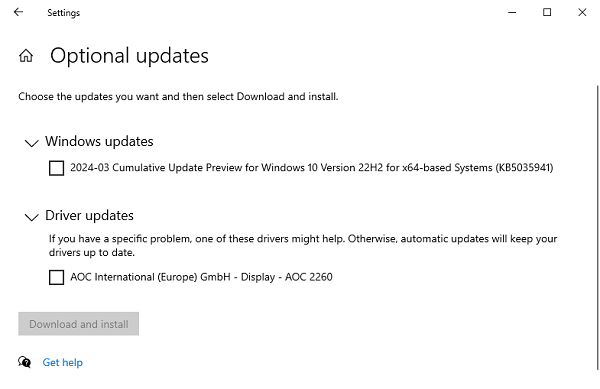
Restart your system.
Windows Update drivers may not include ASUS-specific optimizations.
Common ASUS Motherboard Driver Issues and Fixes
USB Ports Not Working: Often caused by outdated chipset or USB controller drivers. Updating chipset drivers with Driver Talent X usually resolves this issue.
No Network Connection: LAN or Wi-Fi driver corruption can prevent internet access. Reinstalling the ASUS network driver fixes the problem.
No Sound Output: Realtek audio driver issues can cause missing sound devices. Updating or reinstalling the audio driver restores functionality.
System Freezing or Blue Screen Errors: Incompatible chipset drivers are a common cause. Always ensure your chipset driver matches your motherboard and Windows version.
Best Practices for ASUS Motherboard Driver Updates
Always back up drivers before updating
Avoid beta driver versions unless necessary
Restart your system after every driver installation
Use automated tools like Driver Talent X for system-wide driver management
Conclusion
Updating ASUS motherboard drivers is essential for system performance, stability, and compatibility. While manual methods exist, Driver Talent X provides the safest and most efficient way to download and update all ASUS motherboard drivers with minimal effort. By keeping your chipset, LAN, audio, and USB drivers up to date, you can prevent hardware issues and ensure your PC runs smoothly.
