Nothing interrupts a relaxing movie night faster than opening Netflix and discovering that the video plays perfectly but there is no sound. You might increase the volume, reconnect your headphones, or restart Netflix, only to find that the problem remains.
Netflix audio problems on Windows 11 can result from incorrect audio settings, incompatible drivers, browser conflicts, or unsupported surround sound configurations. Fortunately, there are several ways to identify the cause and restore normal audio playback.
Solution 1: Determine Whether the Problem Is Specific to Netflix
Play a video on YouTube.
Listen to a local music file.
Open Netflix in another supported browser.
Connect another pair of headphones or speakers.
Solution 2: Check the Windows 11 Volume Mixer
Start playing a movie or TV show on Netflix.
Press Windows + I to open Settings.
Navigate to System > Sound.
Scroll down and select Volume mixer.
Solution 3: Select the Correct Audio Output Device
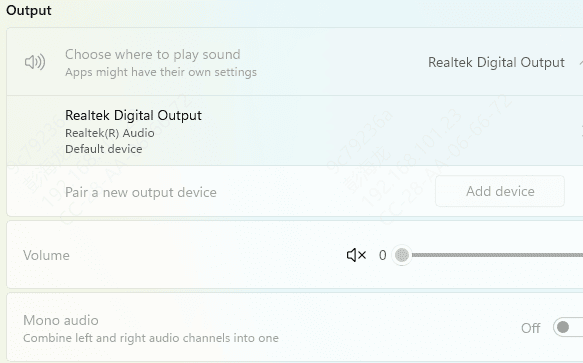
Press Windows + I.
Navigate to System > Sound.
Locate the Output section.
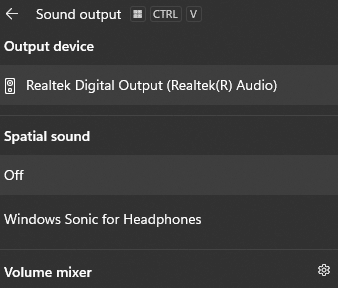
Select your preferred speakers or headphones.
Return to Netflix and resume playback.
Solution 4: Update or Repair Audio Drivers
Audio drivers allow Windows to communicate with speakers, headphones, sound cards, and other audio devices.
If these drivers become corrupted or incompatible after a Windows update, Netflix and other multimedia applications may experience playback problems.
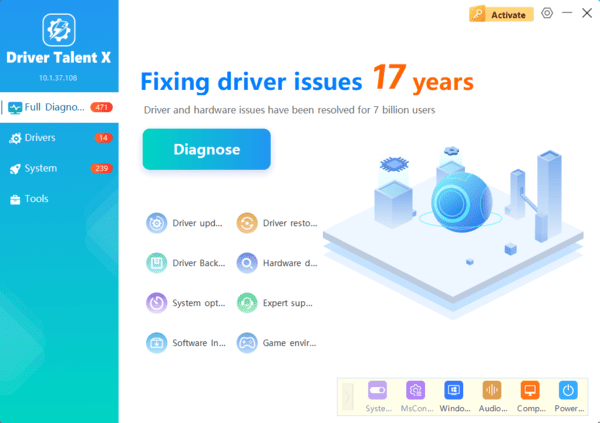
Update Audio Drivers with Driver Talent X
Driver Talent X is a Windows driver management utility that helps identify supported outdated, missing, or problematic device drivers.
It can help investigate audio-related driver issues involving Realtek audio devices, HDMI audio controllers, Bluetooth adapters, and other supported hardware.
Roll Back a Recently Updated Audio Driver
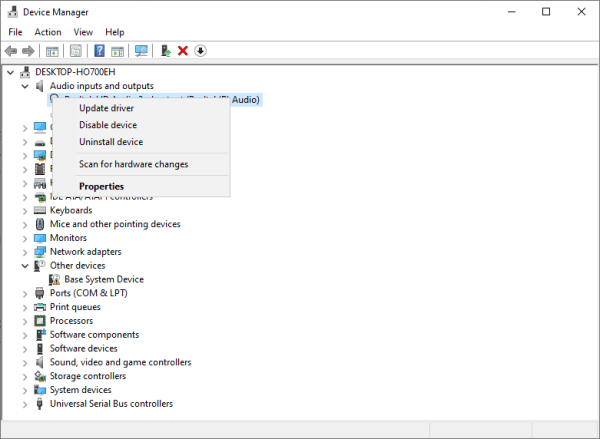
Right-click the Start button and select Device Manager.
Expand Sound, video and game controllers.
Right-click the affected audio device.
Select Properties.
Open the Driver tab.
Click Roll Back Driver, if available.
Restart Windows.
Solution 5: Switch Netflix Audio from 5.1 to Stereo
Start playing a movie or TV show.
Open the Audio & Subtitles menu.
Review the available audio tracks.
Select an audio track without the 5.1 designation, if available.
Resume playback and check the sound.
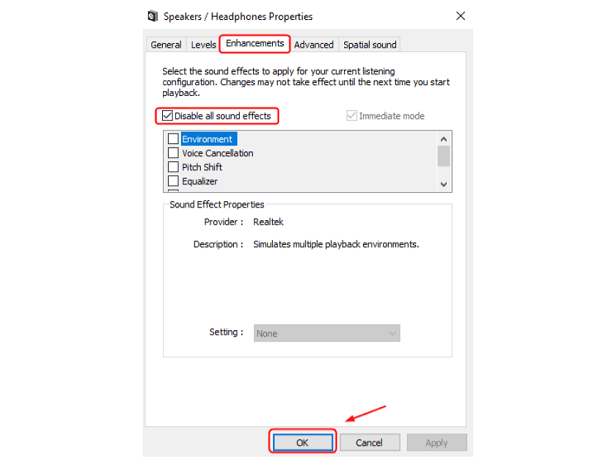
Solution 6: Disable Audio Enhancements and Spatial Sound
Windows 11 includes audio processing features designed to improve sound quality. However, these features may occasionally conflict with particular audio devices or multimedia applications.
Disable Audio Enhancements
Open Settings > System > Sound.
Select your active audio output device.
Locate Audio enhancements.
Set the option to Off, if available.
Test Netflix playback.
Turn Off Spatial Sound
Locate Spatial sound.
Change the setting to Off.
Restart Netflix playback.
Solution 7: Troubleshoot Your Web Browser
If Netflix works correctly in Microsoft Edge but has no sound in Google Chrome, or vice versa, the issue may be related to your browser rather than Windows itself.
Check Browser Sound Permissions
Temporarily Disable Browser Extensions
Clear Netflix Website Data
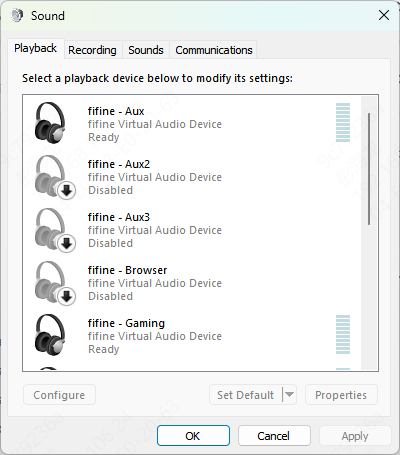
Solution 8: Change the Default Audio Format
Press Windows + R.
Type mmsys.cpl and press Enter.
Open the Playback tab.
Select your active audio device.
Click Properties.
Navigate to the Advanced tab.
Select another supported audio format, such as 16-bit, 48000 Hz, if available.
Click Apply > OK.
Test Netflix playback.
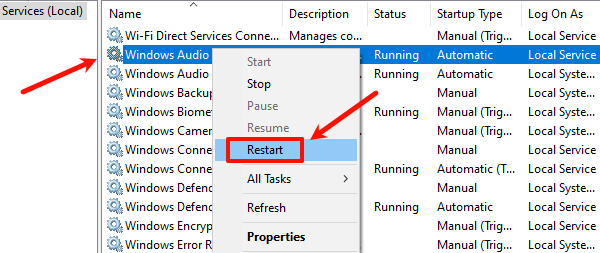
Solution 9: Restart Windows Audio Services
Press Windows + R.
Type services.msc and press Enter.
Locate Windows Audio.
Right-click the service and select Restart.
Locate Windows Audio Endpoint Builder and confirm that it is running.
Close the Services window.
Solution 10: Repair or Reinstall the Netflix App
Press Windows + I.
Navigate to Apps > Installed apps.
Locate Netflix.
Click the three-dot menu next to the application.
Select Advanced options, if available.
Click Repair.
Conclusion
Netflix sound not working on Windows 11 can result from incorrect audio settings, incompatible drivers, browser conflicts, or unsupported surround sound configurations. Start by checking the Volume Mixer, selecting the correct audio output device, and switching to stereo audio. If the problem persists, disable audio enhancements, troubleshoot browser settings, or use Driver Talent X to identify and update supported audio drivers. These solutions can help restore normal Netflix audio playback and ensure a smoother streaming experience.