

The NVIDIA GeForce RTX 3060 Ti delivers strong performance for gaming, streaming, and graphics-intensive workloads, but its performance depends heavily on a stable and compatible graphics driver. An outdated or corrupted driver can cause game stuttering, low FPS, screen flickering, crashes, black screens, or other display problems. Updating or reinstalling the RTX 3060 Ti driver can often restore normal performance and improve compatibility with newer games and Windows updates. This guide explains several practical ways to update RTX 3060 Ti drivers.
Step 1: Check if Your GPU Needs an Update
Before updating, verify if your drivers are outdated or malfunctioning:
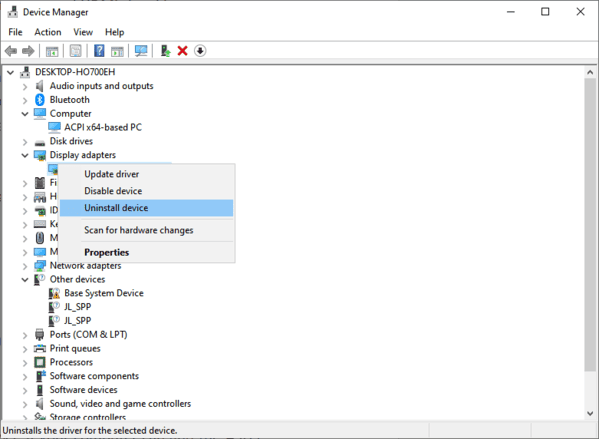
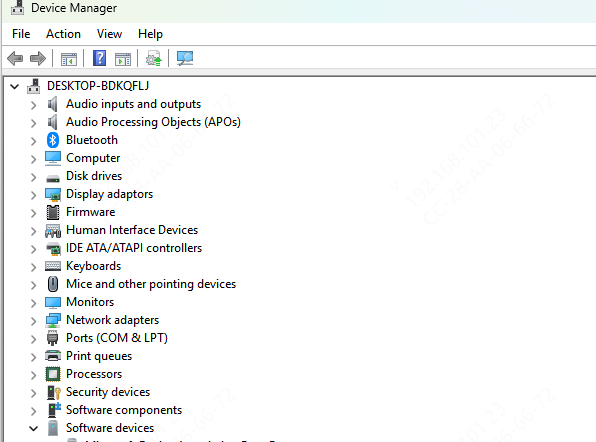
Open Device Manager → Display Adapters → NVIDIA RTX 3060 Ti
Right-click → Properties → Driver Tab → Check Driver Version
Compare your version with the latest release on the NVIDIA website
Noticeable performance drops, crashes, or glitches are a sign your drivers need updating
Step 2: Backup and Prepare
Updating NVIDIA drivers can sometimes cause issues if something goes wrong. Take these precautions:
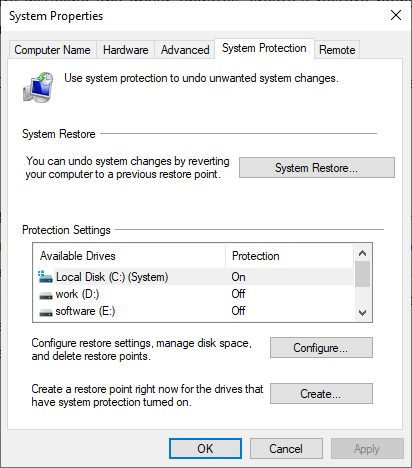
Create a System Restore Point: Search "Create a restore point" → System Protection → Create
Save Important Files: Backup important documents or game settings
Close Running Applications: Especially games and GPU-intensive apps
Ensure Stable Internet: Needed for downloads
Step 3: Update Drivers
There are several safe ways to update your RTX 3060 Ti drivers:
Method 1: NVIDIA GeForce Experience
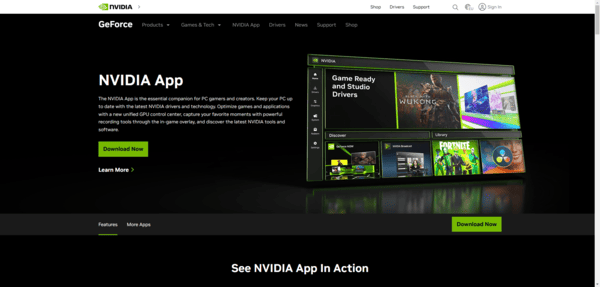
Install or open GeForce Experience
Go to the Drivers tab → Check for Updates
Download and install the latest driver
Choose Custom → Clean Install if you want to remove previous versions
Restart your PC to apply changes
Method 2: Manual Download from NVIDIA Website
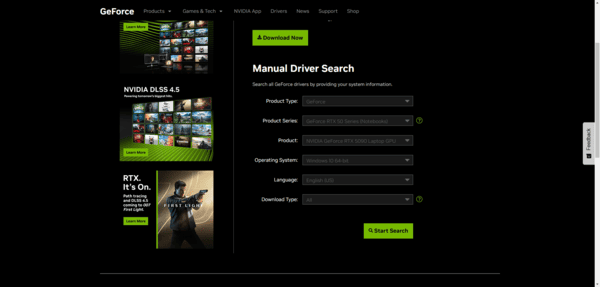
Visit the NVIDIA Driver Download page
Select your GPU and Windows version
Download the installer and run it
Use Custom → Clean Install for a fresh setup
Restart your PC
Method 3: Device Manager (Windows Built-In)
Open Device Manager → Display Adapters → RTX 3060 Ti
Right-click → Update driver → Search automatically for drivers
Follow prompts and restart the computer
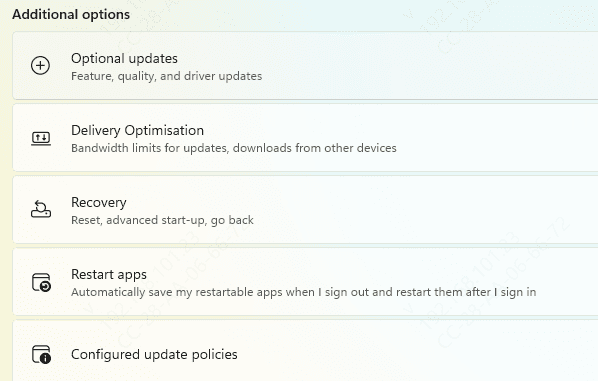
Method 4: Windows Update Optional Drivers
Go to Settings → Update & Security → Windows Update → Optional Updates → Driver Updates
Install any NVIDIA drivers listed
Restart your PC
Method 5: One-Click Update with Driver Talent X
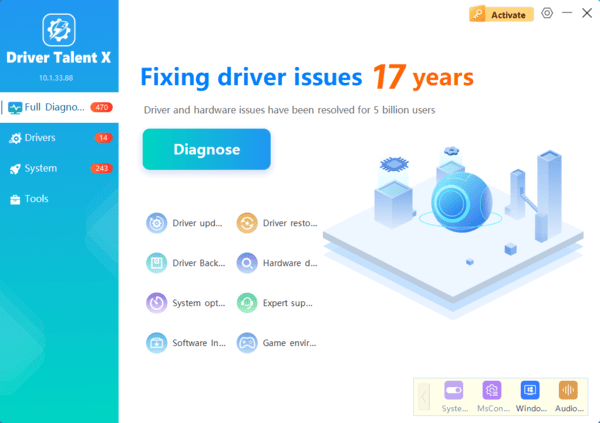
Manually updating drivers can be time-consuming and tricky. Driver Talent X offers an all-in-one solution:
Download and install the program from the official website
Click Scan to check for driver issues
Choose Repair/Update All or target your RTX 3060 Ti specifically
Restart your PC to complete installation
Why This Matters
No manual downloads needed
Reduces error risk during installation
Saves time and ensures a stable system for gaming or creative tasks
Clean Install and Troubleshooting Tips
Rollback drivers if new updates create instability: Device Manager → Driver Tab → Roll Back Driver
Resolve conflicts by disabling integrated GPU (Intel/AMD) if necessary
Verify BIOS recognizes your RTX 3060 Ti correctly
Optimize GPU Performance
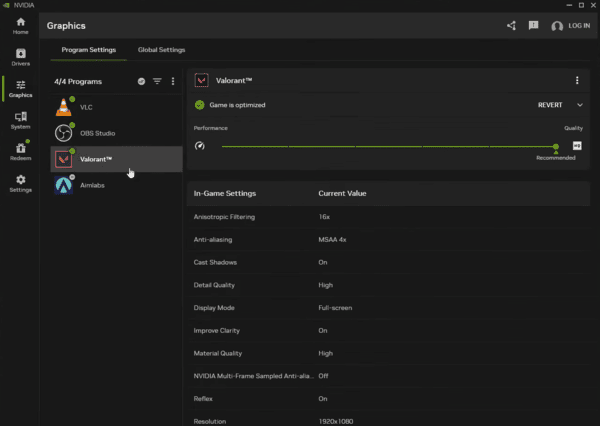
Configure NVIDIA Control Panel for either performance or visuals
Use GeForce Experience Game Optimization profiles
Monitor GPU temperature and usage with tools like MSI Afterburner
Ensure V-Sync, G-Sync, or FreeSync is enabled if supported
Maintain Drivers for Long-Term Stability
Schedule regular scans with GeForce Experience or Driver Talent X
Avoid beta drivers unless necessary
Test your system after updates to confirm performance and stability
Keep BIOS and Windows updates current to maintain compatibility
Conclusion
Keeping your NVIDIA RTX 3060 Ti drivers updated is essential for smooth gaming, creative workloads, and system stability. By combining official NVIDIA tools, Windows built-in updates, and professional software like Driver Talent X, you can update drivers safely, fix problems instantly, and optimize GPU performance. With proper maintenance and one-click solutions, your RTX 3060 Ti will run at peak efficiency, delivering a seamless experience across games and professional applications.
