

The NVIDIA GeForce RTX 3050 is a popular mid-range graphics card used for gaming, multimedia, and creative workloads. Like all GPUs, it relies on properly installed and updated drivers to function correctly. On Windows 11, driver issues can arise from corrupted files, failed updates, hardware changes, or software conflicts. These problems can lead to crashes, screen flickering, artifacting, poor performance, or peripheral recognition failures. This guide provides safe, step-by-step methods to repair RTX 3050 drivers, whether you're a beginner or an advanced user.
Signs Your RTX 3050 Drivers Need Repair
Screen flickering, tearing, or visual artifacts during gameplay or video playback
Games or GPU-heavy applications crash unexpectedly
Noticeable drops in FPS or poor performance in previously smooth workloads
Error messages such as "Display driver stopped responding" or warnings in Device Manager
Monitors or peripherals connected via HDMI/DisplayPort are not detected correctly
Recognizing these signs early can prevent further system issues
Quick Diagnosis of Driver Issues
Start by checking your system to confirm a driver problem:
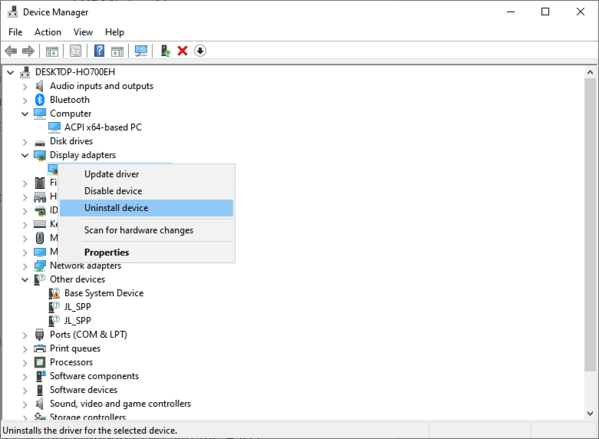
Device Manager Check: Press Windows + X → Device Manager → Display adapters → NVIDIA GeForce RTX 3050. Look for yellow warning signs or error codes
Windows Reliability Monitor: Press Windows + S → Reliability Monitor to review recent system errors related to graphics drivers.
NVIDIA Control Panel / GeForce Experience Logs: Open GeForce Experience → Drivers to see if recent updates failed or reports of corrupted files exist
A clear diagnosis will help you choose the right repair method
Repair Drivers Using Windows Tools
Windows 11 offers built-in tools to repair and update drivers safely:
Windows Update
Press Windows + I → Update & Security → Windows Update
Click Check for Updates
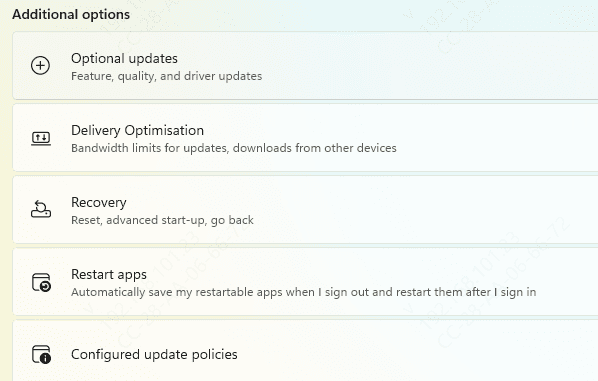
Expand Optional Updates and look for NVIDIA driver updates
Download, install, and restart your PC
Device Manager Update
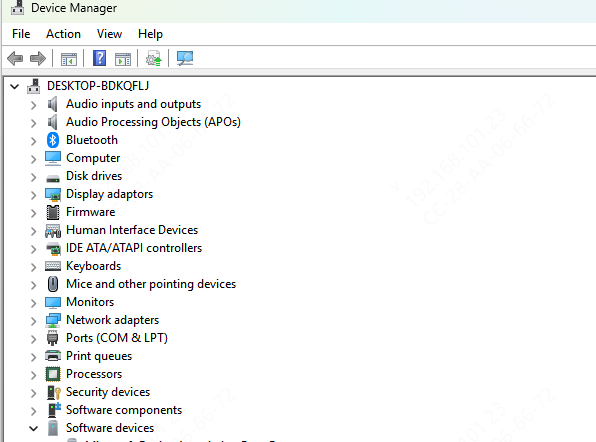
Open Device Manager → Display adapters → NVIDIA GeForce RTX 3050 → Right-click → Update driver
Choose Search automatically for drivers
Follow prompts and restart your system
These methods are safe, quick, and ideal for beginners or users who prefer built-in tools
Repair Using NVIDIA Official Resources
For a more thorough repair:
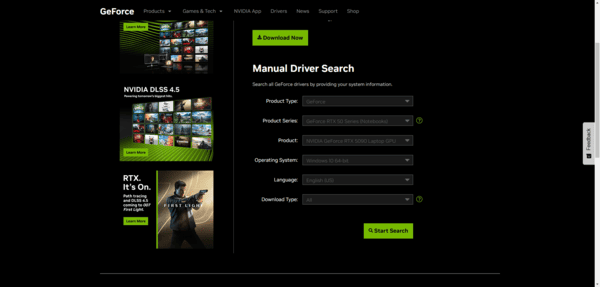
Visit the NVIDIA Driver Download page
Select your GPU model, operating system, and driver type (Game Ready Driver or Studio Driver)
Download the installer
During installation, choose Custom Installation → Perform Clean Installation to remove any corrupted drivers
Restart your system
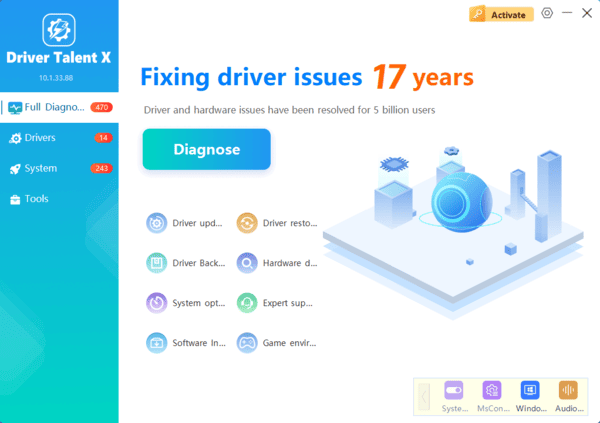
One-Click Professional Solution with Driver Talent X
For a fast, hassle-free repair, Driver Talent X is highly recommended:
Download and install Driver Talent X from the official website
Open the program → Click Scan
Click Repair/Update All or select only NVIDIA drivers
Restart your PC to apply changes
Benefits: This approach saves time, reduces errors, and ensures full system stability, making it perfect for beginners and advanced users alike
Troubleshooting Stubborn Driver Issues
Sometimes, standard methods fail. Try these advanced solutions:
Display Driver Uninstaller (DDU): Run in Safe Mode to completely remove old or corrupted drivers
Rollback Drivers: In Device Manager → Right-click RTX 3050 → Properties → Driver tab → Roll Back Driver
Temporarily disable antivirus or firewall to prevent blocking during installation
Ensure DirectX, Visual C++ Redistributables, and system BIOS are updated to avoid conflicts
These steps are highly effective for stubborn or recurring driver problems
Conclusion
Driver problems on the NVIDIA GeForce RTX 3050 can cause crashes, poor performance, and peripheral issues on Windows 11. By combining Windows tools, NVIDIA official drivers, troubleshooting techniques, and professional tools like Driver Talent X, you can repair and maintain your GPU safely and efficiently. With these methods, you can enjoy error-free gaming, smooth graphics performance, and a fully functional RTX 3050 without stress, even if you're not a technical expert.
