

The NVIDIA 4070 is a high-performance graphics card designed for gaming, creative workloads, and demanding applications. To ensure optimal performance, prevent crashes, and take advantage of features like ray tracing and DLSS, it is essential to keep your graphics drivers up to date. This tutorial provides a clear, step-by-step guide to safely updating your NVIDIA 4070 drivers on Windows, helping you maintain stability and achieve the best possible performance.
Identify Your Current Driver and GPU Status
NVIDIA Control Panel: Open the panel → go to System Information → note the current driver version
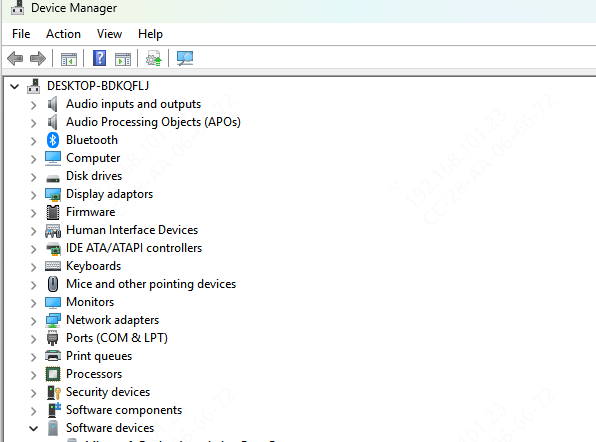
Device Manager: Press Windows + X → Device Manager → Display Adapters → NVIDIA 4070 → check driver details
System Performance: Take note of any crashes, screen flickers, low FPS, or issues in NVIDIA Control Panel
Knowing your current version ensures you install the correct update and avoid unnecessary issues
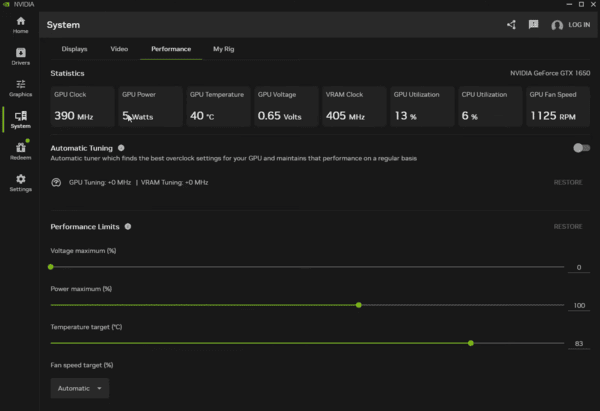
Using NVIDIA GeForce Experience
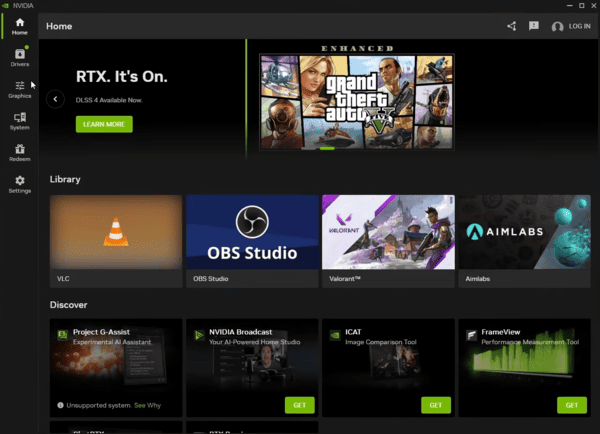
Download and install GeForce Experience if you haven't already
Open GeForce Experience → click the Drivers tab → Check for Updates
Choose Express Install for a quick update or Custom → Clean Install to overwrite corrupted files
Restart your computer to apply the new driver
Tip: Clean Install ensures no remnants of older drivers remain
Manual Driver Download from NVIDIA Website
If you prefer full control:
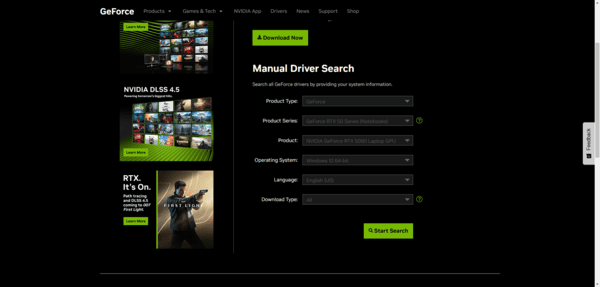
Visit the NVIDIA Driver Download page
Select GeForce → RTX 40 Series → RTX 4070 Ti → Windows 10/11
Download the latest driver package
Run the installer → select Custom → Clean Install
Restart your computer
This method is useful when GeForce Experience does not detect the update or when troubleshooting
Updating via Windows Device Manager
Device Manager allows updates without additional software:
Press Windows + X → Device Manager → Display Adapters → NVIDIA 4070
Right-click → Update Driver → Search automatically for driver
Follow the prompts to complete the installation
Restart the system
Device Manager is helpful for quick, Windows-native updates
Windows Update Optional Drivers
Sometimes Windows provides driver updates:
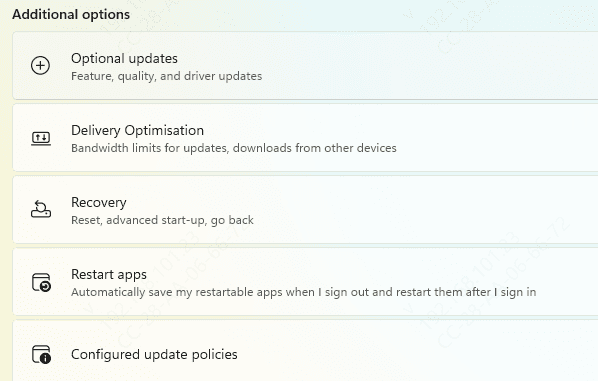
Go to Settings → Update & Security → Windows Update → Optional Updates → Driver Updates
Check if NVIDIA driver updates are listed
Install and restart your computer
This ensures compatibility between your system and the GPU
One-Click Maintenance with Driver Talent X
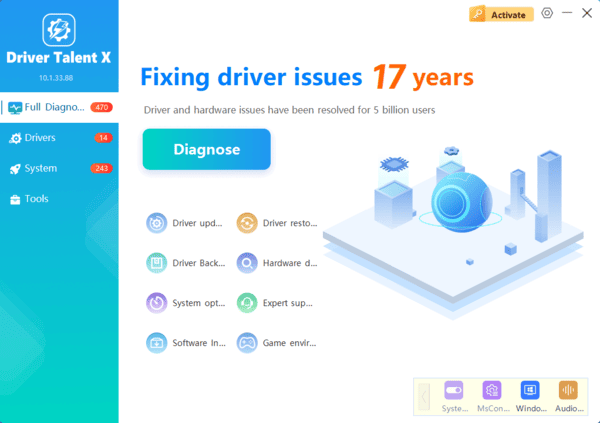
Download and install Driver Talent X
Open the program → click Scan to detect driver issues
Click Repair/Update All or select NVIDIA drivers specifically
Ideal for both beginners and advanced users
Troubleshooting Common Driver Problems
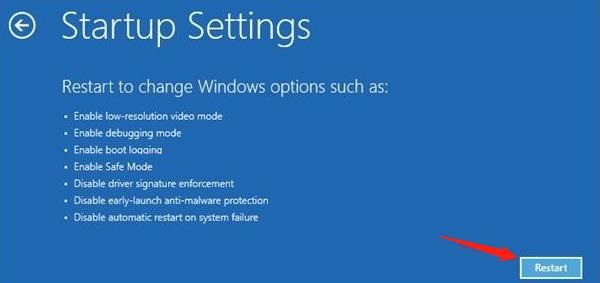
Safe Mode Installation: Boot into Safe Mode and install drivers to bypass conflicts
Driver Rollback: Device Manager → 4070 → Properties → Driver → Roll Back Driver
Clean Uninstall with DDU: Remove corrupted drivers completely before reinstalling
Resolve Integrated Graphics Conflicts: Disable onboard GPU if necessary
Check BIOS/Firmware: Ensure GPU is properly recognized
Conclusion
Keeping NVIDIA 4070 drivers up to date is crucial for stable, high-performance gaming and creative work. By following multiple approaches — GeForce Experience, manual downloads, Device Manager, Windows Update, and Driver Talent X — you can update drivers safely, avoid crashes, and unlock the full potential of your GPU. Regular maintenance and proactive updates ensure smooth, reliable performance with minimal effort.
