

Phantom Blade Zero is a fast-paced action RPG developed by S-GAME, featuring intense sword combat, cinematic environments, and detailed character animations. With its demanding visual presentation and fast combat mechanics, maintaining a smooth frame rate is important for an enjoyable gaming experience. This guide explains the best Phantom Blade Zero settings for high FPS, along with practical ways to improve gaming performance on Windows 10 and Windows 11.
Basic Settings
Display Mode: Fullscreen
Resolution: 1920 × 1080
Frame Rate Limit: 60 FPS
V-Sync: Off Initially
Texture Quality: High
Shadow Quality: Medium
Reflection Quality: Medium
Effects Quality: Medium
Lighting Quality: Medium
View Distance: Medium or High
Motion Blur: Off
Film Grain: Off
Ray Tracing: Off
Upscaling: Quality or Balanced
Enable DLSS, FSR, or XeSS
NVIDIA DLSS
NVIDIA Deep Learning Super Sampling is available on supported GeForce RTX graphics cards.
When DLSS is offered in the game, Quality mode is a good starting point for balancing image clarity and performance.
Balanced mode may provide additional FPS, especially at higher display resolutions.
AMD FSR
AMD FidelityFX Super Resolution is another upscaling technology that can improve performance on supported hardware.
If available, start with Quality mode and compare the visual results with native resolution.
Switch to Balanced mode if your system struggles to maintain the desired frame rate.
Intel XeSS
Intel Xe Super Sampling provides another potential upscaling option.
If the game supports XeSS and your hardware is compatible, test Quality and Balanced modes to determine which produces the best results.
Update Graphics Drivers
Graphics drivers play an important role in game rendering, performance, and stability. Outdated, corrupted, or incompatible drivers may contribute to stuttering, crashes, or inconsistent frame rates.
Updating to a compatible graphics driver is a useful troubleshooting step, particularly when a game has recently been released or updated.
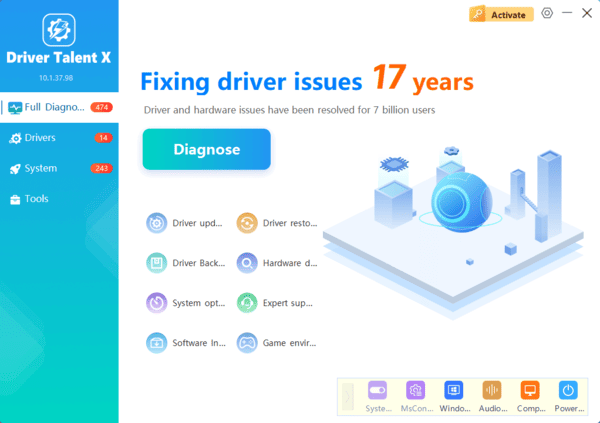
Driver Talent X scans for certain outdated, missing, or problematic drivers and displays available update or repair recommendations.
Download Driver Talent X.
Install and launch the application.
Run a driver scan.
Review the detected graphics driver issues.
Check available compatible driver updates.
Install an appropriate update if available.
Restart Windows.
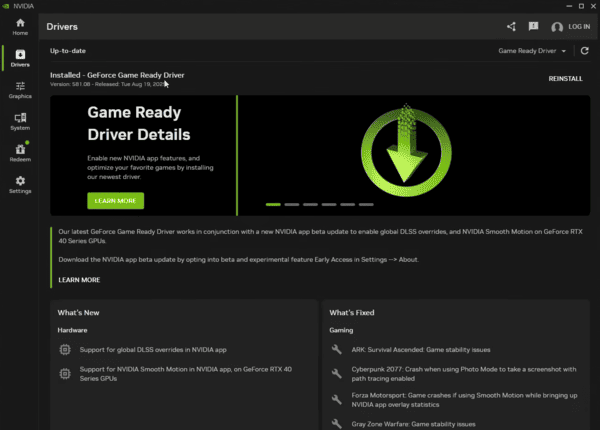
NVIDIA Graphics Settings
Open NVIDIA Control Panel or the NVIDIA App.
Locate the game's graphics profile if available.
Review power management and performance preferences.
Avoid forcing unnecessary image-quality enhancements.
Apply appropriate changes and test the game.
On supported systems, a performance-oriented power setting may help maintain consistent GPU operation, although it can increase power consumption and heat.
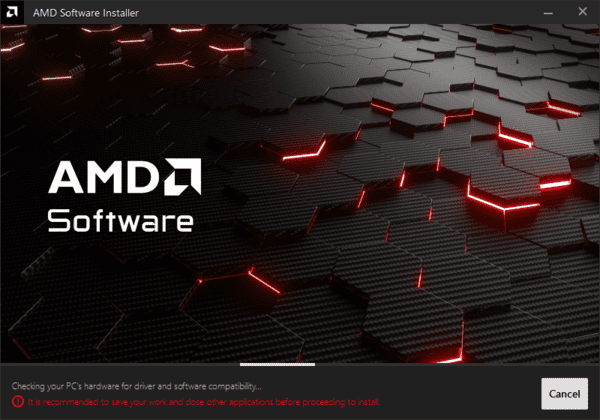
AMD Radeon Settings
Open AMD Software: Adrenalin Edition
Locate the game's graphics profile.
Review available performance and latency settings.
Disable unnecessary graphics overrides.
Monitor GPU usage while playing.
Use one change at a time so you can identify which adjustments actually improve performance.
Optimize Windows for Higher FPS
Windows background processes and power settings can also influence gaming performance.
A few adjustments may help reduce unnecessary resource usage.
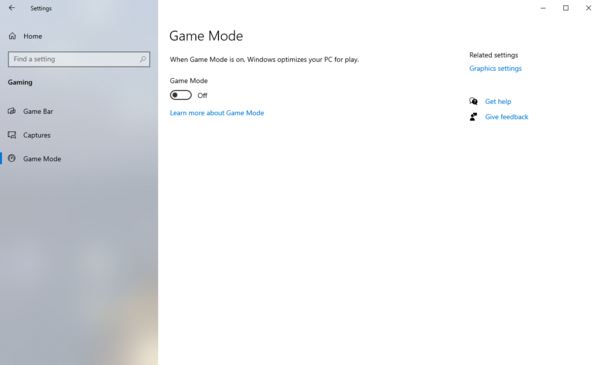
Enable Windows Game Mode
Press Windows + I to open Settings.
Select Gaming.
Open Game Mode.
Turn on Game Mode.
Restart the game and test performance.
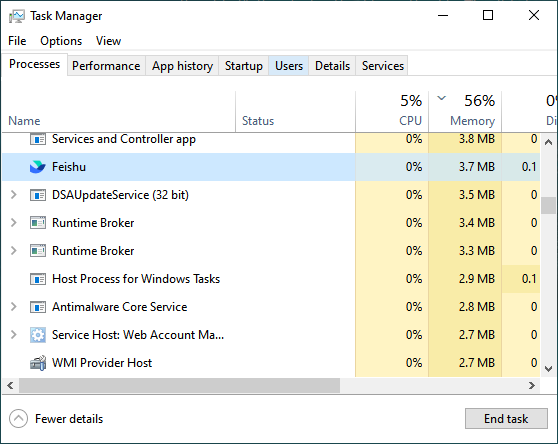
Close Unnecessary Background Applications
Press Ctrl + Shift + Esc to open Task Manager.
Review CPU, memory, and GPU usage.
Identify unnecessary resource-intensive applications.
Close applications you do not need.
Launch the game again.
Avoid ending unfamiliar Windows system processes.
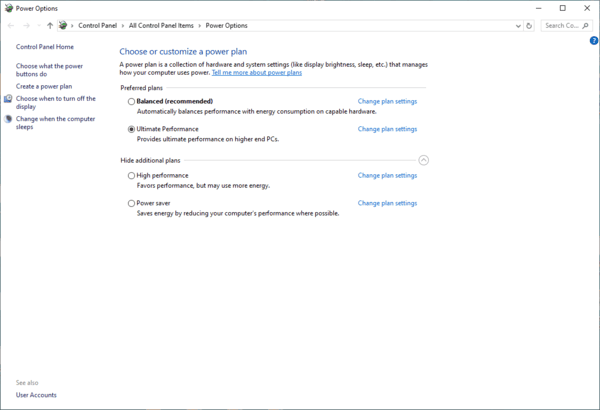
Use an Appropriate Power Mode
On gaming laptops, power-saving settings can limit CPU and GPU performance.
Connect the laptop to its appropriate power adapter and select a suitable performance-oriented power mode when available.
Make sure the cooling system is functioning properly, as higher performance modes may generate additional heat.
Frequently Asked Questions
Should I disable ray tracing in Phantom Blade Zero?
If ray tracing is available and your priority is higher FPS, disabling it is a sensible starting point. You can enable it later if your GPU has sufficient performance headroom.
Why is Phantom Blade Zero stuttering on PC?
Potential causes include demanding graphics settings, shader compilation, excessive background resource usage, overheating, or driver compatibility problems.
Is frame generation good for Phantom Blade Zero?
Frame generation may improve displayed smoothness on supported hardware, but it does not necessarily improve input responsiveness. For fast combat, establish a stable base frame rate first.
Conclusion
For higher FPS in Phantom Blade Zero, lower demanding graphics settings and try supported upscaling options. Keep graphics drivers updated manually or with Driver Talent X, close unnecessary background apps, and monitor temperatures. Adjust settings to suit your hardware for smoother, more responsive gameplay.
