RaceRoom Racing Experience offers competitive online racing, realistic vehicle physics, and support for racing wheels and other simulation equipment. However, freezing or crashing during multiplayer sessions can interrupt races and make the game difficult to enjoy.
Some players experience RaceRoom freezing when joining a multiplayer server, while others encounter sudden crashes during races, long loading screens, or unexpected disconnections. These problems can occur even when single-player sessions run normally. This guide explains how to identify the cause and restore a more stable multiplayer racing experience.
Fix 1: Restart RaceRoom and Check Multiplayer Servers
Temporary game or server problems can sometimes cause RaceRoom to freeze while connecting to an online session Before changing Windows settings, restart the game and check whether the issue affects multiple servers.
Follow these steps:
Close RaceRoom completely.
Exit Steam and reopen it.
Restart your computer if necessary.
Launch RaceRoom again.
Open the multiplayer server browser.
Try joining a different server.
Fix 2: Verify RaceRoom Game Files on Steam
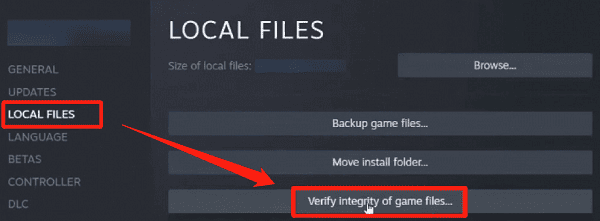
Missing or corrupted game files can cause RaceRoom to freeze during loading or crash when entering a multiplayer race. Steam includes a built-in verification feature that checks installed game files and replaces damaged or missing components when necessary.
To verify RaceRoom files:
Open Steam.
Go to your Library.
Right-click RaceRoom Racing Experience
Select Properties.
Open Installed Files.
Click Verify integrity of game files.
Wait for the verification process to finish.
Restart Steam and launch RaceRoom.
Fix 3: Update Graphics Drivers
Graphics drivers play an important role in rendering vehicles, tracks, lighting effects, and other visual elements. During multiplayer races, additional cars and visual effects can increase the workload on your graphics card. An outdated, corrupted, or incompatible driver may contribute to freezing, graphical glitches, or unexpected crashes.
If RaceRoom multiplayer crashes frequently, checking your graphics driver is a reasonable troubleshooting step. Driver Talent X provides an additional way to check supported outdated, missing, or problematic Windows drivers.
Download Driver Talent X.
Install and launch the software.
Click Scan to check your computer.
Review the detected graphics driver updates.
Install an appropriate compatible driver if available.
Restart Windows.
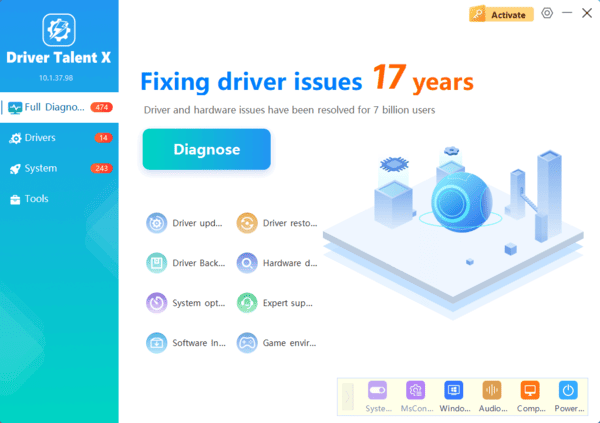
After restarting, launch RaceRoom and test multiplayer again.
Driver Talent X can help investigate supported driver issues, although it cannot resolve server outages or network connection problems.
Fix 4: Check Your Internet Connection
RaceRoom multiplayer requires a stable network connection to communicate with online servers. An unstable connection may cause delayed responses, lag, disconnections, or the appearance of a frozen multiplayer session. However, network problems do not necessarily explain an application crash that closes RaceRoom completely.
To improve connection stability:
Restart your router if appropriate.
Use a wired Ethernet connection when possible.
Pause large downloads and background updates.
Close unnecessary applications using significant bandwidth.
Disconnect unnecessary VPN or proxy services.
Test another multiplayer server.
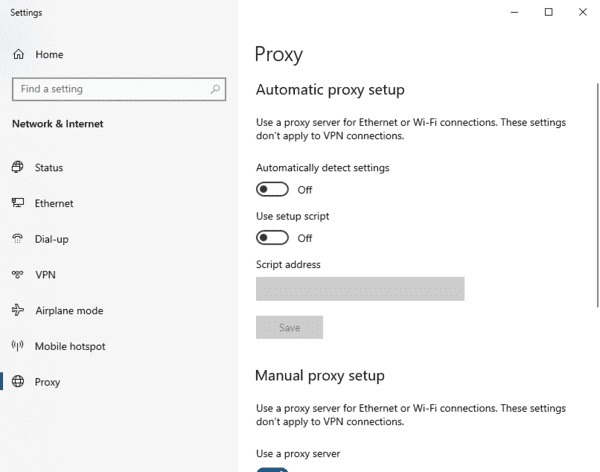
You can also check your connection for packet loss.
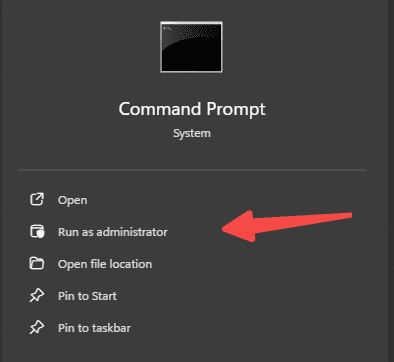
Open Command Prompt and enter:
ping 1.1.1.1 -n 30
Review the results for lost packets and unusually inconsistent response times.
Fix 5: Lower Graphics Settings
Multiplayer races can place additional demands on your PC, particularly when many cars appear on the track.
High graphics settings may increase GPU usage and cause performance drops on systems with limited resources. If RaceRoom freezes during crowded races, reducing demanding settings may improve stability.
Try these adjustments:
Open RaceRoom's graphics settings.
Reduce shadow quality.
Lower reflections and visual effects.
Reduce car detail or the number of visible cars when supported.
Lower anti-aliasing if GPU usage is high.
Set a stable frame rate limit.
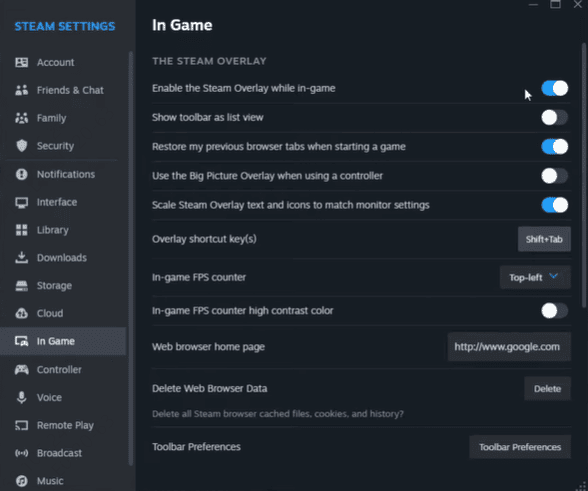
Fix 6: Disable Steam Overlay and Background Applications
Background applications can sometimes interfere with game rendering, input handling, or system resources.
Steam Overlay, Discord Overlay, recording software, and hardware monitoring utilities are possible sources of conflicts.
To disable Steam Overlay for RaceRoom:
Open Steam.
Go to Library.
Right-click RaceRoom and select Properties.
Open the General section.
Disable Enable the Steam Overlay while in-game.
Relaunch RaceRoom.
Fix 7: Check Windows Firewall and Security Settings
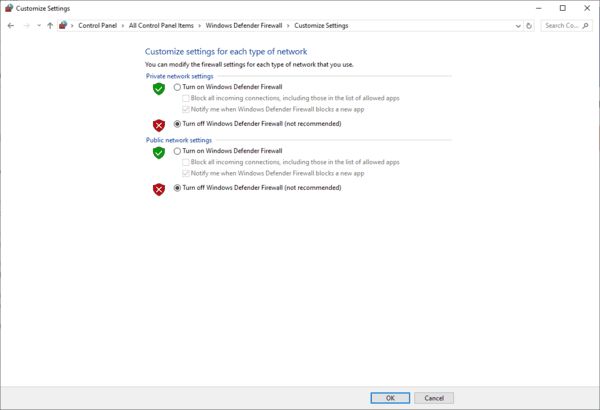
Windows Firewall and third-party security software may restrict certain network connections.
If RaceRoom cannot join multiplayer servers or repeatedly disconnects, check whether the game is allowed to communicate through the firewall.
Follow these steps:
Open Windows Security.
Select Firewall & network protection.
Click Allow an app through firewall.
Select Change settings if you have administrator permission.
Look for RaceRoom and Steam.
Confirm that the appropriate network access is permitted.
Save the changes and test multiplayer.
Conclusion
If RaceRoom multiplayer keeps freezing or crashing, try another server and verify the game files in Steam. If the issue persists, check your network connection and graphics drivers, then test with racing peripherals disconnected. Driver Talent X can help check for driver issues on supported hardware. If crashes continue, review Windows Reliability Monitor and RaceRoom's diagnostic logs before contacting support.