

Star Wars Zero Company brings tactical combat and squad-based strategy to the Star Wars universe. However, some PC players may experience unexpected crashes, freezing, black screens, or startup failures that interrupt gameplay. Fortunately, there are several troubleshooting methods you can try before reinstalling the entire game. This guide explains how to fix Star Wars Zero Company crashing on PC, including crashes on startup, crashes during gameplay, and problems that appear after game updates.
Method 1: Restart Your PC and Update the Game
Close Star Wars Zero Company completely.
Exit unnecessary background applications.
Restart your computer.
Open Steam, the EA app, or Epic Games Launcher.
Check whether a game update is available.
Install any pending updates.
Launch the game again.
Game updates may contain bug fixes, compatibility improvements, and stability adjustments.
Method 2: Update Your Graphics Drivers
Outdated or incompatible graphics drivers are an important cause to investigate when Star Wars Zero Company crashes during startup or gameplay.
Graphics drivers allow Windows and games to communicate with your GPU. A driver problem can result in freezing, rendering errors, black screens, or unexpected crashes. Updating your graphics driver may improve compatibility and resolve known stability problems.
Option 1: Update Drivers Manually
You can download graphics drivers directly from your GPU manufacturer's official website.
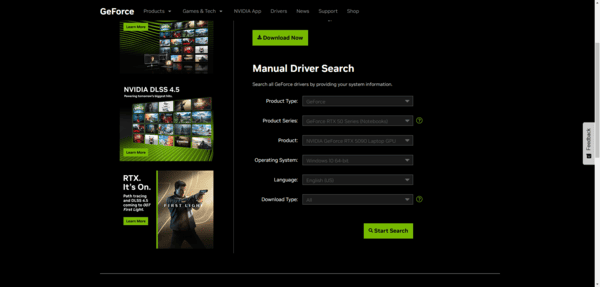
For NVIDIA graphics cards:
Visit the official NVIDIA driver download page.
Select your graphics card model.
Download a compatible driver.
Run the installer.
Follow the installation instructions.
Restart your computer if required.
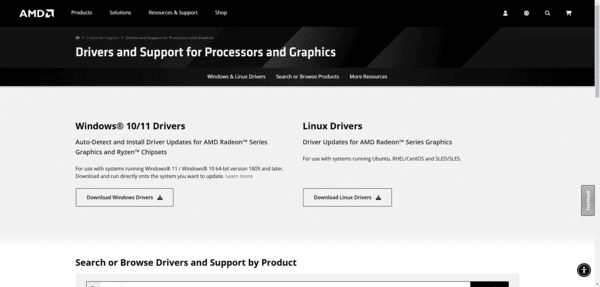
For AMD graphics cards:
Visit the AMD Drivers and Support website and download the appropriate Radeon driver.
Intel graphics card users should check Intel's official driver resources.
Make sure the driver matches your graphics card and Windows version.
EA specifically recommends checking the NVIDIA Game Ready Driver version when the game crashes while using DLSS. Updating from an affected older version may resolve the issue.
Option 2: Update Drivers with Driver Talent X
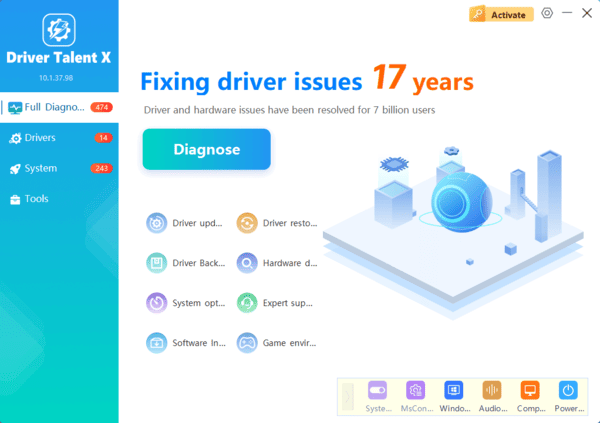
If you are unsure which graphics driver is installed or want to check for other supported driver problems, Driver Talent X provides an alternative way to review your system.
Driver Talent X can scan Windows for supported outdated, missing, or problematic drivers and display available updates or repair recommendations.
Download Driver Talent X
Run a driver scan.
Review the available graphics driver updates.
Install an appropriate compatible update if one is offered.
Restart your computer if necessary.
Method 3: Verify and Repair Star Wars Zero Company Game Files
Missing or corrupted game files can prevent Star Wars Zero Company from launching correctly.
File corruption may occur after an interrupted download, failed update, storage error, or unexpected system shutdown.
Fortunately, major PC game launchers provide built-in tools to verify or repair installed game files.
For Steam
Open Steam.
Go to Library.
Right-click Star Wars Zero Company.
Select Properties.
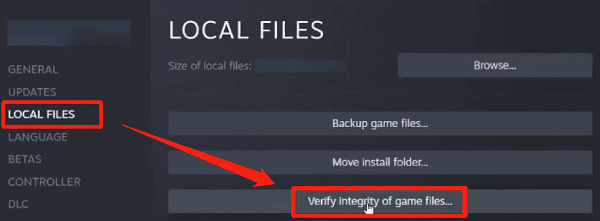
Open Installed Files.
Click Verify integrity of game files.
Wait for the verification process to finish.
For the EA App
Open the EA app.
Select Library.
Find Star Wars Zero Company.
Click the three-dot menu on the game tile.
Select Repair.
Wait until the process finishes.
Restart your computer and launch the game.
For Epic Games Launcher
Open Epic Games Launcher.
Go to Library.
Find Star Wars Zero Company.
Open the game's options menu.
Select Manage.
Choose Verify.
Wait for the process to complete.
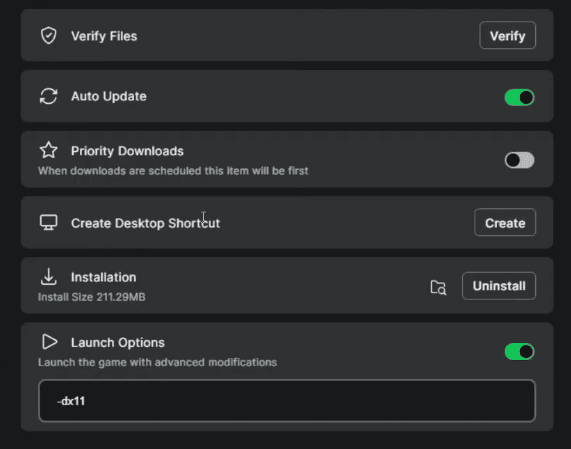
Method 4: Close Unnecessary Background Applications
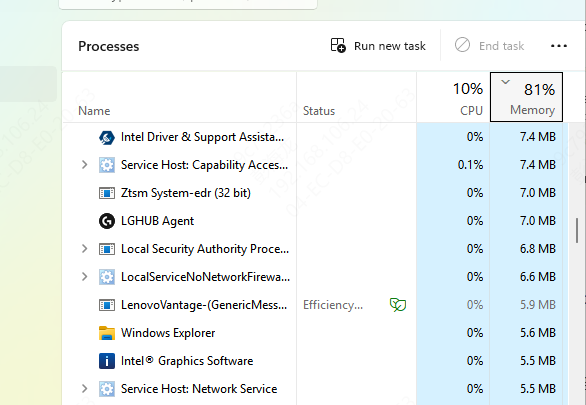
Press Ctrl + Shift + Esc to open Task Manager.
Select the Processes tab.
Review applications using significant CPU, memory, or GPU resources.
Close unnecessary programs.
Restart Star Wars Zero Company.
Method 5: Check DirectX and Visual C++ Components
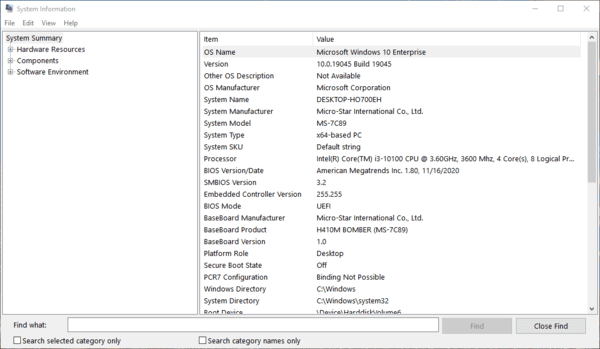
Press Windows + R.
Type dxdiag.
Press Enter.
Open the System tab.
Check the DirectX version.
Open the Display tab and review your graphics device information.
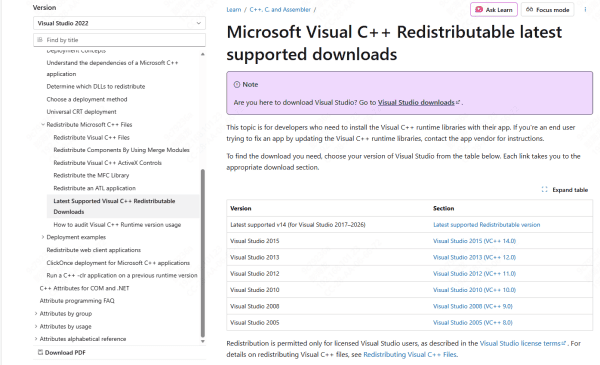
If you encounter a Microsoft Visual C++ runtime error, download the supported redistributable package from Microsoft's official website.
Install or repair the appropriate package and restart Windows.
Method 6: Check Windows Updates and System Stability
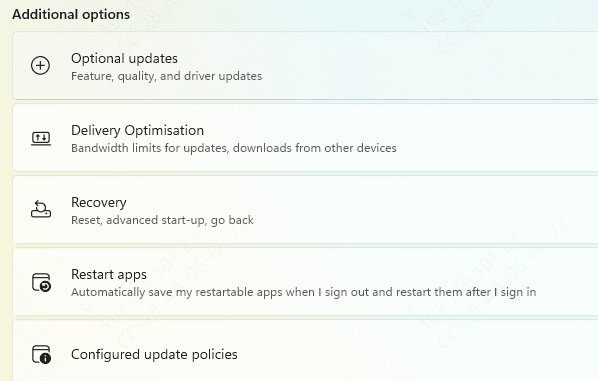
Press Windows + I to open Settings.
Select Windows Update on Windows 11, or Update & Security > Windows Update on Windows 10.
Click Check for updates.
Install relevant available updates.
Restart your computer.
You should also check whether your computer is overheating during gameplay.
Conclusion
Star Wars Zero Company crashing on PC can be frustrating, especially when the game closes unexpectedly during tactical missions or fails to launch.
If you suspect driver-related problems, Driver Talent X can help check for supported Windows driver updates and repair options. For game-specific compatibility fixes, always consult your GPU manufacturer's official driver releases.
If crashes continue, check DirectX components, Windows updates, and overall system stability. Following these methods can help you identify the cause and improve your chances of running Star Wars Zero Company smoothly on Windows 10 or Windows 11.
