Are you experiencing low FPS in The Forever Winter? The game may feel sluggish during combat, stutter while exploring large environments, or suffer sudden frame drops when multiple enemies appear on screen. These performance problems can make aiming, movement, and survival more difficult.
The Forever Winter is a demanding PC game, and its performance can vary depending on hardware capabilities, graphics settings, driver compatibility, and game optimization. Even computers that meet the minimum requirements may experience occasional stuttering or inconsistent frame rates.
Why Is The Forever Winter Running at Low FPS?
Outdated or incompatible graphics drivers.
Graphics settings that exceed hardware capabilities.
High rendering resolution or excessive resolution scaling.
Limited available video memory.
Method 1: Optimize The Forever Winter Graphics Settings
Shadows: Lower shadow quality to reduce rendering workload.
Post-processing: Reduce demanding visual effects.
Textures: Select a quality level appropriate for your available VRAM.
View Distance: Lower the setting if supported.
Effects Quality: Reduce demanding combat and environmental effects.
Anti-aliasing: Test a less demanding option when available.
Method 2: Adjust Resolution and Upscaling Settings
Higher resolutions require more GPU processing power, which can reduce FPS on systems with limited graphics performance.
If The Forever Winter runs poorly at your monitor's native resolution, try lowering the rendering resolution or resolution scale.
If the game offers supported upscaling technologies such as NVIDIA DLSS or AMD FSR, test the available options.
A Quality or Balanced preset may provide a useful compromise between image clarity and performance.
Avoid using excessively aggressive upscaling settings if they make distant objects difficult to see.
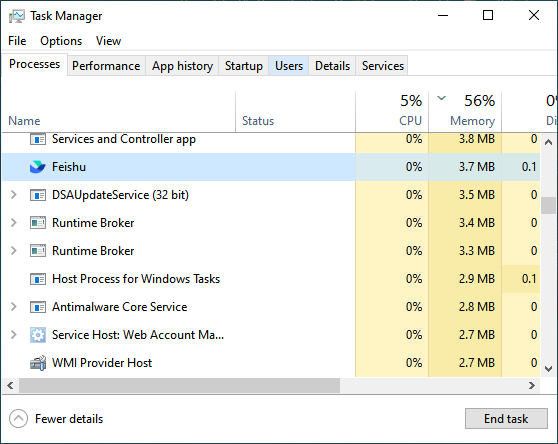
Method 3: Close Resource-Heavy Background Applications
Press Ctrl + Shift + Esc.
Open Task Manager.
Select Processes.
Review CPU, Memory, and GPU usage.
Close unnecessary applications consuming significant resources.
Restart the game.
Method 4: Enable Windows High-Performance Settings
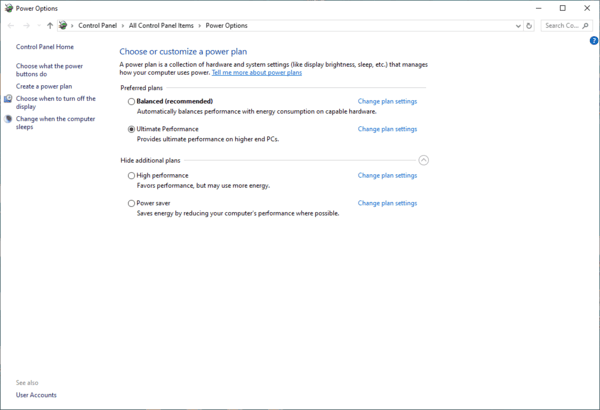
Windows power management settings can influence CPU and GPU performance.
On some computers, power-saving configurations may limit hardware performance to reduce energy consumption.
Adjust Windows Power Mode
Press Windows + I.
Open System > Power & battery or the available power settings.
Locate Power mode.
Select Best performance if supported.
Restart The Forever Winter.
On laptops, connect the power adapter when gaming.
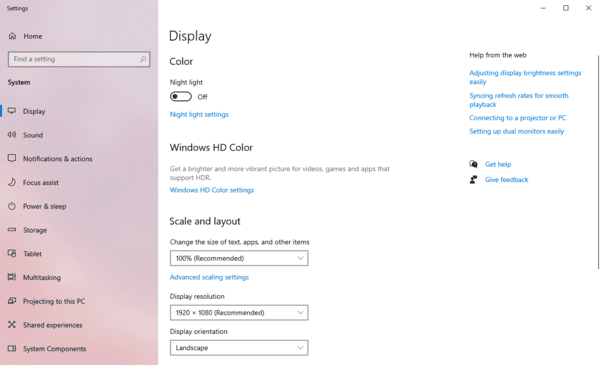
Select the High-Performance GPU
Open Settings.
Select System > Display > Graphics.
Locate or add The Forever Winter.
Open its graphics preferences.
Select High performance if available.
Save the changes.
Restart the game and compare FPS.
Method 5: Verify The Forever Winter Game Files
Corrupted or missing game files can cause loading problems, unusual stuttering, and other unexpected behavior.
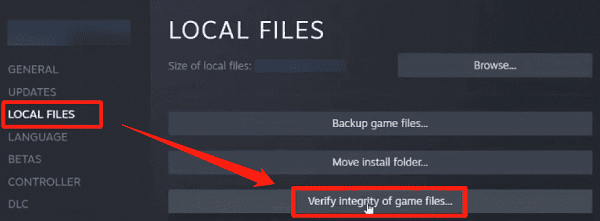
Steam includes a verification feature that checks installed files and replaces damaged or missing content.
To verify The Forever Winter:
Open Steam.
Go to Library.
Right-click The Forever Winter.
Select Properties.
Open Installed Files.
Click Verify integrity of game files.
Wait for Steam to complete the process.
Method 6: Update Graphics Drivers for Better Compatibility
Graphics drivers play an important role in game rendering, frame pacing, and hardware compatibility.
If your installed driver is outdated or incompatible with the current game version, The Forever Winter may experience stuttering, rendering errors, or inconsistent performance. Updating to an appropriate driver version is a useful starting point when performance problems affect multiple games.
Update Drivers with Driver Talent X
Driver Talent X is a Windows driver management utility that can identify supported missing, outdated, or problematic drivers.
It provides an additional way to check graphics and other relevant system drivers.
Download Driver Talent X.
Install and launch the software.
Click Scan to examine your computer.
Review the detected graphics driver issues.
Install an appropriate compatible update if available.
Restart Windows.

Driver Talent X can assist with supported driver issues, but it cannot guarantee higher FPS when the main limitation is hardware performance or game optimization.
Update Graphics Drivers Manually
You can also download compatible graphics drivers directly from NVIDIA, AMD, or Intel.
Identify your graphics card model and select the correct driver for your Windows version.
If performance became worse immediately after a graphics driver update, consider returning to a previously stable version.

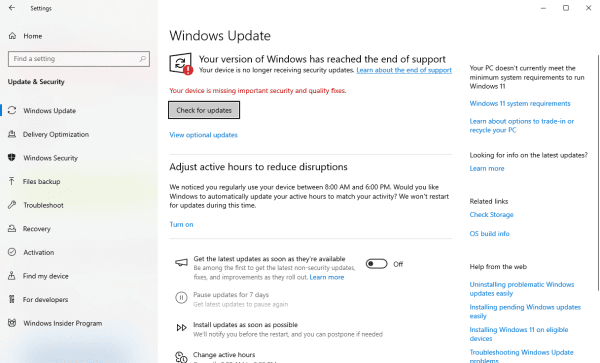
Method 7: Update Windows
Open Settings.
Select Windows Update.
Click Check for updates.
Install applicable updates.
Restart Windows.
Frequently Asked Questions
Why does The Forever Winter stutter even when my average FPS is good?
Average FPS can hide brief delays between frames. Watch a frame-time graph while repeating the same route. Spikes that coincide with visible pauses point to inconsistent frame delivery.
Can a lower FPS cap make The Forever Winter feel smoother?
Yes, if the game frequently jumps between high and low frame rates. Try a cap your PC can sustain during combat. It can improve consistency, though it won't prevent dips below the cap.
Does frame generation fix low FPS in The Forever Winter?
If your setup supports it, frame generation can make motion look smoother, but it won't make a low base frame rate feel as responsive as a higher one. Improve your base FPS first, then test whether frame generation feels better in combat.
Conclusion
Low FPS in The Forever Winter can result from demanding graphics settings, outdated drivers, limited hardware resources, or background applications. Start by lowering graphics settings, adjusting resolution, and closing unnecessary programs. If performance issues persist, update Windows, verify game files, or use Driver Talent X to check for compatible graphics driver updates. These steps can help reduce stuttering, improve frame rates, and deliver a smoother gaming experience.