

Updating ASUS drivers regularly is important for keeping your laptop or desktop stable, compatible, and performing at its best. Outdated, missing, or corrupted drivers can cause problems such as Wi-Fi failures, audio issues, graphics errors, Bluetooth problems, and system slowdowns. This guide explains several ways to update ASUS drivers on Windows 10, including downloading drivers from ASUS Support, using Windows tools, and automatically updating drivers with Driver Talent X.
Manually Download ASUS Drivers from the Official Website
If you prefer to download drivers manually or need a specific version of a driver, you can go directly to the ASUS support page.
Go to the ASUS Support Website: Navigate to the ASUS Support page
Search for Your Device: Enter your device model or serial number to find your specific device
Select Your OS: Choose Windows 10 from the dropdown menu
Download the Drivers: Browse the list of available drivers (e.g., Graphics, Audio, Network) and download the latest versions
Install the Drivers: After downloading, open the files and follow the on-screen instructions to install them
Restart Your Device: After installation, restart your laptop or desktop to apply the updates

Use Driver Talent X
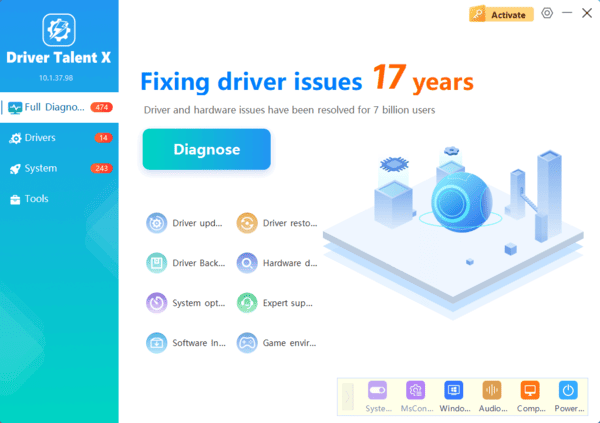
For a more automated approach, third-party tools like Driver Talent X can scan your entire system and install updates for all outdated drivers at once, including ASUS drivers.
Download Driver Talent X: Visit the Driver Talent X website and download the software
Scan for Outdated Drivers: Launch the tool and click Scan to detect outdated or missing drivers
Install the Updates: Once the scan is complete, select the drivers you want to update and click Repair Now
Restart Your Device: After the updates are installed, restart your system to complete the process
Use Device Manager to Update ASUS Drivers
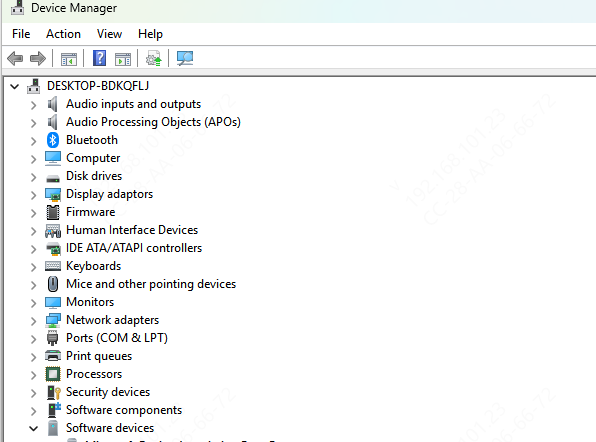
Windows 10's Device Manager tool is a quick way to manually update individual drivers for specific devices on your ASUS laptop or desktop.
Open Device Manager: Right-click the Start Menu and select Device Manager
Find Your Device: Look for the device you want to update (e.g., Display Adapters, Network Adapters, Sound)
Update Driver: Right-click the device and choose Update Driver
Search for Updates: Select Search automatically for updated driver software
Install the Driver: If Windows finds an update, it will automatically install it
Restart Your Device: Restart the system to apply the changes
Update ASUS Drivers Using Windows Update
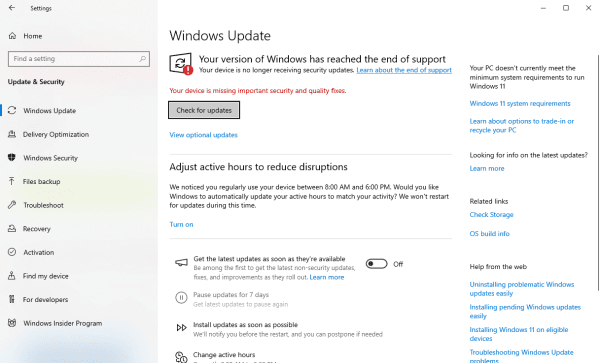
Windows Update is a simple method to check and install available driver updates for your ASUS system.
Open Settings: Click the Start Menu and go to Settings
Go to Update & Security > Windows Update
Check for Updates: Click Check for Updates. If any driver updates are available, they will show up as Optional Updates
Install Updates: Select the updates and click Install
Restart Your Device: After installation, restart your system to finalize the updates
Conclusion
Regularly updating your ASUS drivers ensures your device operates at peak performance and minimizes issues like device malfunctions, crashes, and system slowdowns. Whether you prefer using ASUS Live Update, Windows Update, Device Manager, or third-party tools like Driver Talent X, there are several methods to keep your system up to date. Following the steps outlined in this guide will help ensure your ASUS laptop or desktop stays optimized and runs smoothly for years to come. By focusing on updating your drivers, you'll maintain a secure, stable, and efficient system. Take advantage of these methods to keep your ASUS device in top condition and enjoy improved performance, enhanced security, and better overall functionality.
