

Keeping HP printer drivers updated helps prevent printing failures, connection problems, and compatibility issues with Windows. Although HP Support Assistant and the official HP website provide reliable driver downloads, they may sometimes involve detection errors, slow installations, or manual steps. A driver management tool like Driver Talent X offers a simpler alternative by automatically scanning for outdated or missing printer drivers and installing the correct versions. Whether you update through HP tools, download drivers manually, or use automatic software, maintaining current drivers is essential for stable and efficient printer performance.
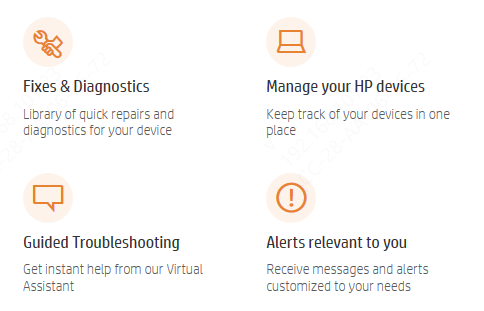
Update Drivers through HP Support Assistant
Once the program is running, head to the Home or My Devices tab
Select Updates or Check for updates and messages to allow the tool to scan your system
The assistant will then review your hardware and identify any drivers that are out of date
When the update list appears, choose the drivers you want to refresh and click Download and Install
After the updates finish installing, restart your computer if the tool recommends it
Manual Driver Installation from the HP Website
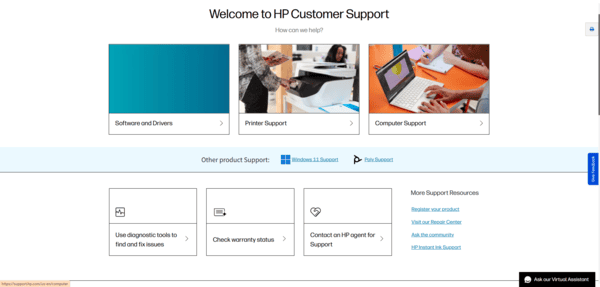
Go to HP Support: Open the official HP Support website in your browser
Search for Your Printer: Enter your printer model in the search field to access its support page
Navigate to the Driver Section: Select Drivers & Downloads, then choose your operating system (e.g., Windows 11)
Download the Driver Package: Find the most recent driver version listed and download the installer file
Install the Driver: Run the downloaded file and follow the on-screen steps to finish installing the driver on your computer
Using an Automated Driver Tool
Using an automated driver tool like Driver Talent X is one of the quickest and most convenient ways to resolve HP printer driver issues from beginning to end.
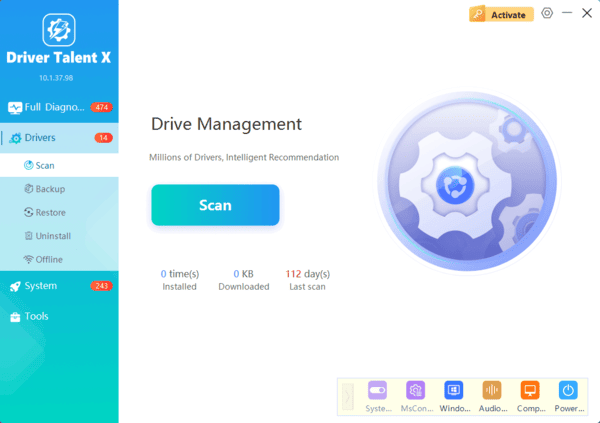
Download and install Driver Talent X
Click the "Download" button and run the setup file on the Windows PC where the printing problem occurs. After installation, open the program and start a system scan. Driver Talent X will analyze your printer, USB interfaces, network adapters, and other components to detect outdated, missing, or faulty drivers.
Update the Drivers
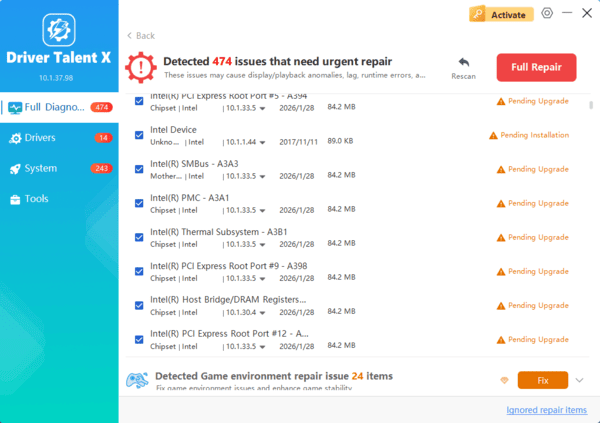
When the scan completes, choose "Repair Now" or "Update," and the tool will automatically retrieve and install the correct HP printer driver along with any additional driver updates your device requires.
Restart the PC
Finally, restart your computer to ensure all new drivers load properly. This process provides a simple and efficient way to restore full printing functionality without manual troubleshooting.
Troubleshooting Common Problems
First, check basic connections, network status, USB ports, and reboot both the PC and printer
If the HP Download and Install Assistant still fails, clear old driver packages, restart the Print Spooler, or reinstall the Full Feature driver. Wireless problems often require reconnecting the printer to Wi-Fi or fixing router settings
Windows updates may also cause compatibility conflicts, so reinstalling or rolling back drivers can help
Conclusion
The HP Download and Install Assistant is useful for downloading official drivers, but it can be limited by detection issues, manual steps, and compatibility problems. Driver Talent X provides a more powerful alternative by scanning your entire system, identifying every driver issue, and installing the correct HP printer drivers automatically. For anyone who wants a fast, reliable, and fully automated way to update HP printer drivers, Driver Talent X offers a better and more efficient solution.
