Valor Mortis is a first-person action Soulslike developed by One More Level, featuring intense combat, supernatural abilities, and an atmospheric world inspired by Napoleonic history. However, unexpected crashes can make it difficult to enjoy the experience, especially when the game closes during combat, freezes while loading, or refuses to launch.
If Valor Mortis keeps crashing on Windows, the problem may be related to graphics drivers, corrupted game files, demanding graphics settings, or unstable hardware configurations. This guide explains the possible causes of Valor Mortis crashing and walks you through practical solutions to improve stability.
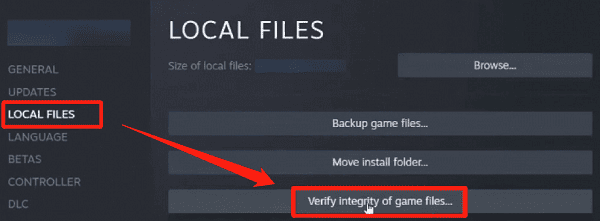
Fix 1: Verify the Integrity of Game Files
Open Steam.
Navigate to your Library.
Right-click Valor Mortis.
Select Properties.
Open Installed Files.
Click Verify integrity of game files.
Wait for the verification process to finish before launching the game.
If Steam replaces damaged files, restart the game and check whether the crashes continue.
Fix 2: Lower Graphics Setting
Start by lowering texture quality, shadows, and other demanding visual settings.
You can also reduce the display resolution or enable a supported upscaling option.
If the game runs at an unusually high frame rate, setting a reasonable FPS limit may help reduce sustained GPU load.
For troubleshooting, try using the Low or Medium graphics preset.
Fix 3: Update Your Graphics Drivers
Graphics drivers play an important role in how games communicate with the GPU. Driver bugs or compatibility problems can sometimes cause freezing, black screens, and crashes.
Option A: Update Graphics Drivers Manually
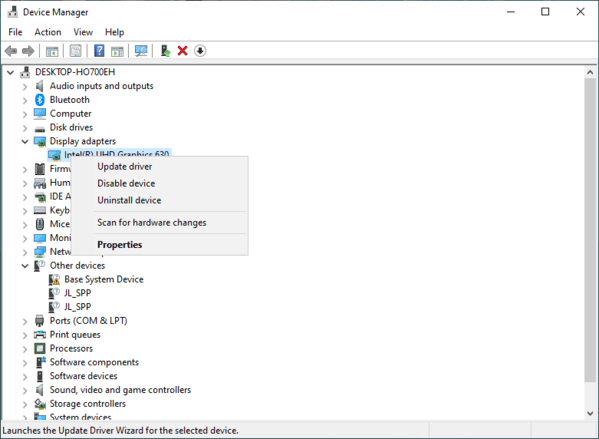
Right-click the Start button and select Device Manager.
Expand Display adapters.
Right-click your NVIDIA, AMD, or Intel graphics card.
Select Update driver.
Choose Search automatically for drivers.
Restart your computer if an update is installed.
Alternatively, visit the official GPU manufacturer's website and download a compatible driver for your graphics card.
Manufacturer websites may offer newer gaming-specific drivers than those available through Device Manager.
Option B: Update Drivers with Driver Talent X
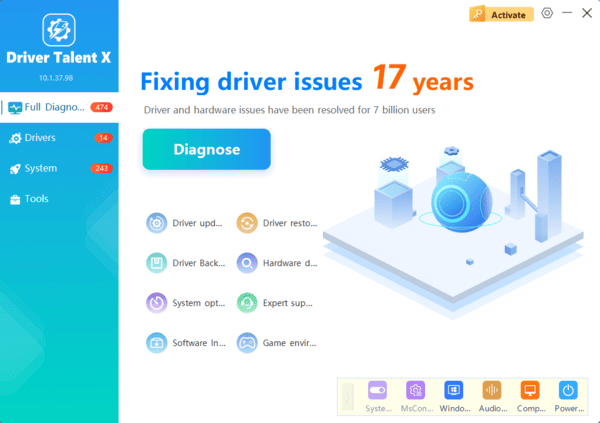
If you prefer an automated way to check supported driver issues, Driver Talent X provides another option.
The software can scan your computer for certain outdated, missing, or problematic drivers and display available update recommendations.
Download Driver Talent X.
Install and launch the application.
Click Scan to check your system.
Review the detected graphics driver issues.
Install a compatible driver update if available.
Restart Windows and launch Valor Mortis again.
Fix 4: Disable Overlays and Background Application
Open your Steam Library.
Right-click Valor Mortis
Select Properties.
Open the General section.
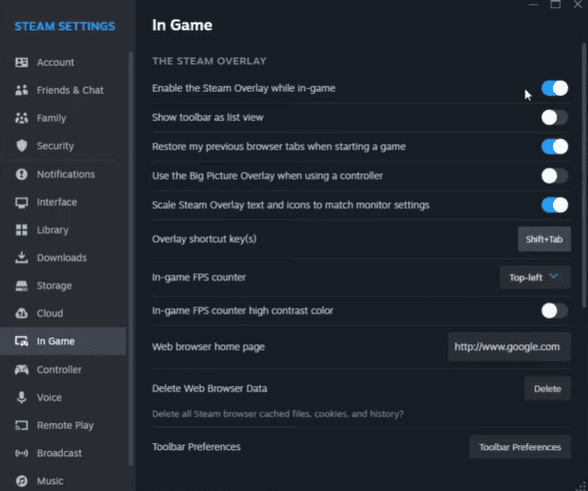
Turn off Enable the Steam Overlay while in-game.
Next, close unnecessary background applications through Task Manager.
Fix 5: Check RAM and Virtual Memory
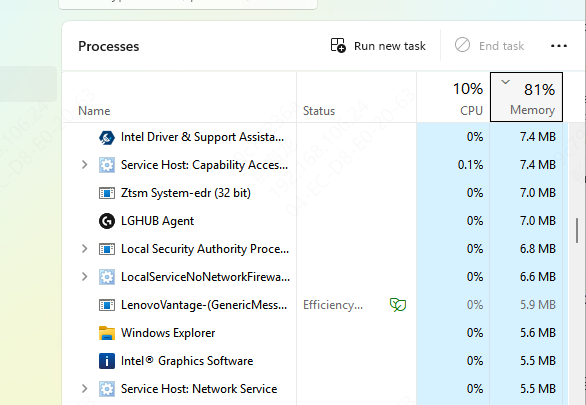
Open Task Manager using Ctrl + Shift + Esc and select the Performance tab.
Check memory usage while the game is running.If RAM usage is consistently high, close unnecessary browser tabs, recording tools, and other background applications.
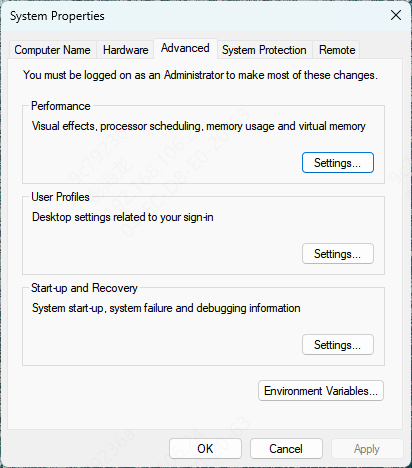
You should also check your Windows virtual memory configuration.
Press Windows + R.
Type sysdm.cpl and press Enter.
Open the Advanced tab.
Under Performance, select Settings.
Choose Advanced > Virtual memory > Change.
Check whether Automatically manage paging file size for all drives is enabled
Fix 6: Update Windows
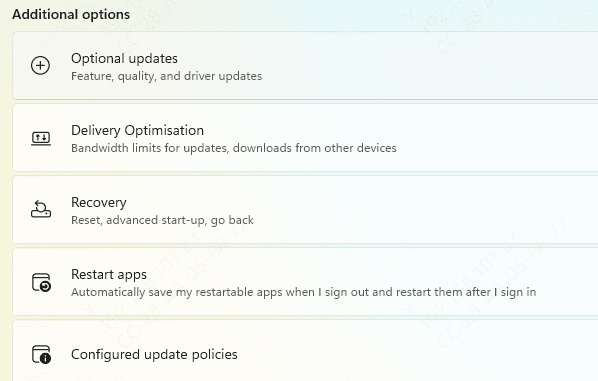
Outdated Windows components can sometimes contribute to application instability.
Open Settings > Windows Update and install applicable updates.
Restart your computer after installation.
Fix 7: Reset Valor Mortis Settings or Reinstall the Game
First, close Valor Mortis completely.
Press Windows + R and enter:
%LOCALAPPDATA%\ValorMortis\Saved\Config\Windows
Locate the file named:
GameUserSettings.ini
Back up the file, then rename it to GameUserSettings.old.
Launch Valor Mortis again and allow the game to regenerate its settings if supported.
Conclusion
To troubleshoot Valor Mortis crashing on Windows, update graphics drivers, verify game files, and check system requirements. If crashes persist, lower graphics settings, disable overlays, and check hardware stability. Driver Talent X offers an optional way to check supported driver issues. Back up your saves before reinstalling the game.