You join a Discord voice channel, your friends start talking, and their profile icons light up. Everything appears normal, except you cannot hear a single word.
Strangely, your microphone might still work. Other people can hear you, games play sound normally, and YouTube videos have no audio problems. So why can't you hear anyone on Discord? Instead of changing random settings, use the following troubleshooting process to identify where Discord audio stops working.
Discord Might Be Sending Voices to the Wrong Device
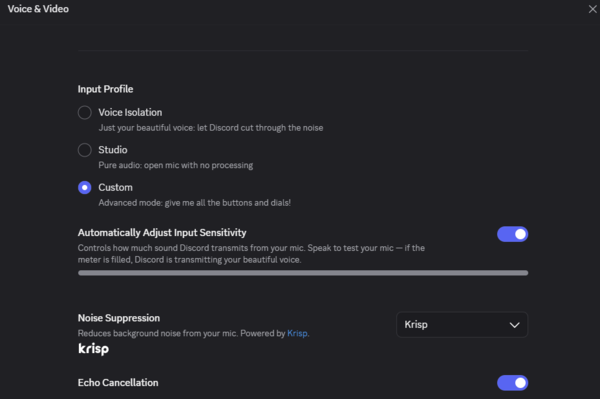
Launch Discord.
Click the gear icon to open User Settings.
Select Voice & Video.
Find Output Device.
Choose your active headphones or speakers.
Increase Output Volume.
Return to the voice channel and test the sound.
Check Whether Windows Has Muted Discord
Right-click the speaker icon on the Windows taskbar.
Open Volume mixer.
Locate Discord in the application list.
Make sure its volume is not muted or set too low.
Confirm that the selected output device is correct.
What If You Can Hear Discord Sounds but Not People Talking?
Right-click a speaking user's name and make sure their individual volume is not set too low.
Next, open User Settings > Voice & Video and review the output device and volume.
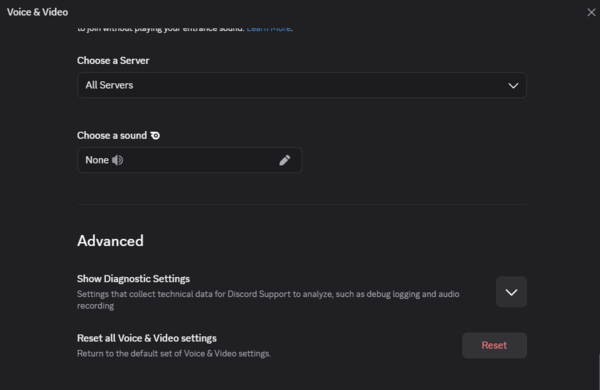
If everything appears correct, reset Discord's voice settings.
Scroll down in the Voice & Video section and select Reset Voice Settings, if available.
Confirm the reset, then configure your microphone and speakers again.
Your Audio Driver Could Be Causing the Problem
If Discord suddenly stops playing voice audio after a Windows update, driver installation, or hardware change, the issue may involve your audio driver.
Windows relies on audio drivers to communicate with sound cards, USB headsets, and other playback devices A corrupted or incompatible driver can lead to missing audio, device detection problems, or unstable playback.
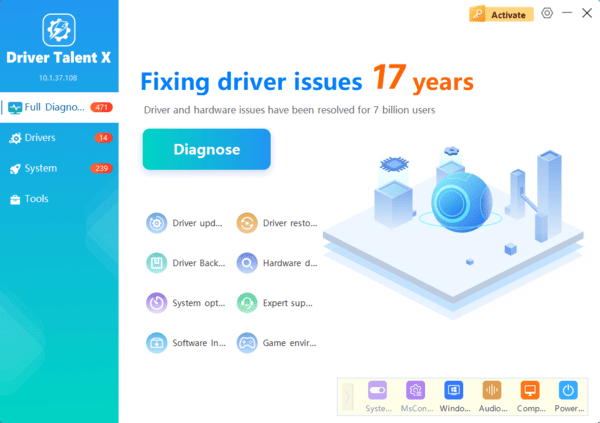
Check Audio Drivers with Driver Talent X
Driver Talent X provides an additional way to identify supported missing, outdated, or problematic Windows drivers.
If you suspect that an audio driver is responsible for Discord's sound problem, you can use it to check your computer.
Download Driver Talent X.
Install and open the application.
Click Scan to examine your system.
Review any detected audio driver problems.
Install appropriate compatible updates when available.
Restart your computer.
Prefer a Manual Driver Update?
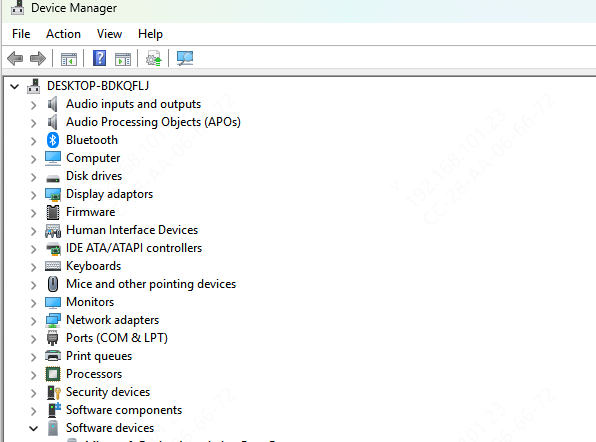
You can also use Device Manager.
Press Windows + X, select Device Manager, and expand Sound, video and game controllers.
Right-click the relevant audio device and select Update driver.
Bluetooth Headset Connected, but Discord Is Still Silent?
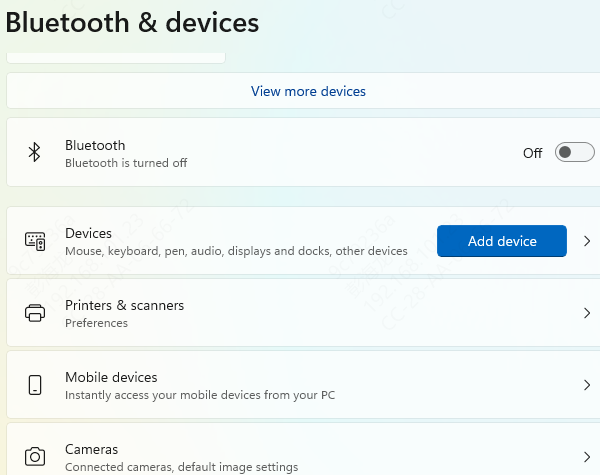
Disconnect the headset from Windows.
Reconnect it and confirm the connection status.
Open Windows Sound settings.
Select the appropriate Bluetooth headset output.
Open Discord's Voice & Video settings.
Select the corresponding output device.
Test the voice channel.
Audio Enhancements Can Sometimes Interfere
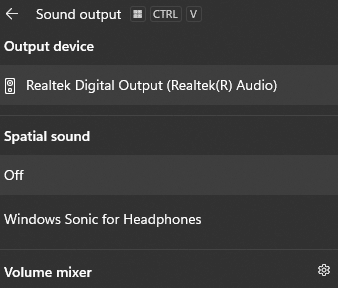
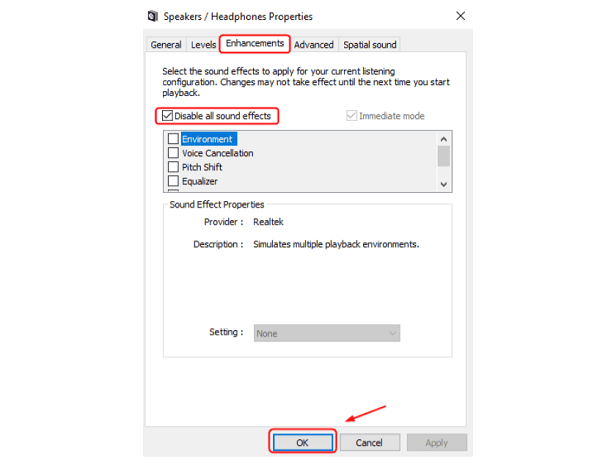
Open Windows Settings > System > Sound.
Select your active playback device.
Locate the available audio enhancement options.
Temporarily disable enhancements.
Disable spatial sound for testing if it is enabled.
Restart Discord.
Discord Voice Audio Still Missing? Refresh the Application
Close Discord, then check the Windows system tray to make sure the application is no longer running.
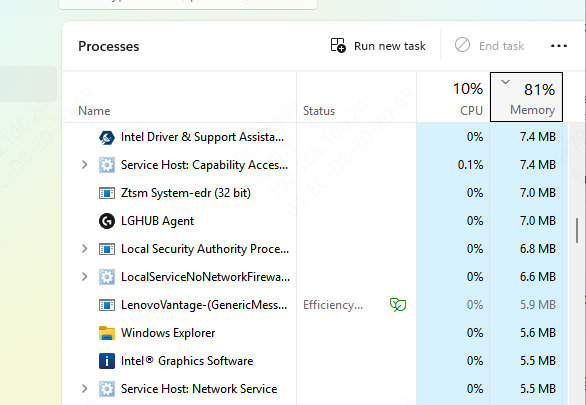
If necessary, open Task Manager and close any remaining unresponsive Discord processes.
Launch Discord again and allow available updates to install.
Return to your voice channel and test the audio.
Frequently Asked Questions
Why Can I Hear YouTube but Not Discord?
YouTube and Discord may use different output devices or application volume settings.
Check Discord's Voice & Video settings and Windows Volume Mixer.
Does Reinstalling Discord Fix Voice Chat Audio?
Reinstalling Discord may help if its installation is damaged, but it should not be your first troubleshooting step.
Check output devices, volume settings, and audio drivers before reinstalling.
Can Audio Drivers Stop Discord from Working?
Yes. Corrupted or incompatible audio drivers can cause playback problems in Discord and other applications.
Installing a compatible driver may help when the issue is related to Windows audio hardware communication.
Final Thoughts
When you cannot hear anyone on Discord, the most useful starting point is determining whether the problem affects Discord alone or your entire computer.
If other applications play sound normally, check Discord's output device, individual user volumes, and Windows Volume Mixer first. For persistent problems, review voice settings, Bluetooth connections, and audio enhancements.
If the issue began after a Windows or driver update, checking compatible audio drivers may help. Driver Talent X provides an additional option for investigating supported driver issues.
By identifying the exact source of the audio problem, you can restore Discord voice chat without making unnecessary changes to your computer.