Have you ever wondered why my laptop screen goes white suddenly while working, gaming, or starting Windows? A laptop white screen can appear without warning, leaving the display completely blank even though the computer is still running.
Fortunately, some laptop white screen problems can be resolved through basic troubleshooting. This guide explains the common causes and provides practical solutions for Windows 10 and Windows 11.
Why Does My Laptop Screen Go White?
Outdated, corrupted, or incompatible graphics drivers.
Loose or damaged internal display cables.
Faulty LCD or OLED display panels.
Incorrect display resolution or refresh rate settings.
Windows update compatibility problems.
Overheating or unstable graphics hardware.
Conflicting startup applications.
Damaged Windows system files.
GPU or motherboard-related hardware failures.
Method 1: Restart the Laptop and Disconnect External Devices
Temporary system errors can sometimes interrupt normal display output. Restarting the laptop may restore the display if the problem is caused by a frozen application or temporary graphics issue.
Follow these steps:
Save your work if the computer is still responsive.
Disconnect unnecessary USB devices and external accessories.
Restart the laptop normally if possible.
If the system is completely unresponsive, hold the power button until it shuts down.
Wait briefly before turning the laptop on again.
Method 2: Reset the Graphics Driver
Windows includes a keyboard shortcut that can restart the graphics driver without rebooting the entire computer. This method is useful when the screen suddenly turns white while Windows is running.
Press the following keys simultaneously: Windows + Ctrl + Shift + B
The screen may briefly flicker, and Windows may produce a notification sound.
Wait several seconds to see whether the display returns to normal.
Method 3: Test the Laptop with an External Monitor
Connecting an external display is one of the most useful ways to distinguish a laptop screen problem from a broader graphics issue.
Follow these steps:
Connect the laptop to an external monitor or television.
Use a compatible HDMI, DisplayPort, or USB-C connection.
Turn on the external display.
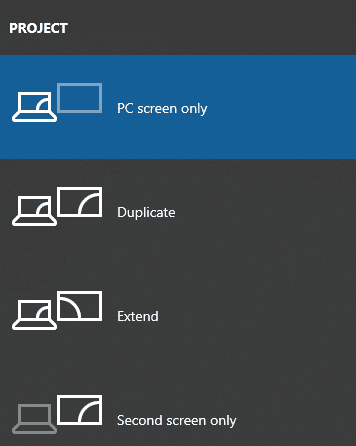
If Windows is responsive, press Windows + P.
Select an appropriate display mode.
Method 4: Update or Reinstall Graphics Drivers
Graphics drivers allow Windows to communicate with the laptop's integrated or dedicated graphics hardware.
If a driver becomes corrupted or incompatible, the laptop may experience white screens, display flickering, crashes, or other visual problems.
Checking graphics drivers is particularly useful when the problem begins after a Windows update or graphics driver installation.
Update Graphics Drivers with Driver Talent X
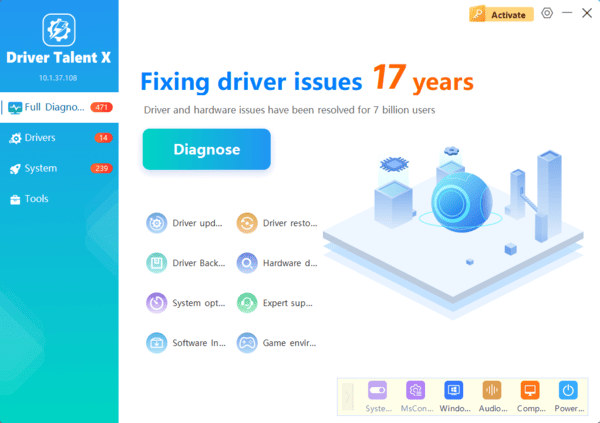
Driver Talent X is a Windows driver management utility that can identify supported missing, outdated, or problematic drivers.
It provides an additional way to check graphics driver issues on compatible Windows computers.
Download Driver Talent X.
Install and launch the application.
Click Scan to examine your computer.
Review the detected graphics driver issues.
Install an appropriate compatible driver update if available.
Restart Windows.
Update Graphics Drivers Manually
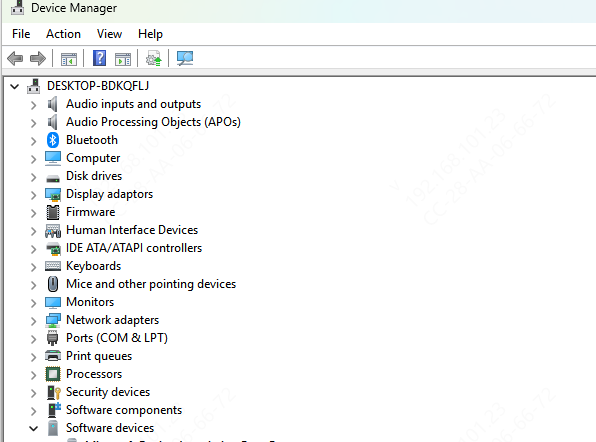
Press Windows + X.
Select Device Manager.
Expand Display adapters.
Right-click your graphics device.
Select Properties.
Open the Driver tab.
Review the available driver options.
Install the driver and restart Windows.
Method 5: Start Windows in Safe Mode
Safe Mode starts Windows with a limited set of drivers and services.
It can help determine whether the white screen is caused by graphics drivers, startup applications, or other software conflicts.
To enter Safe Mode:
Open the Windows recovery options.
Select Advanced startup.
Click Restart now.
Choose Troubleshoot.
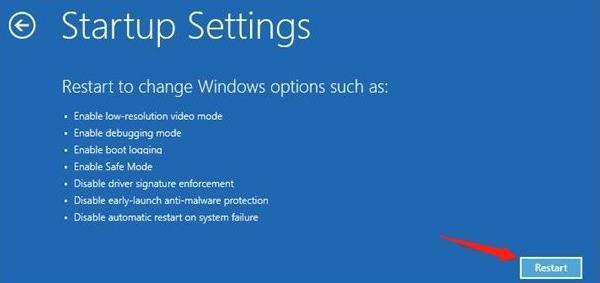
Open Advanced options > Startup Settings.
Select Restart.
Press the appropriate key to enable Safe Mode.
If you cannot access Windows normally, use the supported Windows Recovery Environment startup procedure.
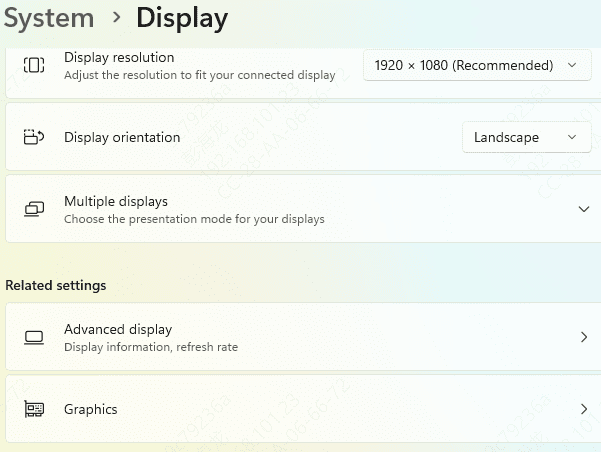
Method 6: Check Windows Display Settings
Incorrect display settings may contribute to certain display problems, especially after connecting external monitors or changing graphics drivers.
Open Settings.
Select System > Display.
Locate Display resolution.
Choose the recommended resolution.
Open Advanced display.
Review the available refresh rates.
Select a supported setting.
Method 7: Repair Windows System Files
Corrupted Windows system files can cause unexpected system behavior, including some display and startup problems.
Windows includes built-in tools for checking and repairing system files.
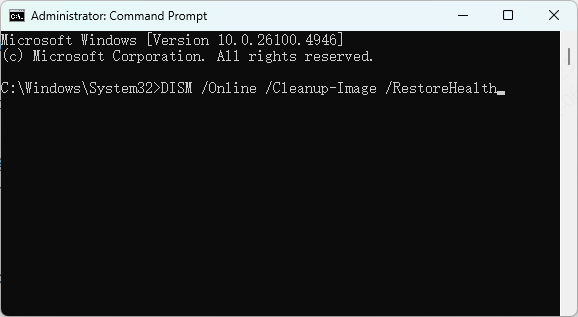
Open Command Prompt as administrator and run:
DISM /Online /Cleanup-Image /RestoreHealth
Wait for the process to finish.
Then enter:
sfc /scannow
Method 8: Uninstall Recent Windows Updates or Use System Restore
Sometimes, laptop white screen problems begin immediately after a Windows update or software installation.
If the timing suggests a software conflict, review recent system changes.
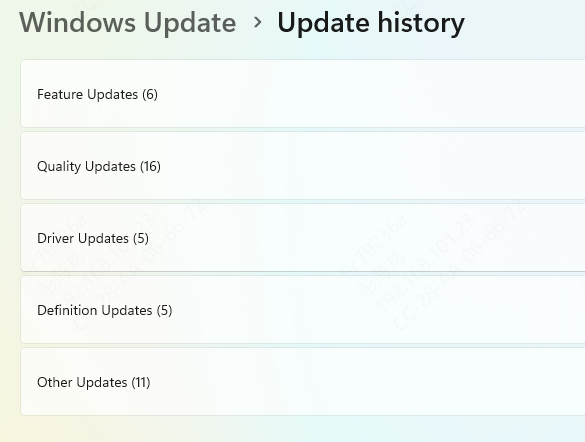
To check update history:
Open Settings.
Select Windows Update.
Open Update history.
Review recently installed updates.
Check whether an uninstall option is available for the suspected update.
Uninstalling a security update can expose your computer to known vulnerabilities, so use this option only when there is a clear reason and consider available fixes first.
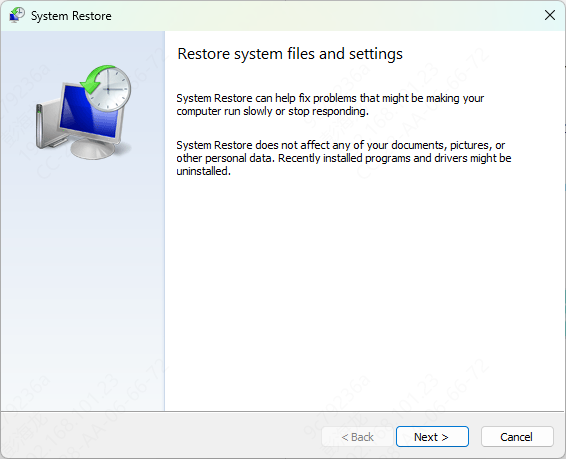
You can also use System Restore if a suitable restore point exists.
Press Windows + R, type rstrui.exe, and follow the instructions.
Method 9: Check BIOS/UEFI and Consider Hardware Repair
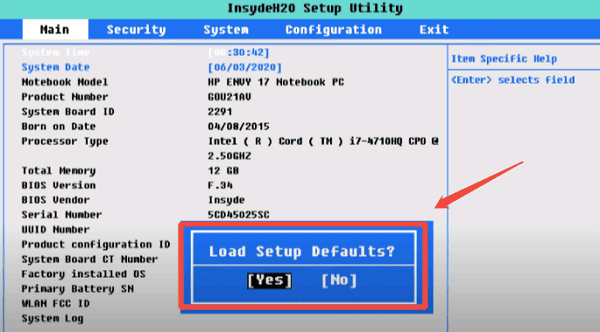
If the laptop screen remains white, check whether the problem occurs before Windows starts.
The BIOS or UEFI environment operates independently of the normal Windows desktop.
Restart the laptop and use the manufacturer's supported key or procedure to enter BIOS/UEFI.
Common access keys include F2, F10, F12, or Delete, depending on the laptop model.
Observe the screen without changing unrelated firmware settings.
Conclusion
A laptop screen going white may result from graphics driver problems, Windows configuration errors, overheating, or damaged display hardware.
Start by restarting the laptop, resetting the graphics driver, and testing an external monitor. If the issue continues, check display settings, repair system files, and review recent driver or Windows updates.
Driver Talent X provides an additional way to check supported graphics driver issues. However, if the screen remains white in BIOS/UEFI or shows signs of physical damage, professional hardware inspection may be necessary.