

Connecting a second monitor to your Acer laptop should be simple, but sometimes Windows fails to recognize the display, leaving you with a blank screen or a "No Signal" message. This can happen after a Windows update, a driver change, or an unexpected connection issue. Before assuming your monitor or laptop is faulty, there are several ways to identify and fix the problem. In this guide, you'll learn how to restore external monitor detection on Acer laptops by troubleshooting HDMI and USB-C connections, configuring display settings, updating graphics drivers with Driver Talent X, and checking for software conflicts.
Step 1: Check the Basics
Before diving into drivers or settings, start with simple checks:
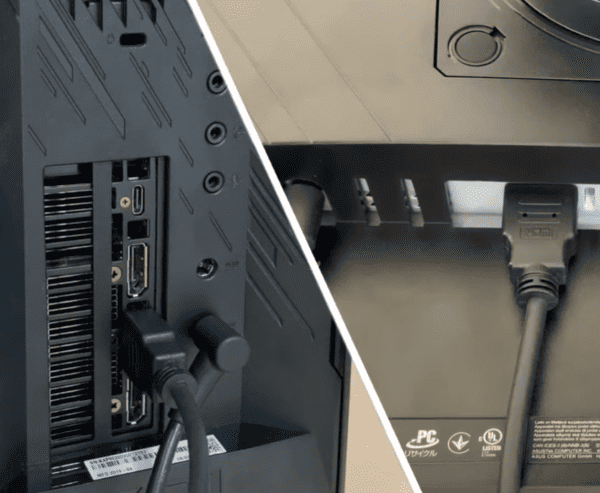
Verify Connections
Make sure the monitor is powered on
Check the cable connecting the laptop to the monitor (HDMI, DisplayPort, VGA, USB-C). A loose or damaged cable is often the culprit
Try a different cable or port if you have one available
Select the Correct Input on the Monitor
Monitors often have multiple input options. Use the monitor's menu to select the correct source (HDMI, DP, VGA)
Some monitors auto-detect input, but manual selection ensures your laptop output matches the monitor
Reboot Both Devices
Restart your laptop and power cycle the monitor
Sometimes a fresh start is all it takes to reset the connection
Step 2: Use Windows Display Settings
Windows sometimes fails to detect external monitors if display settings are misconfigured:
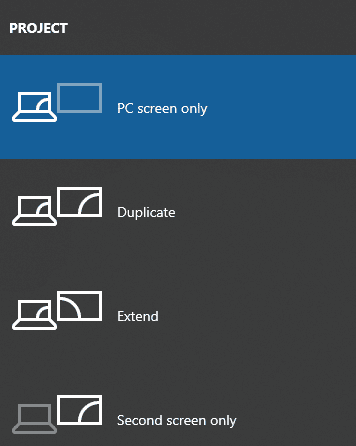
Press Windows + P
Select Duplicate or Extend. If nothing happens, try Second Screen Only
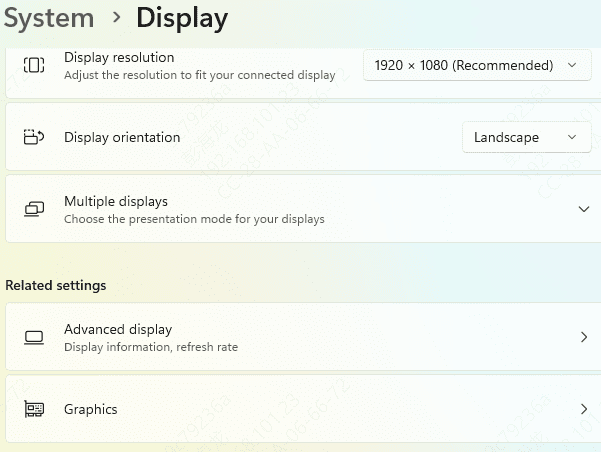
Go to Settings > System > Display > Multiple Displays
Click Detect to force Windows to search for external displays
Adjust resolution and refresh rate if the monitor still isn't detected
Step 3: Update Graphics Drivers
Driver issues are the leading cause of external monitor detection problems.
Manual Update
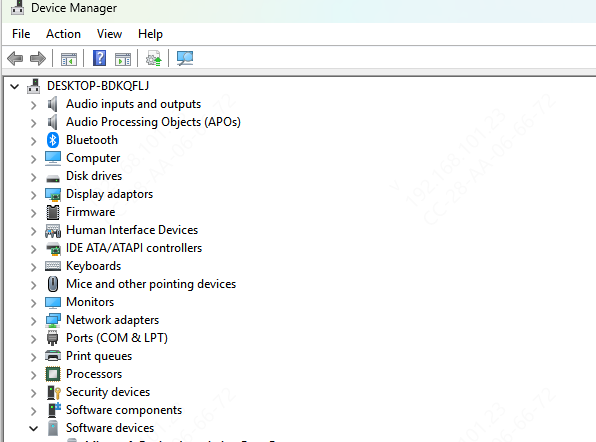
Open Device Manager → Display Adapters → Right-click GPU → Update driver → Search automatically
Restart your laptop after the update
Driver Talent X Method (Recommended)
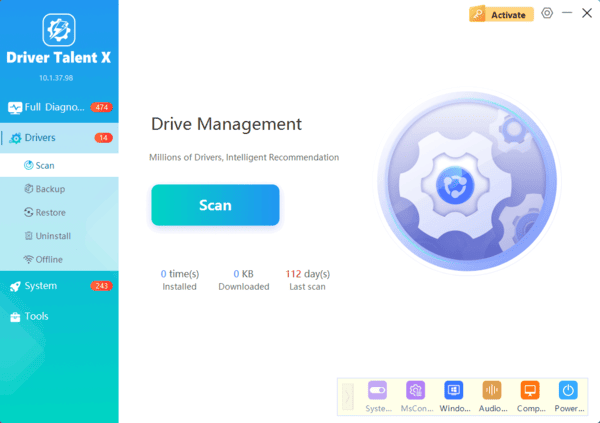
Download and install Driver Talent X
Open the app and click Diagnose. It scans your laptop for outdated, missing, or corrupted drivers, including graphics, USB, and chipset drivers
Click Repair or Update All to install the latest drivers automatically
Restart your laptop
Step 4: Check Display Adapter Settings
Sometimes, external monitors aren't detected because Windows or the GPU driver isn't configured properly:
Right-click the desktop → Display settings → Advanced display settings
Check that the external monitor appears
If not, open your GPU control panel (NVIDIA Control Panel or Intel Graphics Command Center)
For NVIDIA: Go to Display > Set up multiple displays and enable your external monitor
For Intel: Go to Display → Multiple Displays → Detect
Step 5: Test Safe Mode and System Restore
If the monitor still isn't detected:
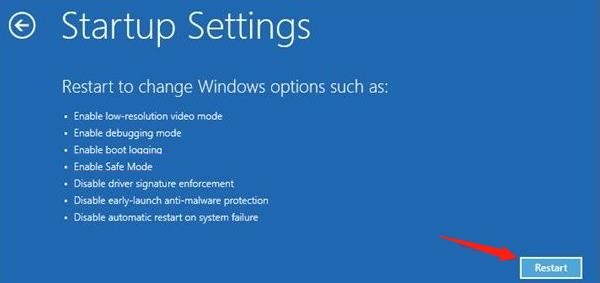
Safe Mode: Boot Windows into Safe Mode to rule out software conflicts. If the monitor works in Safe Mode, uninstall recently installed drivers or software that could be interfering
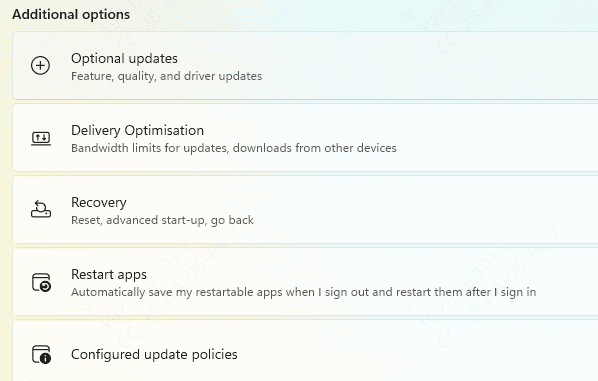
System Restore: Roll back Windows to a previous point where the external monitor was functioning
Settings → Update & Security → Recovery → Open System Restore
Long-Term Tips
Keep Drivers Updated: Regularly scan with Driver Talent X to ensure all drivers remain current
Avoid Faulty Hubs: Direct connections to the laptop ports are more reliable than third-party hubs or adapters
Check Windows Updates: Some cumulative updates improve display compatibility
Safe Handling: Avoid bending or stressing HDMI/DP/USB-C cables to prevent connection problems
Conclusion
An Acer laptop not detecting an external monitor is usually caused by driver conflicts, misconfigured display settings, or simple connection issues. By following these steps—checking cables and input sources, updating drivers with Driver Talent X, adjusting Windows display settings, and performing hardware checks—you can fix most external monitor problems without professional help.
Routine driver updates and proper handling ensure your Acer laptop and external monitors stay connected reliably, whether for work, gaming, or multimedia tasks.
