

Experiencing a black screen on your Asus laptop can be frustrating. Whether your laptop powers on but the display remains dark or the backlight fails to activate, understanding the root cause is essential before assuming a hardware failure. This guide will walk you through effective troubleshooting steps to fix an Asus laptop monitor not turning on, covering both software and hardware solutions.
Common Causes of Asus Laptop Screen Not Turning On
Power Supply Issues – A drained battery or faulty adapter can prevent the laptop from powering the screen
Display Settings Misconfiguration – Incorrect output mode or brightness settings can make the screen appear black
Hardware Problems – Damaged LCD panels, loose cables, or GPU issues can prevent the display from working
Driver or Software Conflicts – Outdated or corrupted display drivers can cause the monitor to fail during startup
BIOS or Firmware Problems – Misconfigured BIOS settings may prevent the display from activating
Preliminary Checks
Check Power Supply: Ensure your laptop is charged and the adapter is working properly
Adjust Brightness and Power Buttons: Make sure the brightness is not set to zero and the power button functions correctly
Disconnect Peripherals: Unplug external devices such as USB drives or docking stations that may interfere with booting
Method 1: Power Reset
A power reset can resolve temporary hardware glitches:
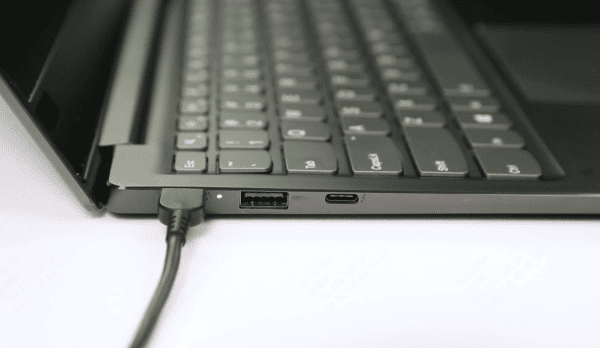
Turn off the laptop and unplug the power adapter
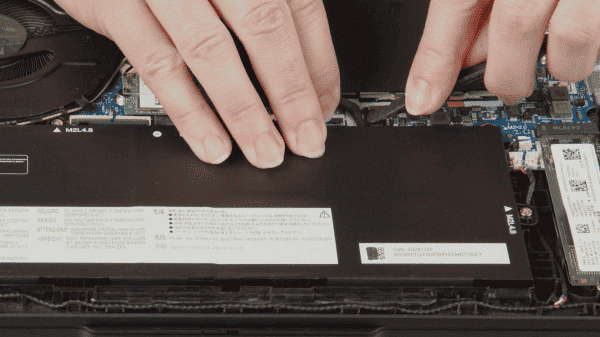
Remove the battery if it's removable
Press and hold the power button for 15–30 seconds to drain residual power
Reconnect the battery and adapter, then power on the laptop
Method 2: External Monitor Test
Testing with an external monitor helps determine whether the issue is with the laptop screen or GPU:
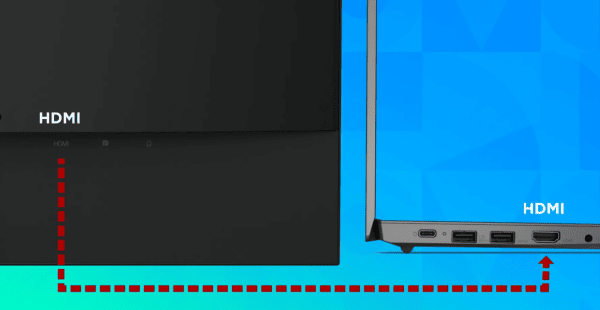
Connect your Asus laptop to an external monitor using HDMI, VGA, or DisplayPort
Turn on both devices
If the external monitor works, your laptop's internal screen or cable might be faulty
If the external monitor also doesn't display, the problem may lie in the GPU or motherboard
Method 3: Check Display Settings
Sometimes, the laptop may be outputting the display to an inactive screen:
Use Fn + F8 (or the corresponding key with a monitor icon) to toggle display modes
Boot into Safe Mode to bypass driver conflicts and verify the screen functions
Adjust brightness settings if the screen is too dim
Method 4: Update or Reinstall Display Drivers
Outdated or corrupted drivers are common causes of black screens:
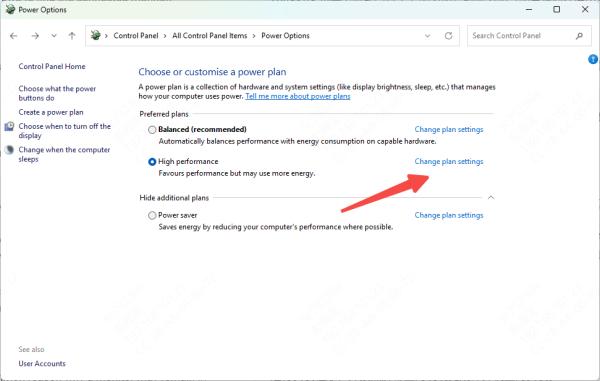
Download the latest display drivers from the Asus official support page
Install the drivers according to on-screen instructions

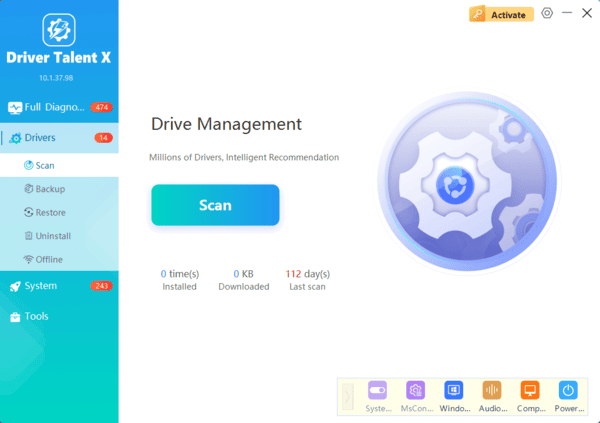
Optionally, use a tool like Driver Talent X to automatically scan, repair, and update all drivers, including your GPU and display drivers
Keeping drivers up-to-date resolves conflicts and improves system stability
Method 5: Reset BIOS/UEFI Settings
Incorrect BIOS settings can prevent the monitor from activating:
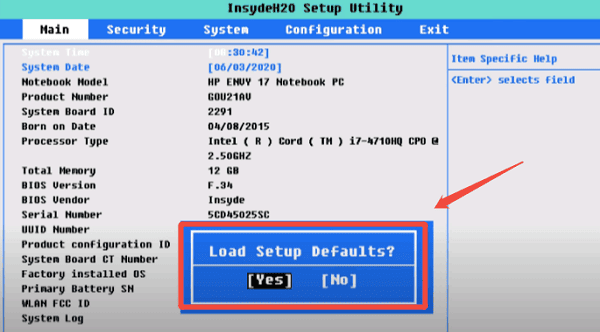
Restart your laptop and press F2 (or the key specified for your model) to enter BIOS/UEFI
Navigate to the Restore Defaults option
Save changes and exit BIOS
Reboot your laptop
Method 6: Hardware Inspection
If none of the software solutions work, the issue may be hardware-related:
Check the LCD cable connections inside the laptop. A loose or damaged cable can prevent the screen from turning on
Inspect for physical damage to the screen or GPU components
In laptops with removable RAM, reseating the memory modules may help, as improperly seated RAM can sometimes prevent the display from initializing
Preventive Tips for Asus Laptop Screen Issues
Regular Driver Updates – Keep your GPU and chipset drivers updated using Driver Talent X
Avoid Physical Shocks – Handle your laptop carefully and avoid drops or impacts
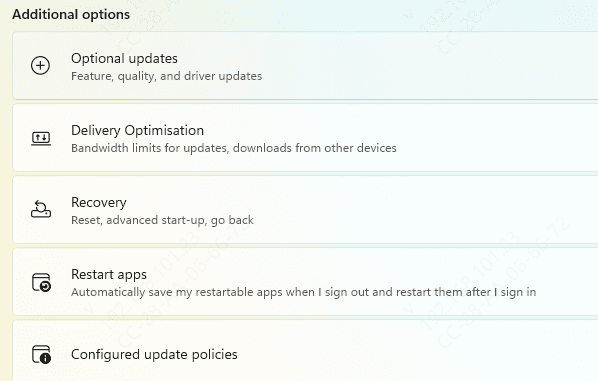
Keep BIOS and Windows Updated – Outdated firmware or OS updates may cause display conflicts
Use Surge Protectors – Protect your laptop from electrical surges that may damage internal components
Conclusion
A black screen on your Asus laptop doesn't always mean hardware failure. By systematically following these troubleshooting steps—from power resets and external monitor tests to driver updates and BIOS resets—you can often restore the display yourself. If hardware inspection becomes necessary, proceed carefully or consult a certified technician.
Maintaining updated drivers, BIOS, and proper care will keep your Asus laptop screen functioning smoothly for years to come.
